Can LM Studio Chat With PDFs Offline? What to Download First
You open LM Studio on a laptop with no internet and attach a long PDF. Does it read the whole file, and which parts of the setup still need a connection?
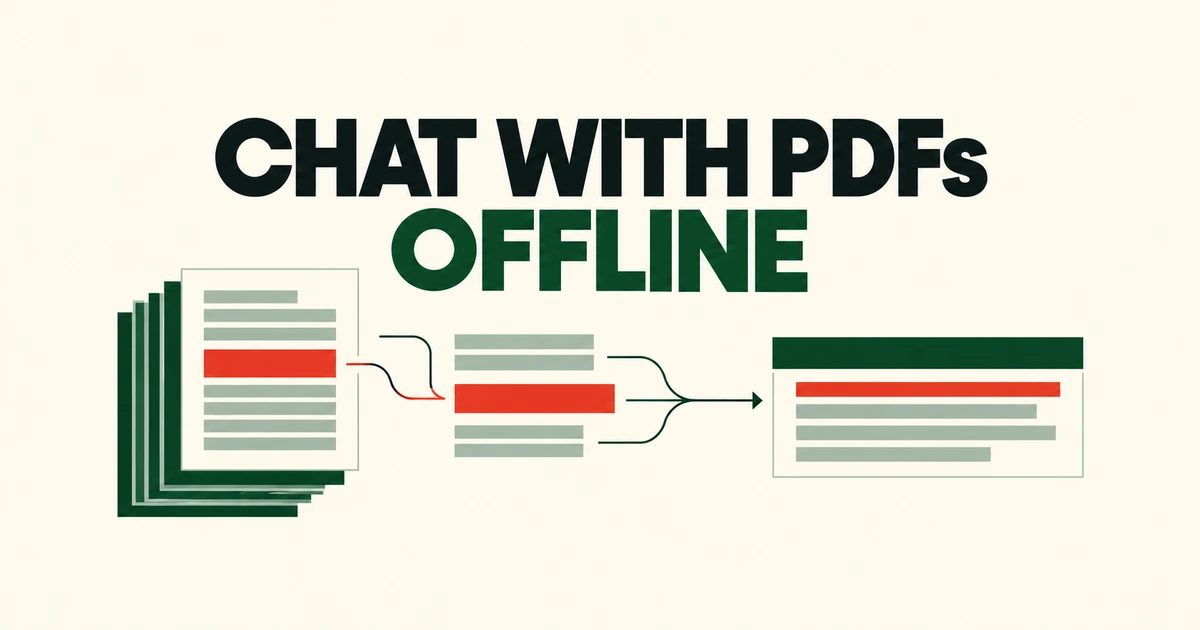
- Built-in document chat works offline once the model and required runtime are available.
- Short documents can enter the context in full; long documents use retrieval.
- A remote MCP service still needs a connection even if the language model runs locally.
Download the model and make sure it can load
Yes: LM Studio’s built-in PDF chat can work without internet access. Its offline documentation says document processing stays on the machine. You do not need a hosted document-chat service for this workflow.
Preparation still has network requirements. Finding and downloading models, downloading runtimes and checking for app updates are online operations. Installing the desktop app does not mean the model needed to answer your questions is already there.
The getting-started workflow uses Discover to download a model, then the model loader in Chat to select it. Downloading stores the files; loading allocates memory to run the model. Have the document available locally as well, before taking the computer offline.
Attaching a long PDF does not put every page into every answer
Document chat supports PDF, DOCX and TXT. If a file fits in the model’s context, its contents can be included in full. Longer files use retrieval to supply relevant portions to the model.
That makes the question part of the retrieval process. A request to summarize an entire manual needs a different scope from a question about its returns policy. For a focused answer, include terms and circumstances that are likely to occur in the document.
For example: “Find the return deadline and the conditions for returning an opened product. Say if you cannot find either.” This applies the documentation’s advice to make queries specific. Check important dates and conditions against the source passage.
Offline availability and document coverage are separate requirements. A workflow can stay local while using only selected passages; whole-document tasks also depend on what fits in context.
Your computer must have room to run the model
According to the system requirements, Mac support requires Apple silicon and macOS 14 or newer. At least 16GB of RAM is recommended. For an 8GB Mac, the guidance is to use smaller models and modest context sizes; Intel Macs are not currently supported.
Windows supports x64 and ARM, with AVX2 required on x64 and at least 16GB of RAM recommended. Those recommendations are not a performance promise for a particular model or a book-length PDF.
Start with a model your machine can actually load, then try the document you intend to use. App compatibility, successful model loading and useful answers from the file are three separate checkpoints.
Built-in attachments and remote MCP tools have different boundaries
LM Studio supports local and remote MCP servers. Those tools can access files and use the network. A request to an internet-hosted service still needs connectivity even when the model generating the request runs on your computer.
A locally launched MCP server can also call an external API. Where the tool process runs does not, on its own, tell you where its data goes. For a local PDF, start with the built-in attachment workflow; inspect additional tools separately if you need outside information.
Before traveling or disconnecting, one useful check is to attach the actual document and ask a question whose answer you already know, then repeat with connectivity disabled. Confirm that loading, attachment and answering all work. A failed model search or unavailable remote tool does not by itself mean local PDF chat requires the internet.