iPhone offload vs delete: why Documents & Data stays large
You offloaded the app, and iPhone Storage still shows gigabytes of Documents & Data. Would deleting it free that space, and what would you lose?
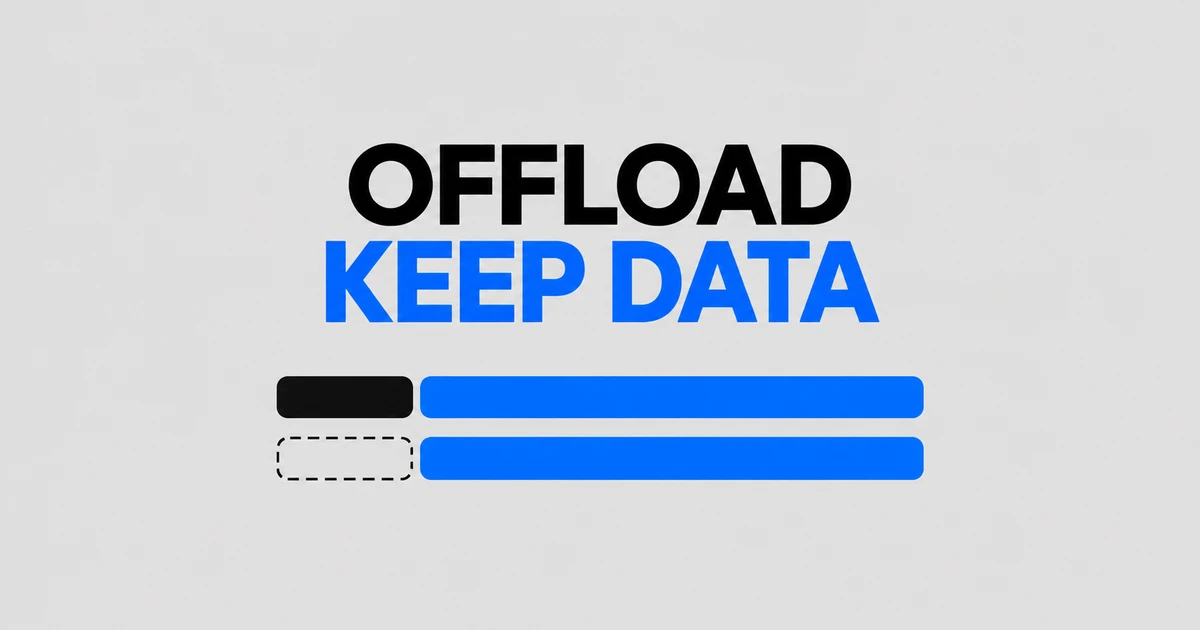
App Size and Documents & Data
Open Settings → General → iPhone Storage and select the app. App Size and Documents & Data describe different parts of its footprint. Apple’s storage guidance says offloading frees space used by the app while retaining its documents and data. A large total therefore does not guarantee a large saving from offloading.
Consider two illustrative cases. A game has a 3GB app and 200MB of saved data. A document app has a 200MB app and 3GB of files. Their totals are similar, but offloading targets the larger component in the first case and the smaller component in the second. These are hypothetical sizes to explain the choice, not measurements of named apps.
Apple also notes that cached and temporary data may not appear in an app’s reported usage. Treat the breakdown as a guide to what you can remove, rather than an exact promise about the final free-space figure. After the operation, compare total iPhone storage with the same total you checked beforehand.
Four actions with different results
Removing an icon from the Home Screen is a layout change. The app remains installed in App Library and can still be used. Apple’s remove-or-delete guide distinguishes this from deleting the app and its local data.
| Action | What remains | How you use it again |
|---|---|---|
| Remove from Home Screen | The installed app and data | Open it in App Library |
| Offload App | Documents and data | Download the app again |
| Delete App | Local app and related data are removed | Reinstall; recover required data separately where possible |
| Remove selected downloads inside an app | The app and any content you retain | Stream or download removed content again |
The last row depends on the app. A command that removes an offline copy is different from one that deletes a document from its cloud library. Read the action in the context of the particular content. Apple Music and iCloud Drive provide concrete examples of keeping a library or cloud original while reclaiming local space.
Offload an app you can wait to download again
For an app you will not need for a while, open its detail page in iPhone Storage and choose Offload App, then confirm. Its data stays on the phone. When you need the app again, tap its cloud-marked icon to reinstall it, following Apple’s storage management workflow.
That download is part of the tradeoff. A document can remain on the device while the app needed to open it is unavailable until reinstallation finishes. For a field visit or a flight, reinstall the app and open the required material before leaving a reliable connection. An app used rarely can still be a poor offloading candidate if it must work immediately at a particular moment.
For irreplaceable work, export the required files while the app is installed and open the exported copies elsewhere. Offloading preserves data on this phone; it does not create another copy on a separate device.
Reinstalling immediately also puts the app back into storage. The cycle is not a universal cache-cleaning routine. A Reddit user describes Documents & Data growing again after using an offloaded app.
Remove offline content when the data is the large part
For downloaded Apple Music albums, touch and hold the song or album, choose Remove, and then Remove Download. Apple says this removes the download from the current device. Music from the Apple Music catalog stays in the library but requires an internet connection to play. You can keep the albums needed for an offline commute and remove those you no longer need locally.
Do not substitute Delete from Library when that is not the intended result. Under Apple’s music deletion instructions, library deletion also affects other devices when Sync Library is enabled.
In Files, browse to iCloud Drive, touch and hold a downloaded file, and choose Remove Download. Apple’s Files guidance says the file remains in iCloud Drive and can be downloaded again. This action does not upload a file that exists only under On My iPhone; it applies to a file whose cloud original already exists in iCloud Drive.
For example, a completed presentation may leave a large reference folder downloaded on your phone. Remove the local downloads if you only need occasional online access. Before another meeting with unreliable connectivity, download the required documents again. Choosing Delete removes those files from iCloud Drive and from other devices signed in to the same Apple Account.
Other media and document apps may provide their own Downloads, Offline, or Storage screens. Use those lists to identify watched videos, redundant downloads, or exported work you can remove. A universal iPhone setting cannot identify which draft is the only copy of your project. Working from the app’s content list lets you select specific material while leaving the app available.
Deleting and reinstalling does not restore every kind of data
When both the app and its local content are no longer needed, touch and hold it on the Home Screen or in App Library, choose Remove App → Delete App, and confirm. Reinstalling later restores the app software. It is not, by itself, a promise that a locally stored project you deleted will return.
The current iPhone guide says photos or documents the app saved in iCloud are not deleted when the app is deleted. That means the opposite assumption is also wrong: deleting an app is not a complete purge of everything associated with it. Before removing a document app, open the files you intend to retain from their separate storage location so you know what actually exists there.
To redownload an app, open the App Store, tap your account picture, then Apps & Purchase History → Your Apps. Find it under Not on this device and use the download button. These are the steps in Apple’s current redownload instructions; menu labels may differ on older software.
Reinstallation depends on the app still being available. If it is missing from purchases, Apple’s redownload troubleshooting also points to the purchasing account, hidden purchases, and device compatibility. For an old specialist app, export essential documents in a usable format before removing the installation.
Automatic offloading and subscription cancellation are separate controls
The current iPhone guide places automatic offloading under Settings → Apps → App Store → Offload Unused Apps. When storage is low, unused apps can be removed while their data is retained. This is convenient when you are comfortable downloading an app again the next time you use it.
Manual selection is more suitable when some rarely used apps must remain ready without a connection. Turning the automatic option off prevents future automatic offloading; it does not replace already removed installations. Open the apps needed for your next trip or appointment and finish any downloads while you still have connectivity.
Deleting an app also does not end its paid subscription, as Apple states in its app deletion guidance. For an Apple-billed subscription, go to Settings → your name → Subscriptions, select it, and choose Cancel Subscription. Apple’s cancellation instructions say that a missing cancel button or a red expiration message means the subscription is already canceled.
If you cannot find the subscription, search your email for an Apple receipt and check the account used. A family member must cancel a subscription billed to their account. If there is no Apple receipt, inspect the card or bank statement to identify the company billing you and cancel through that provider. Removing the installation has already addressed the device storage; this step addresses any continuing charge.