APFS or exFAT for a Mac External SSD? Choose by What You Store
Your SSD handles JPEGs on both Mac and Windows. Can the same format also hold the library you edit in Apple Photos?
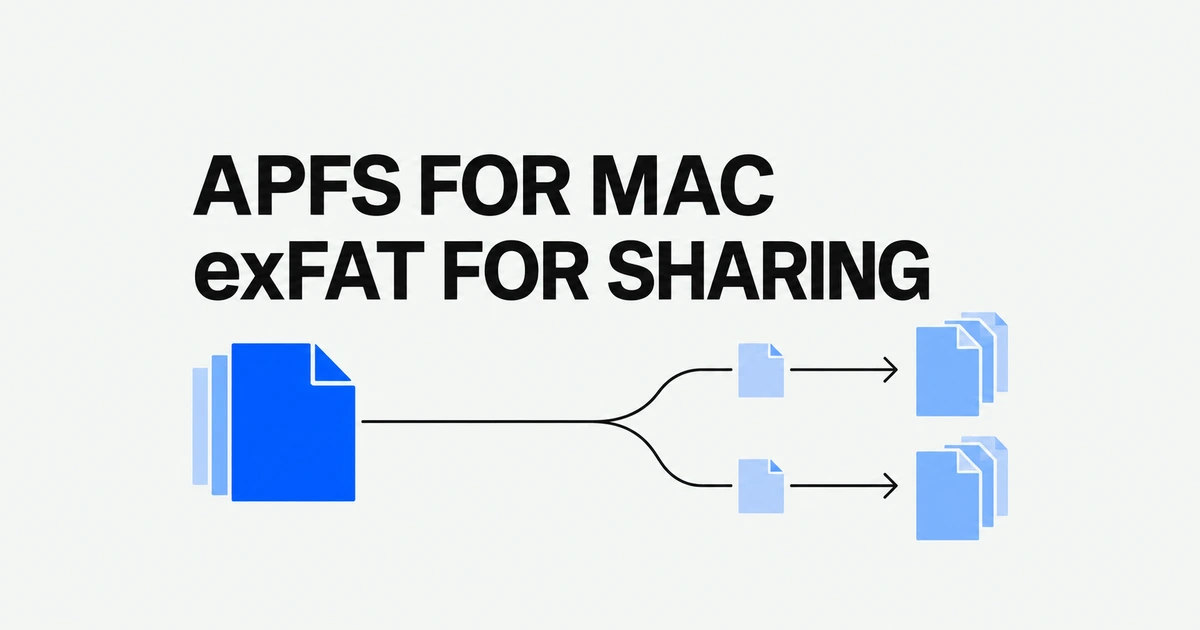
- APFS fits a Mac-only working SSD; exFAT fits ordinary file exchange with Windows.
- An external Apple Photos library requires APFS or Mac OS Extended (Journaled).
- Reformatting erases the drive. Check its current format and copy anything you need elsewhere first.
Choose the computers and the workload before the format
A drive that stays with your Mac has different requirements from one you hand to Windows-using colleagues. Apple’s file-system guide identifies APFS as optimized for flash and SSD storage, with features including encryption and space sharing. It lists exFAT as a Windows-compatible option.
| Primary use | Starting choice | Important condition |
|---|---|---|
| Mac-only working files | APFS | APFS (Encrypted) is an option when the volume needs encryption. |
| Documents and image files shared with Windows | exFAT | File-system compatibility does not establish support for an application’s library. |
| An Apple Photos library | APFS or Mac OS Extended (Journaled) | Follow Photos’ external-library requirements. |
“I store photos” does not settle the choice. Exported pictures and the library you open in Photos are different storage jobs.
A Photos library has its own format requirement
For a library that will remain in use by Photos, Apple specifies a Mac-formatted external drive: APFS or Mac OS Extended (Journaled). Being able to copy ordinary image files onto exFAT does not make exFAT a supported home for that library.
The transfer starts with quitting Photos, copying the library to the external device and opening it at the new location. For iCloud Photos, designate it as the System Photo Library. Apple also excludes a storage device used for Time Machine backups from this library-storage workflow.
To send pictures to someone else, use Photos’ export commands. These produce files for other applications rather than moving the library itself. Exporting an unmodified Live Photo produces a still-image file and a video file.
Check the format before erasing a usable drive
Select the external drive in Finder and press Command-I. Get Info shows the format. In its external-drive troubleshooting guide, Apple notes that macOS can read NTFS but cannot write to it through its built-in support. That explains one possible reason files are visible while new saves fail.
If you need to change formats, copy the files you intend to keep to another device first. Erasing in Disk Utility deletes the device’s contents.
- Open Disk Utility and choose View → Show All Devices.
- Select the correct external storage device, then choose Erase.
- Choose GUID Partition Map as the scheme and the format suited to the workload. Enter a name.
- Confirm that the files you need are copied elsewhere before erasing.
If Scheme is missing, check whether you selected the device at the top of the hierarchy rather than a child volume. A working drive already formatted for its intended use does not need to be erased merely because you bought a Mac.
Keep the library on Mac storage and export what Windows users need
Consider a photographer who manages a collection in Photos but delivers pictures to Windows users. One workable arrangement is an APFS home for the library plus an exFAT transfer drive for exported files. This applies the library’s requirements and the recipients’ file-exchange needs separately.
Select the pictures, then use File → Export. Choose photo export for a deliverable such as JPEG, or Export Unmodified Original for the imported source files. Decide what the recipient needs to open before deciding what the SSD should contain.