MacBook Charge Limit vs. Optimized Charging: Which Stops at 80%?
Some mornings a MacBook that sits plugged in all day reads 100% instead of 80%. Is the setting you turned on built to stop at 80% at all?
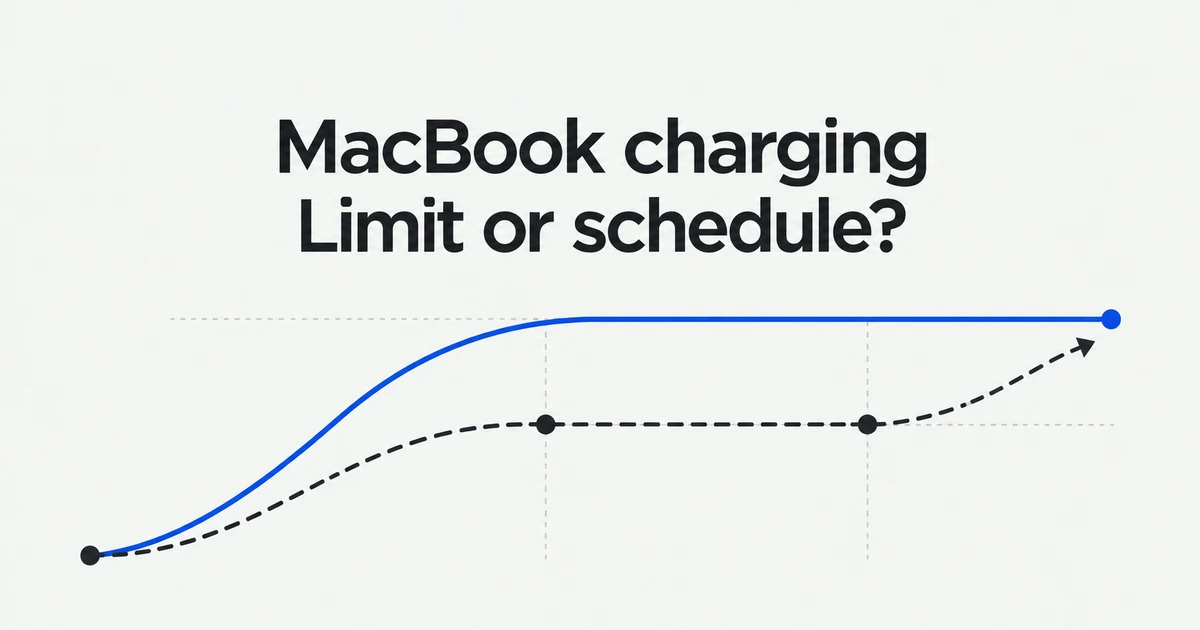
- Optimized Battery Charging schedules a full charge; it is not a fixed 80% cap.
- Use Charge Limit when you want to choose the charging ceiling yourself.
- Choose Charge to Full Now before a day when you need the extra battery runtime.
Optimized charging controls timing, not a permanent cap
Use Charge Limit if you want to select a ceiling. In Apple's Battery settings guide, Optimized Battery Charging learns your routine, delays charging beyond 80% during an expected long connection and aims to finish before you unplug.
| Your goal | Control |
|---|---|
| Delay a full charge around your routine | Optimized Battery Charging |
| Choose a charging ceiling | Charge Limit |
| Fill the battery for this outing | Charge to Full Now |
Reaching 100% with optimized charging enabled is compatible with its purpose. Decide whether you want automatic scheduling or a manually selected ceiling.
Set the limit on a supported MacBook
The built-in control requires Apple silicon and macOS Tahoe 26.4 or later. Open System Settings → Battery, click the information button beside Charging, select a limit from 80% to 100% and click Done.
Check this before installing a separate utility. The developer of batt says the tool is unnecessary when Apple's built-in range meets your needs. Older macOS releases and ceilings below 80% are different requirements.
An occasional 100% reading does not prove the setting was removed
Apple says the Mac occasionally charges fully to keep its remaining-charge estimate accurate, even with a limit enabled.
Also distinguish the current charge from Maximum Capacity in Battery Health. The latter compares capacity with the battery when new. An 80% charge reading is not an 80% battery-health diagnosis.
Request a full charge when you need the runtime
Open the battery menu and select Charge to Full Now before a long period away from power. Apple's incomplete-charging guide offers this action for both optimized charging and a reached charge limit.
Stopping at a chosen level is also different from failing to charge at all. Read the battery menu's status first, then choose between preserving your usual charging behavior and filling the battery for the day ahead.