Firefox Save to PDF: Fix Missing Backgrounds and Cut-Off Tables
The page looks right in the tab, but Save to PDF drops the background colors and cuts a table in half. Why does Firefox export something different from what you see?
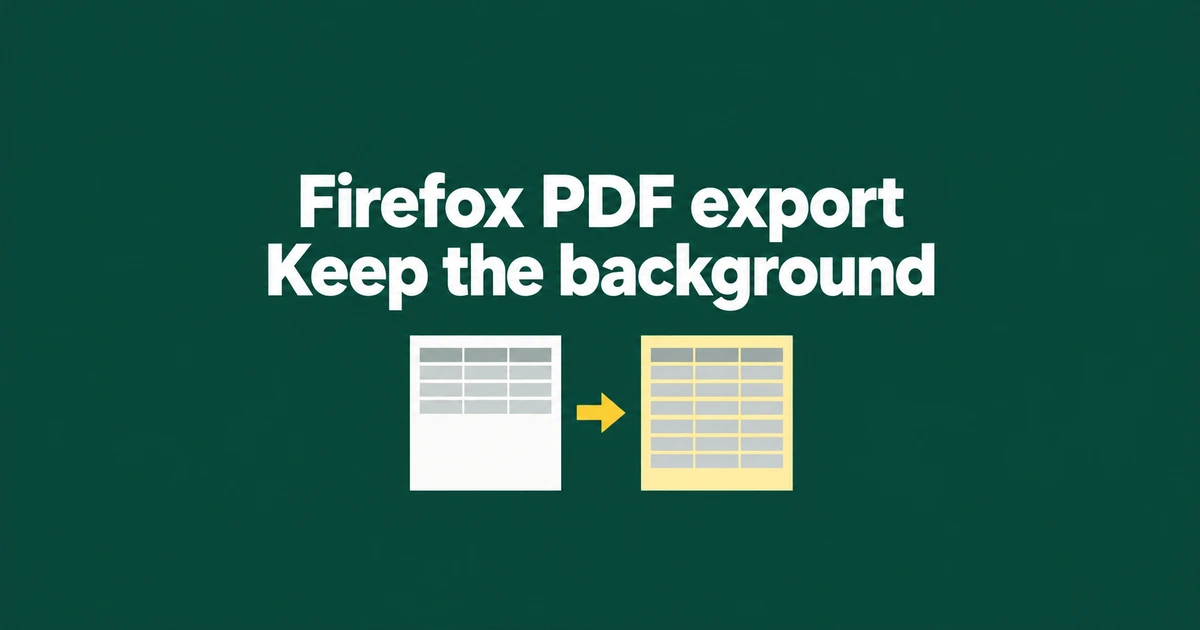
- For a webpage, choose Save to PDF as the destination in Firefox’s print dialog.
- Simplified format and background settings can remove content you expected to keep.
- The PDF improvements in Firefox 158 do not replace troubleshooting an existing PDF’s printer output.
Save to PDF creates the print version of a webpage
Open Firefox’s menu, choose Print, then set Destination to Save to PDF. The result follows the print preview, as Mozilla’s printing guide explains. It is not a screenshot of the browser window.
If the tab already contains a PDF, use the PDF viewer’s Save button to keep the file. The viewer can also save a version containing completed form fields. Downloading that document does not require printing it into another PDF first.
Check Simplified format before chasing missing backgrounds
Simplified printing intentionally removes elements such as buttons, advertising and background images. Choose Original when that stripped-down result is not what you want. The Format control is available only for suitable pages and can be absent when Reader View is already active.
| What changed | Where to look |
|---|---|
| Background colors or images disappeared. | Check Original and Print backgrounds; background printing is unavailable in Simplified format. |
| A table is too wide or page breaks are awkward. | Compare paper size, orientation, scale and margins in the preview. |
| Unwanted information appears above or below the page. | Check Print headers and footers. |
These controls sit under More settings. Inspect the affected page instead of assuming one scale percentage suits every document.
A site can also supply its own print stylesheet. Print media rules apply to PDF output as well as paper and can hide navigation or change spacing. A different layout can therefore come from the website even with Firefox’s settings restored.
Firefox 158 addresses missing math symbols
The October 13 release creates more accessible PDFs when saving webpages, and when printing on Linux and macOS. Mozilla also lists fixes for rendering issues, including missing mathematical symbols.
If an older export lost notation, try generating it again from the original webpage after updating. Previously saved files will not repair themselves. Compare equations and page boundaries in the new document before distributing it.
Treat an existing PDF’s print problem as a separate step
When an existing file looks right on screen but prints poorly, compare the same file in another PDF application. Mozilla documents how to open it with the system viewer from the Downloads panel. For a lasting preference, change the application assigned to Portable Document Format (PDF) under Settings → General → Applications.
The printing troubleshooting guide also recommends comparing browsers and printers. If the problem is specific to Firefox and saved print settings appear responsible, open about:support and use Clear saved print settings in the Printing section. This removes modified print settings, so recheck paper and scaling choices afterward.
For webpage exports, compare the preview with the saved file. For an existing PDF, compare the same file through another viewer. Keeping those two stages separate makes the next useful check much clearer.