Virus alerts keep appearing after you block browser pop-ups
The warning sits in the Windows notification area and carries a security company’s name. Which app or website actually sent it?
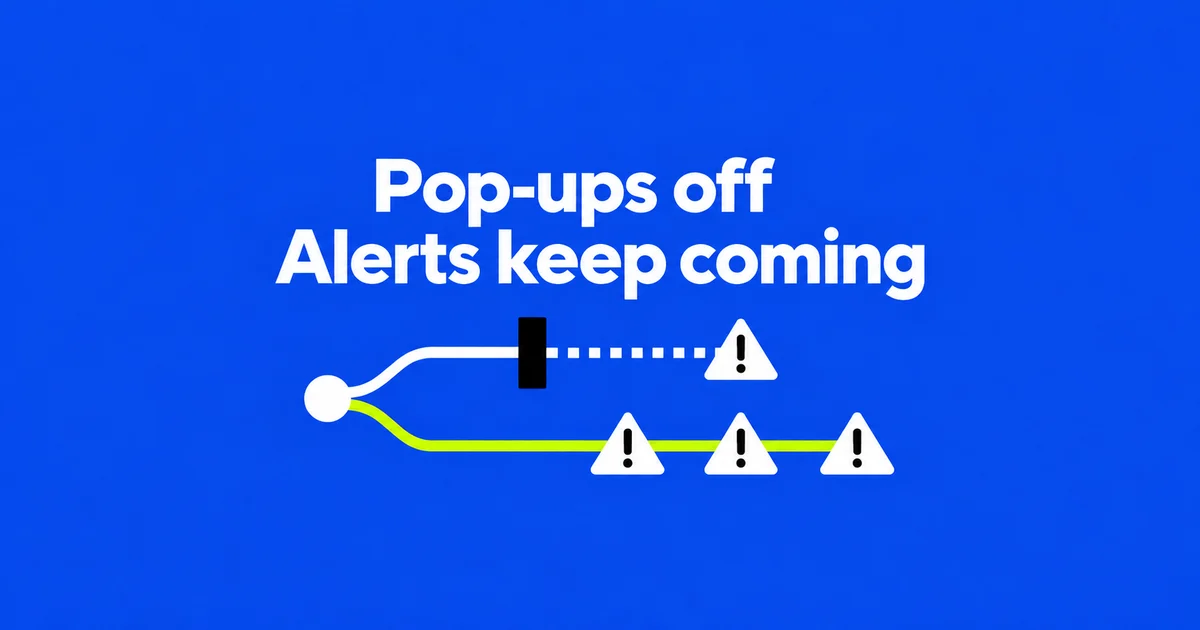
An August 2026 question on Microsoft Q&A describes repeated virus warnings covering the right side of a Windows 11 screen. Several arrive together, making it hard to use the computer. The first useful detail to capture is the app or website sending them. Read the user’s question.
On Windows 11, a site sending notifications through desktop Chrome or Edge can be blocked in that browser’s permissions. If the warning also persuaded you to install software, inspecting that software remains a separate task. Google points to both notification permissions and malware when messages persist after pop-ups are blocked; the repeated warnings alone do not establish an infection. Google’s pop-up troubleshooting.
Find the sender behind the logo
Press Windows+N to open Notification Center. Read the app name and any website address shown with the alert. Record the address or take a screenshot without opening the message’s scan or payment link. A security company’s name inside the message is not the same thing as an authenticated sender.
Notification Center collects messages from apps. Being displayed there does not mean Windows has verified the warning’s claim. Dismissing a notification clears that message; it does not revoke the site’s permission to send another. Windows provides separate controls for clearing notifications and disabling an app’s notifications. Windows notification controls.
A warning inside a browser tab or full-screen webpage needs a different check from a desktop notification. Microsoft describes scam pages that imitate system errors and advertise a support number. Its own error and warning messages never include phone numbers. Do not use that number to verify the warning. Microsoft’s technical-support scam guidance.
| Clue on screen | Where to check independently |
|---|---|
| Chrome or Edge plus a website address | That browser’s notification permission for the site |
| A warning displayed within a tab or separate browser window | The tab and the browser’s pop-up or redirect controls |
| A claim that Windows Security found a threat | Windows Security, opened from Start |
| A claim from another antivirus product | The installed product, opened directly |
Use these clues to choose where to investigate. They are not a visual test that proves a message genuine. If you have a third-party antivirus subscription, verify its status in the app or a known official website, rather than through the alert.
Block the site in Chrome or Edge
Pop-ups and notifications use different controls. A site may be prevented from opening another window while retaining permission to send notifications. That explains why repeatedly changing the pop-up setting can leave the same messages arriving.
Chrome
- Open the three-dot menu, then Settings → Privacy and security → Site settings → Notifications.
- Find the address from the alert among sites allowed to send notifications.
- Block notifications for that site. Alternatively, use Add beside the list of sites not allowed to send notifications and enter the address.
- Confirm that the specific site is now blocked. You do not need to visit the suspicious page again.
Chrome also offers defaults for future permission requests. Review existing exceptions as well: individual site settings override the default. Quieter permission prompts change how requests appear; they are not equivalent to blocking a sender already on the allowed list. Chrome notification settings; site-specific permissions.
Microsoft Edge
- Open Edge’s menu and choose Settings.
- Go to Privacy, search, and services → Site permissions → All sites.
- Select the matching site and set Notifications to Block.
Microsoft explicitly notes that Edge website notifications can appear even when Edge is closed. A missing browser window therefore does not rule out a website as the sender. If your version places these controls elsewhere, search Settings for site permissions and check that you are changing notifications, rather than pop-ups. Edge’s current instructions.
If the same browser delivers work-mail alerts, blocking the offending site lets those useful alerts continue. Turning off the entire browser under Windows notification settings can hide them too. Before turning browser notifications back on, remove the unwanted site’s permission so its warnings do not return with your mail alerts.
Check new alerts and actual detections
An old warning remaining in Notification Center does not establish that the block failed. Clear previously delivered messages and watch for new ones after the change. If another arrives, compare its time, sending app, and address. A second site may be involved, or the message may come from Edge after you changed Chrome. Each browser needs its own check.
For a security check, search Start for Windows Security, then open Virus & threat protection. Review its current status and run a quick scan. To inspect a downloaded file, right-click it in File Explorer, choose Show more options, and select the Microsoft Defender scan command. If another installed antivirus product handles protection, open that app directly for its findings. Opening Windows Security and scanning files.
Protection history shows actions taken by Defender, including detected and quarantined items. Microsoft says entries remain there for two weeks and threat details require administrator privileges. An empty history is not a reliable account of an older incident, nor should you expect it to contain every third-party antivirus event. Protection history’s limits.
A clean scan can leave a website free to send more notifications because its permission is still enabled. Block that address in the browser to stop its messages. Conversely, software you ran in response to the warning may remain on the PC after notifications stop. Open your legitimate security app to inspect that file and the device; blocking the sender does not remove installed software.
If you downloaded files as well as allowing notifications, a Custom scan under Scan options lets you select the files and folders to inspect. If you ran a program and want to check beyond the download folder, a Full scan examines every file and program on the device. Also check whether Windows Security recommends another scan after the quick scan finishes.
For suspected malware that you want to check without loading Windows, choose Microsoft Defender Offline. It restarts the PC and scans in the Windows Recovery Environment, making it harder for persistent malware to hide from the scan. Save open documents before starting. The PC restarts again when the scan is complete, and its results appear in Protection history. Scan coverage and the offline scan process.
When a browser reset becomes relevant
If blocking one site stops the unwanted messages, resetting the entire browser may add disruption without addressing another observed problem. Investigate further when the homepage or search engine changes unexpectedly, removed extensions return, or browsing repeatedly redirects to unfamiliar pages. Google lists these as symptoms associated with unwanted software. Google’s unwanted-software checklist.
Compare the start of the problem with recently installed apps and extensions. Review Chrome’s extension manager and Windows Settings → Apps → Installed apps. An unfamiliar company security tool is not automatically malicious. On a managed work device, give IT the names and symptoms before removing software or changing enforced settings.
Chrome’s reset path is Settings → Reset settings → Restore settings to their original defaults → Reset settings. Saved passwords and bookmarks remain, but settings including site permissions, startup pages, cookies, and extensions are affected. Expect that some sites may require sign-in again and trusted extensions may need re-enabling. What Chrome resets.
Afterward, restore only the extensions you need and trust, then check whether the original changes return. If they do, record the recurrence for software or policy investigation instead of repeating the reset indefinitely. Resetting Chrome does not replace an account-password change or recover money already paid.
If you installed software or shared information
Blocking the site addresses unwanted notifications. If you also ran a file or gave the page information, those actions need their own response. On a work computer, tell IT which file or remote-access tool you used and which account password you entered, so the device and affected account can both be checked.
- Notification permission only: block the site and check for new messages. Confirm whether you also downloaded or ran anything.
- A downloaded or executed file: use your legitimate security software to inspect it and the device. Keep the filename and installation time; do not install another cleaner advertised by the warning.
- A shared password: use a trusted device and the service’s official account page to change it. Change other accounts that reused it.
- Remote access: end the session and seek help with installed tools and device recovery. Microsoft includes resetting the device among steps to consider after remote access; coordinate this with IT on a company machine.
The FTC describes impersonators using familiar company names to obtain remote access, credentials, or payment. If you paid, contact the payment provider about the suspected fraud and preserve transaction and contact records. Use a known contact route, not another number supplied by the person promising a refund. FTC guidance on scams and recovery.
For a work device, update the IT report with the blocked domain, scan results, and any accounts or payments still needing action. Include the name of any remote-access tool installed during the incident so the device review can cover it.