Count checked boxes in Excel and calculate task completion
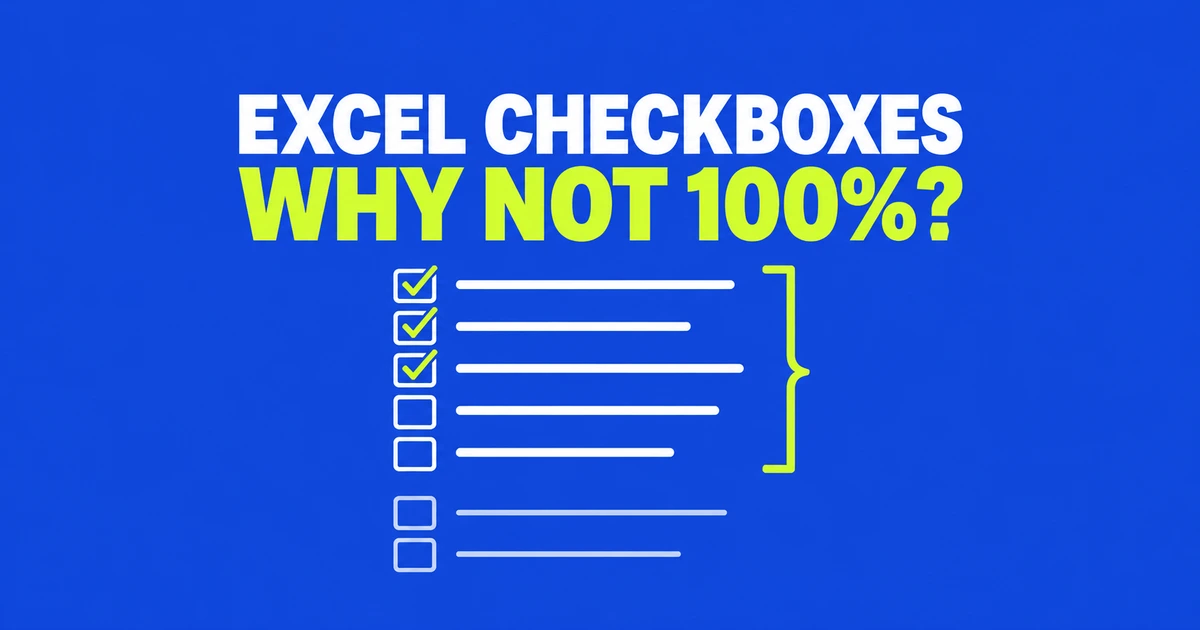
Every task on the list is checked off, yet the completion rate stops short of 100%. What is Excel still counting?
- A cell checkbox supplies TRUE when checked and FALSE when cleared. For checkboxes in C2:C11,
=COUNTIF(C2:C11,TRUE)counts the checked cells. - Count named tasks rather than every checkbox prepared for later. In this example, three completed tasks out of five give 60%. A task-name cell that looks empty can still inflate the total if it contains a space or a formula returning empty text.
- Older Form Control checkboxes need linked cells. Confirm that each box changes its own cell to TRUE or FALSE before counting that range.
A counting formula needs a value to read. New cell checkboxes provide one directly, while older floating controls need a cell link. Once the checked count is correct, the next decision is which rows represent work. A formula can count every tick correctly and still report an unhelpful percentage because the total includes space reserved for future tasks.
A Microsoft Q&A question from May 2023 asked how to turn two checked boxes out of four into 50%. The reply explained linked cells and a count-based percentage. That works for a fixed set of four items; a task template containing unused checkboxes needs a more deliberate total. The question and support reply.
Cell checkboxes and older controls
In Excel for Microsoft 365 on Windows, where Insert → Checkbox is available, select an empty range such as C2:C11 and insert the boxes together. Each cell contains a logical value with checkbox formatting. Formulas can reference that cell directly. Microsoft’s cell-checkbox guide.
A checkbox inserted through Developer → Insert → Form Controls is an object placed over the worksheet. Its position over C2 does not put a status value into C2. A right-click menu containing Format Control is a useful clue that you are dealing with this older approach. Excel Form Controls.
For a Form Control checkbox, open Format Control, select the Control tab, and assign a cell link, such as C2. Link the next task’s box to C3. Use empty cells reserved for status, then check and clear each control to confirm that the corresponding cell changes. Do not choose a cell already containing a task name or another formula.
After copying controls, test two independently. If both use one linked cell, they cannot preserve two independent task states. This guide’s new-list example uses Windows Microsoft 365 with the cell-checkbox menu available; existing forms can use the counting approach after their cell links are established.
Get the checked count right
Use column A for task names, B for owners, and C for completion. Row 1 contains headings, with room for ten entries in rows 2–11. Here are five illustrative tasks; rows 7–11 have no task names yet, and their checkboxes are initially unchecked.
| Row | A: Task | B: Owner | C: Value |
|---|---|---|---|
| 2 | Collect material | Minji | TRUE |
| 3 | Write draft | Minji | TRUE |
| 4 | Review tables | Junho | FALSE |
| 5 | Check wording | Junho | TRUE |
| 6 | Submit final copy | Minji | FALSE |
Place this formula in a separate summary area. COUNTIF counts cells meeting one criterion; TRUE selects the three checked cells in this example. COUNTIF syntax and criteria.
=COUNTIF(C2:C11,TRUE)A pasted tick character is not the same input as a checkbox’s logical value. Neither is the word “Done.” If the result is zero, check what the referenced cell actually contains and whether clicking the box changes it. A text-based list needs a matching text criterion.
As a first check, selecting C4 should take the count from three to four, and clearing it should return the count to three. Keep summary formulas outside the checkbox input range so inserting or clearing boxes does not overwrite them.
Exclude unused rows from task completion
Three checked boxes out of ten produce 30%. Three completed tasks out of five produce 60%. Both calculations are arithmetically valid, but only the second describes the work entered in this example. The five reserved rows are not unfinished assignments.
COUNTA counts FALSE as a value, so COUNTA(C2:C11) returns ten when all ten cells contain checkboxes. Count the task names instead. In this example, A2:A11 contains manually entered names and genuinely empty cells. What COUNTA includes.
Label E2 “Total tasks” and enter this formula in F2:
=COUNTA(A2:A11)A space, an error, or a formula returning empty text can still contribute to COUNTA. Remove placeholders from unused task-name cells before relying on this total. A visually blank row is not sufficient evidence that its cell is empty.
If the task-name total still says six after you change the denominator, inspect A7, the next unused row. Keep C7 unchecked for this comparison: there are still five actual tasks and three completed ones. A single space in A7, or a formula such as ="", adds one to COUNTA despite showing no task name. The numerator stays at three, but dividing it by six brings the percentage down to 50%.
| Contents of A7 | Total tasks in F2 | Percentage for three completed tasks |
|---|---|---|
| A genuinely empty cell | 5 | 3/5 = 60% |
| One space | 6 | 3/6 = 50% |
A formula returning empty text: ="" | 6 | 3/6 = 50% |
Select A7 and inspect the formula bar. In a separate empty summary cell, =COUNTA(A7) also helps distinguish the cases: zero for the genuinely empty cell, one for either placeholder above. Once you establish that A7 is reserved space, clear its contents and check that the task total returns to five. Inspect the suspect cell before clearing a larger area containing real tasks or necessary formulas. If another workbook generates task names with formulas, preserve those formulas and design its total to exclude rows without work; this example assumes manually entered task names.
The completed count must use the same task population. If someone accidentally checks C7 while A7 has no task name, the simple COUNTIF returns four. Require both a nonempty task name and TRUE to keep the completed-task count at three. Label E3 “Completed tasks” and put this in F3. COUNTIFS requires equally sized criteria ranges. Combining conditions with COUNTIFS.
=COUNTIFS(A2:A11,"<>",C2:C11,TRUE)The nonempty-name condition expresses a rule for this list: an unnamed row does not count as work. If you need a history of canceled tasks, retain their names and design a separate cancellation status rather than using deleted names as an audit trail.
Handle an empty list and format the percentage
With total tasks in F2 and completed tasks in F3, the ratio is F3/F2. For a new list with no tasks, use IF to return an empty display instead of dividing by zero. The choice here is to leave an unstarted list without a percentage. IF and its alternative results.
=IF(F2=0,"",F3/F2)Place the formula in F4 and apply Percentage formatting from the Home tab. Three divided by five produces 0.6, displayed as 60%. Do not also multiply the ratio by 100: formatting an existing value of 60 as a percentage shows 6000%. Calculate and display percentages.
This is completion by task count. Collecting a document and conducting a multiday review each contribute one task. If a project report needs effort-weighted progress, the weights must be defined separately; checkboxes do not supply that judgment.
Count by owner and show readable status
To count an owner’s completed work, keep the same list and add the owner condition. Enter Minji in H2 and use:
=COUNTIFS(A2:A11,"<>",B2:B11,H2,C2:C11,TRUE)The example returns two. Minji’s total is three, calculated without the completion condition:
=COUNTIFS(A2:A11,"<>",B2:B11,H2)For her completion percentage, divide two by three. Dividing by the team’s five tasks would instead describe her completed work as a share of the team total. Keep owner names consistent, including spaces, so apparently identical names are not split between different counts.
For a readable status beside each checkbox, enter the following in D2 and copy it through D11. Blank task-name rows stay visually empty; named tasks show Done or Not done. C remains the input column and D becomes a reading aid.
=IF(A2="","",IF(C2,"Done","Not done"))If the list grows beyond row 11, extend all relevant formula ranges together. Then add one named task and check its box. The total and completed count should each respond to the new entry; a box appearing on screen does not by itself prove that the summary includes it.
Check the workbook before sharing
A colleague may need to update the list, not merely read the percentage. In their actual Excel environment, use a copy to confirm that changing a checkbox also changes the count. If they see TRUE/FALSE text, investigate checkbox display support before concluding that the underlying status values have disappeared.
Microsoft documents web-editing restrictions for older Form Controls. Proceeding with browser editing after removing unsupported objects can remove those controls. For an inherited form, consider opening it in desktop Excel. Do not apply that older-object limitation to every new cell checkbox.
To remove only the appearance of new cell checkboxes, select their cells and use Home → Clear → Clear Formats. The logical values remain, but other formatting in that range is cleared too. Delete behaves differently: checked boxes are first unchecked; an entirely unchecked selection can then be removed. It is not a way to preserve completion history while removing the graphics.
Before handing over the template, compare the example’s three completed tasks and five named tasks with 60%. Check an unused row and confirm that the completed-task count stays unchanged. Complete a named task and confirm it rises to four. These two expected changes give the next person a practical way to tell whether the list is still counting the intended work.