Keep the right rows when removing Excel duplicates
Repeated lines fill the order list, but two lines for the same customer can still be separate, valid orders. Should Excel keep one copy of each, or drop every repeated record?
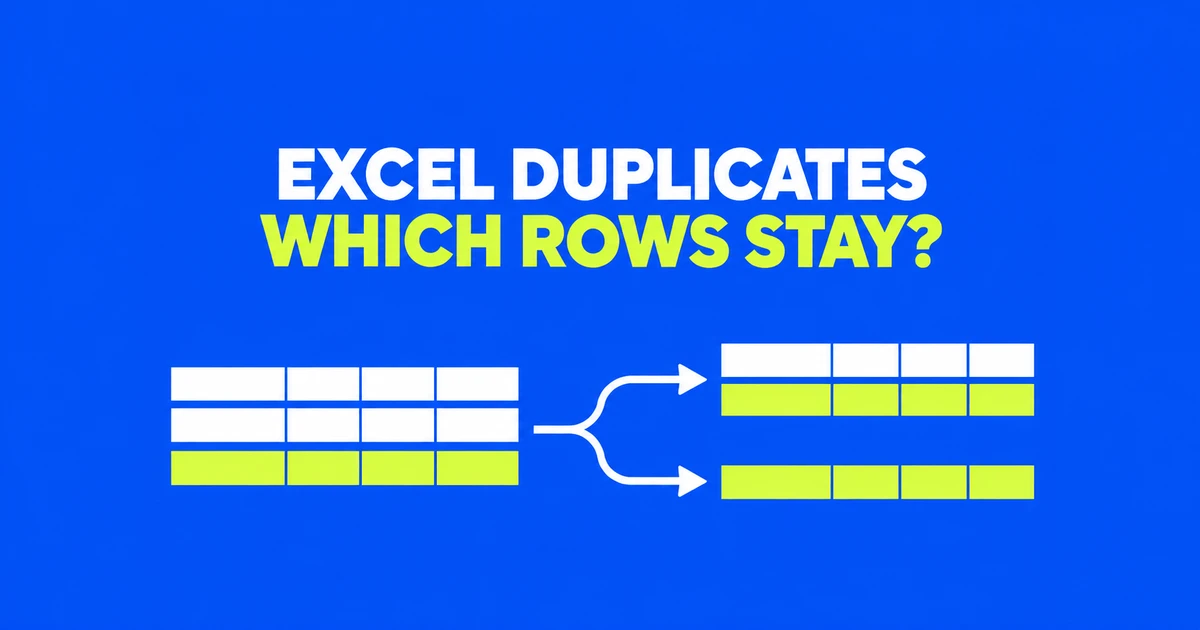
What should happen to the first copy?
Excel’s Remove Duplicates command keeps one occurrence of each matching record. If you want repeated records excluded altogether, use UNIQUE with its third argument set to TRUE. This distinction matters before you choose any columns or delete anything.
A reader on r/excel described exactly this problem: when two rows matched, they wanted both removed. Suggestions to use the ordinary removal command answered a different question. The discussion also exposed another ambiguity: highlighting repeated cells does not establish that the complete rows match.
With the list PEN, PEN, BOOK, a distinct product list contains PEN and BOOK. A list of products occurring exactly once contains only BOOK. The first is useful for a product selector; the second might support a review of items without repeat occurrences.
For a one-time cleanup, work on a copy and remove duplicates there. For a separate list that should follow changing source data, use a formula. The worked example below uses seven illustrative order lines, with headers in A1:C1 and data in A2:C8. The sheet-row labels identify locations; do not enter them as a fourth data column.
| Sheet row | A: Order | B: SKU | C: Qty |
|---|---|---|---|
| 2 | O-410 | PEN | 2 |
| 3 | O-410 | BOOK | 1 |
| 4 | O-410 | PEN | 2 |
| 5 | O-411 | PEN | 1 |
| 6 | O-412 | FILE | 1 |
| 7 | O-412 | FILE | 3 |
| 8 | O-413 | BOOK | 1 |
Three columns, three different questions
Rows 2 and 4 match across all three fields. Keeping one gives six rows; excluding both gives five. But comparing only Order treats every O-410 line as the same record, even though one contains BOOK. That would produce four orders while losing product-line information.
On a version that supports UNIQUE, enter each of these formulas in its own empty output area. They are alternatives to try against the unchanged source, not formulas to stack directly beneath one another.
| Formula | Result from the example |
|---|---|
=UNIQUE(A2:A8) | Four order identifiers. |
=UNIQUE(A2:B8) | Five Order–SKU combinations, in two columns. |
=UNIQUE(A2:C8) | Six distinct complete rows. |
=UNIQUE(A2:C8,FALSE,TRUE) | Five complete rows; both copies of O-410/PEN/2 are excluded. |
In UNIQUE’s syntax, the second argument, by_col, controls whether Excel compares rows or columns. FALSE, or omission, compares rows. The third argument, exactly_once, selects records appearing only once. Setting only the second argument to TRUE does not request single-occurrence rows.
The comparison also determines what “once” means. O-412/FILE/1 and O-412/FILE/3 are different complete rows, so both survive the three-column exactly_once formula. Using =UNIQUE(A2:B8,FALSE,TRUE) instead excludes that repeated Order–SKU pair and returns three combinations corresponding to original rows 3, 5, and 8.
A two-column input returns two columns. It cannot also decide which quantity belongs beside O-412/FILE. If you need quantities preserved for investigation, return A:C and keep both versions visible until you establish why they differ.
Remove Duplicates changes the selected records
For the Windows desktop workflow, copy the source sheet, select A1:C8 in the copy, and choose Data → Remove Duplicates. Confirm that the data has headers. Select Order, SKU, and Qty as the comparison columns, then run the command. This example removes one repeated row and leaves six.
The column checkboxes define the matching key, not the columns that will be deleted. Once a duplicate is found, its record is removed within the selected range, including unchecked columns. Microsoft’s removal instructions also specify that the first occurrence is retained and cells outside the selected range do not move.
If you select A:C but check only Order and SKU, the O-412 quantities become one group. The earlier quantity, 1, survives; the later quantity, 3, is removed. Excel has not identified the latest or correct quantity. It has followed the comparison and row order you supplied.
Likewise, a note beside each record needs to travel with that record. If column D contains fulfillment notes but you reduce only A:C, those notes remain outside the operation. Include D in the selected record range when it belongs to the order line, then decide separately whether its contents should participate in the match.
Use counts to investigate conflicting quantities
Before collapsing Order–SKU groups, a helper column can show which ones repeat. Return to the unchanged seven-row sample with column D empty. Put a label such as Pair count in D1, enter this in D2, and fill down through D8. If D already contains the fulfillment notes from the earlier scenario, place the helper in another empty column:
=COUNTIFS($A$2:$A$8,A2,$B$2:$B$8,B2)The results are 2, 1, 2, 1, 2, 2, 1. Inspect the two groups with counts of 2. O-410/PEN repeats the same quantity; O-412/FILE has conflicting quantities. This identifies records to investigate without throwing either version away.
To count exact three-field matches instead, include Qty:
=COUNTIFS($A$2:$A$8,A2,$B$2:$B$8,B2,$C$2:$C$8,C2)Only original rows 2 and 4 now have a count of 2. COUNTIFS requires matching dimensions across its criteria ranges. The dollar signs hold the search ranges fixed as you fill down, while A2, B2, and C2 advance to the record being checked.
If the conflicting quantities represent a correction, consult the order system to establish the final value. If they represent separate line items, a line-item identifier belongs in the key. This sample has no such identifier, so choosing either quantity as authoritative would invent information the sheet does not contain.
Keep a growing source in a table, with the result outside
A fixed reference such as A2:C8 does not include an order entered in A9:C9. For recurring work, select the source and choose Insert → Table, confirm the headers, then set the table name to Orders on the Table Design tab. In a blank cell outside the table, enter:
=UNIQUE(Orders[[Order]:[Qty]])The headers must match the actual table. This reference selects the consecutive Order through Qty columns, so an added helper column is not silently included in the duplicate comparison. Structured references adjust as table rows are added or removed.
UNIQUE spills results into neighboring cells. Its formula must sit outside the source table, and edits to the formula belong in the output’s top-left cell. Microsoft’s dynamic-array guidance describes both restrictions. If you want to correct one returned record, edit its source rather than trying to overwrite a cell within the spill.
If the six-row, three-column result starts at F2, it needs F2:H7. A note in G4 can block it and produce #SPILL!. Select the error cell and use Select Obstructing Cells to locate the blockage, then move the note or choose a different output location. The official error guide provides that route. Shrinking the comparison to one column merely to fit the space would change the result you asked for.
Finish with the data format the next person needs
Visually identical codes can contain different whitespace. For a trailing ordinary space, put =TRIM(B2) in a spare helper column and fill down, keeping the original beside it. TRIM removes outer ordinary spaces and reduces repeated internal spaces to one; it does not remove the nonbreaking space with character value 160. Microsoft documents that limitation. Compare the cleaned codes before adopting them, especially when spacing has meaning.
UNIQUE is available in Microsoft 365, Excel 2021 and 2024, and Excel for the web. For an older Windows version such as Excel 2019, Advanced Filter can create a separate distinct list: select A1:C8, choose Data → Advanced, select Copy to another location, provide an empty destination, and check Unique records only. This retains one occurrence of a repeated row; it does not implement exactly_once. Run the extraction again after changing the source.
Keep the formula for a workbook that will receive next week’s orders. For a fixed submission, copy the entire spilled result and use Home → Paste → Values in a separate sheet or workbook. Paste Values transfers the calculated results. Copying only the anchor cell would not select the complete six-row list you intend to deliver.
The value copy no longer follows changes to the source. Preserve the working workbook because replacing formulas with values removes the formulas. Before sending the sample’s final list, verify that O-410 still includes BOOK and that the two O-412 quantities were either retained for review or resolved from the order record. Label the delivered sheet as a distinct list or an exactly-once list so the next person knows what the missing records mean.