Transpose an Excel report without rebuilding it after every edit
The supply list runs down the sheet, but the meeting report needs those items across the page. Should the flipped version keep following your edits, or freeze today’s figures?
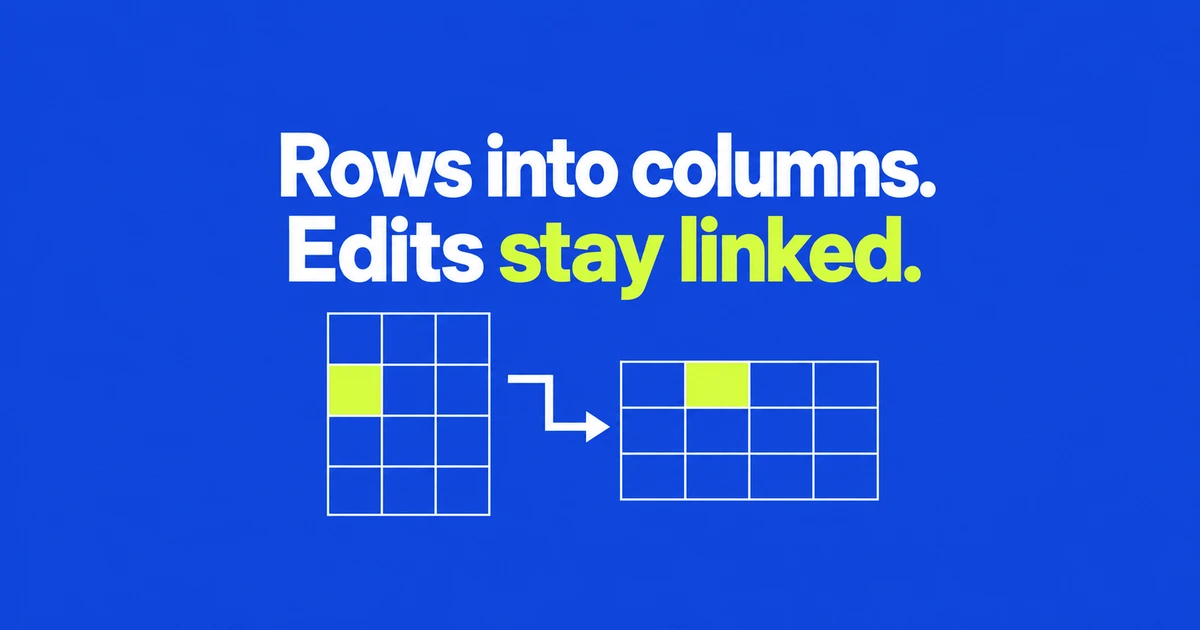
- Use TRANSPOSE when the horizontal report should follow edits to the source. Paste Transpose makes a separate copy; later corrections to manually entered source values do not flow into that copy.
- For a growing list, reference an Excel table and put the output formula outside the table. Make corrections in the original list: the transposed results are not a second set of input fields.
- When the figures are final, copy the report into a new workbook using Values and number formats. Keep the formula workbook for the next revision.
A vertical supply list is convenient for adding items, but a meeting report may need those items across the page. Rotating the working list itself can make the next round of data entry awkward. A separate horizontal view lets the input sheet keep its original shape.
The choice depends on what should happen tomorrow. A working report should reflect corrections. A copy submitted today may need to retain today’s figures. The examples below use Microsoft 365 Excel for Windows, with the source and working report in the same workbook.
A working report or a record of approved figures
Suppose a quantity changes after you prepare the report. If colleagues still use that report to plan an order, it should read the corrected quantity from the source. If it records an order already submitted, changing the working list should not rewrite that record.
| What you need | Method | Where later changes belong |
|---|---|---|
| A one-time rearrangement | Paste Transpose | Manage the copied content separately. |
| A report that follows the source | TRANSPOSE formula | Edit the original list. |
| A record of approved figures | Values-only copy of the finished report | Revise the working file and retain the submitted copy. |
Ordinary Paste Transpose does not necessarily freeze calculated figures. It can copy formulas, whose references may change with the new position. Choose a values option explicitly when you need the results without their formulas. Microsoft’s paste options
Build a report that reads the original cells
In current Microsoft 365 Excel, enter TRANSPOSE in one empty starting cell and press Enter. The results fill neighboring cells automatically. Older Excel without dynamic arrays requires you to select the whole output area first and confirm the formula with Ctrl+Shift+Enter. TRANSPOSE entry methods
Consider this illustrative supply list in A1:C4. The first row contains the actual headings; the remaining rows contain three items. Unit prices here are example numbers, not a quotation.
| Row | Column A | Column B | Column C |
|---|---|---|---|
| 1 | Item | Quantity | Unit price |
| 2 | Pen | 12 | 800 |
| 3 | Folder | 5 | 1500 |
| 4 | Notebook | 8 | 2000 |
Leave F1:I3 empty. In F1, enter:
=TRANSPOSE(A1:C4)Four source rows and three columns become three output rows and four columns. The first output row contains Item, Pen, Folder, and Notebook. The second holds Quantity, 12, 5, and 8. The third contains the unit prices. This mapping places the pen quantity from B2 in G2.
If the required number of pens becomes 15, change B2 and check that G2 shows 15 after recalculation. Do not try to type the correction into G2. It belongs to the result generated by F1; it is not an independent input cell. Edit F1 to change the formula, or edit the source list to change the data.
That also explains why a transposed display does not provide a form for updating the original records. During a meeting, the person making corrections can work in the source while the report displays the result. Creating separately editable copies of both layouts introduces two quantities to reconcile. Editing spilled array results
For the legacy entry method, the selected output range for this example is F1:I3. That selection fixes the array’s size; do not expect it to expand like a current dynamic array when the source grows.
When a one-time transpose is enough
If you only need to rearrange ordinary cells once, copy the source with Ctrl+C, including its labels. Choose an empty destination that does not overlap the source, right-click its upper-left cell, and select Transpose. Cut with Ctrl+X does not work for this operation.
Allow three rows by four columns for the sample above. Pasting can replace content and formatting already at the destination, so a new blank area is preferable to pasting over a working report. Check the headings and any copied formulas afterward. Microsoft’s transpose instructions
If the option is unavailable, check whether the source uses Excel’s Table feature. This means an actual Excel table, with a Table Design tab when selected, rather than any rectangle of cells with borders. Microsoft lists table data as a restriction on Paste Transpose and offers either conversion to a range or the TRANSPOSE function.
There is no need to dismantle an actively used source table merely to produce a report. Use the formula approach instead. If a one-time task does call for conversion, preserve the original workbook and choose Table Design → Convert to Range in a working copy. The style remains, but table features such as filter arrows disappear and structured references become ordinary cell references. What conversion removes
Include items added to the list
The reference A1:C4 names a specific rectangle. Typing a new item below it does not guarantee that its ending address will change. A report can therefore follow corrections inside the original range while omitting a new row outside it.
For an expanding list, select the source including its headings, press Ctrl+T, and confirm that the table has headers. In Table Design, give it a name such as SupplyData. Structured references use that name and adjust as data is added to or removed from the table. Creating and naming structured references
For this example, leave the table’s totals row off and replace the formula in F1 with:
=TRANSPOSE(SupplyData[#All])#All includes the headers and data, plus a totals row if one is present. In a real report that uses totals, decide whether you want that row included rather than copying the example without checking.
After adding an item, verify that the new row is inside the source table. It should correspond to one more column in the horizontal report. Compare the final item name and its quantity, not just the new report width.
The source can be a table, but the spilled output must sit outside a table. Put F1 in the ordinary worksheet grid, or use a separate report sheet in the same workbook. If you prefer an ordinary source range, update the formula’s ending address yourself when the list grows.
Find what is blocking a #SPILL! result
A report that fitted yesterday can run out of room after another item is added. In the example, the original result occupies F1:I3. Another source row requires column J as well. A note in J2 can then block the output.
Select the cell displaying #SPILL!. Excel outlines the intended result area with a dashed border. Use the error menu’s Select Obstructing Cells command to locate the obstruction. Move a needed note elsewhere instead of deleting it just to clear the error. Diagnosing spill errors
Merged cells can also block the output even if they look empty. Unmerge them or move the formula to a location that does not intersect them. Check decorative report headings as well as cells containing data.
Paste Transpose may overwrite occupied destination cells; a dynamic array reports an obstruction. Treat these as different outcomes when troubleshooting. A spill error is a reason to inspect the outlined area, not to erase everything around the formula.
Format and freeze the copy you send
Formula results may need their own number formats. If a date appears as a serial number or 10% appears as 0.1, apply the appropriate date or percentage format to the result cells. Formatting changes their display, not the underlying values. Available number formats
In the sample report, quantities occupy G2:I2 and prices occupy G3:I3. Format those rows for their actual contents. Applying a currency format to the old source’s column position would format the wrong part of the rotated layout.
Keep the source and working report together where practical. Linked dynamic arrays across separate workbooks require both files to be open; refreshing after the source closes can produce #REF!. Sending a formula alone is therefore a poor fit when the recipient only needs the finalized figures. Cross-workbook array limitations
To make that final copy, select the full formatted result, copy it, and use Paste Special → Values and number formats in a new workbook. Add formatting separately if you also need colors and borders, then adjust the report’s column widths.
Compare the first item, last item, and latest correction with the working file. If the pen quantity was changed to 15, the submitted copy should show 15 under Pen, in the quantity row. Retain the formula workbook and give the fixed copy a date that identifies the figures it records.