Google Forms file uploads require a login. What can you send clients instead?
Anyone with the link can open the form, yet clients without a Google account hit a sign-in wall at the PDF upload. Which intake gets you both their answers and the file?
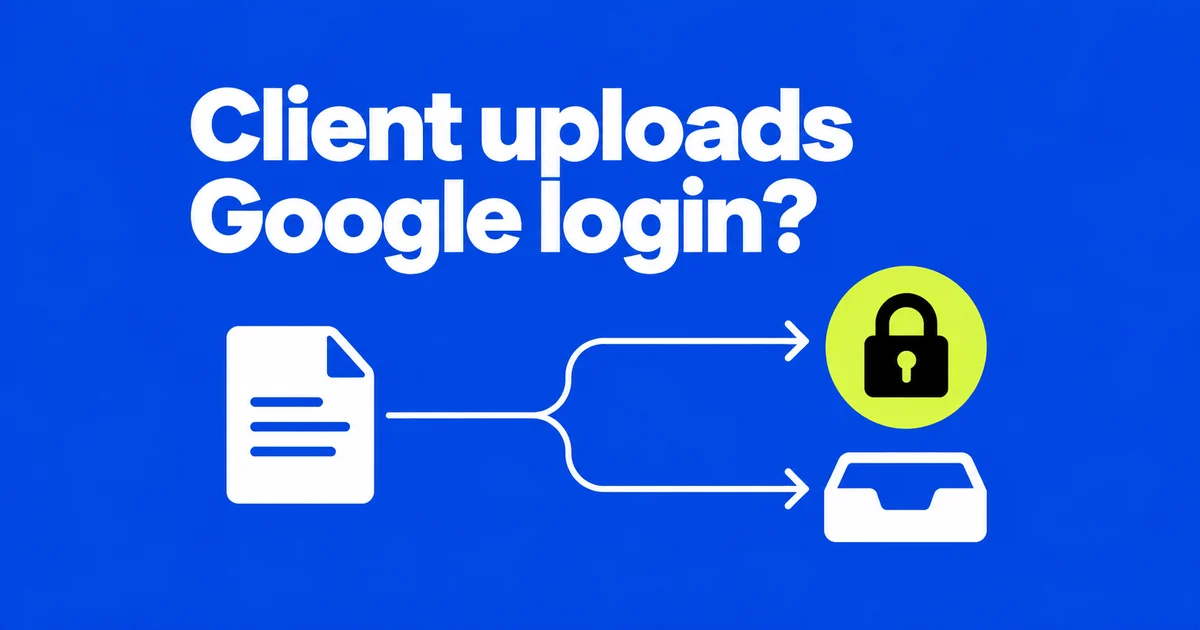
Clients need to sign in to Google to attach a PDF through a Google Forms file-upload question, even when you publish the questionnaire for anyone with its link. If a client has no Google account, you can send a Dropbox file request instead; the sender does not need a Dropbox account either.
That separate link can be enough when you have already agreed the project brief by email and only need the PDF. If you still need questionnaire answers, explain both submission steps and give the client a project reference to include in each. You will then have a way to match the document to the answers when they arrive separately.
Why a public form can still require an account
Google explicitly requires respondents to sign in for a File upload question. Opening the audience to anyone with the link still leaves that sign-in step for clients. You may miss it when checking your own form because you are already signed in to Google.
In an actual discussion about collecting documents, a volunteer working with nonprofits wanted one place to receive files that otherwise arrived through several channels. A commenter said they had removed uploads because some clients lacked Google accounts.
Other settings can also require sign-in. Google’s publishing guide identifies “Limit to 1 response” as one of them. Removing the attachment question alone therefore may not remove every account prompt. Verified email collection and manually entered contact details also serve different purposes; an address someone types is not proof that they control it.
Tell clients what they need before sending the link. For example: “This form requires Google sign-in to attach your design PDF. If you cannot use that account, ask us for a separate upload link.” Only offer that alternative if someone will actually monitor it.
Choose the intake around the information you need
Consider a hypothetical design project, reference C-027. The team needs a short project brief and a PDF for review. If the client can sign in, a form can keep those submissions together. If the brief is already agreed by email, a file request may be enough. There is little benefit in asking the client to retype information just to reach an attachment field.
| Client situation | Intake arrangement | Work left for the recipient |
|---|---|---|
| Can sign in; answers and attachment are both needed | Google Forms with a file-upload question | Review the submitted answer and its file |
| Needs to send a file without an account | Dropbox file request | Connect the document to the agreed project |
| Needs an account-free questionnaire and file submission | Text form plus a separate upload request | Match both submissions using the same reference |
The third option introduces two completion points. A client may submit the questionnaire and leave before uploading, or upload the document without completing the questions. The recipient needs to recognize those partial states rather than interpreting either confirmation as a complete intake.
For that account-free text form, remove native uploads, turn off the one-response limit, and use manually entered contact information rather than verified email collection. Publish it with external responder access where permitted. Organization policy can still restrict that audience; these settings do not override it.
For this example, use C-027 from the team's existing project list and give it to the client before submission. Ask them to include it in the questionnaire and filename, and retain it when requesting revisions. The team can then look for the C-027 PDF alongside that project's answers instead of trying to match two submissions by arrival time.
Build the attachment question and check the recipient’s route
Add a question and choose File upload. Specify the accepted types, file count and size limits. Google’s Forms customization guide explains that uploaded copies go to the owner’s Drive, organized into a form folder and question subfolders.
For C-027, ask for “the design PDF to review,” not just “your files.” Make that question required if the PDF is essential. Set the accepted type accordingly. If the team also needs photos, allow those deliberately and explain whether they supplement or replace the PDF. A broad attachment field does not tell the client which deliverable the reviewer expects.
Choose the count and size from representative files. A one-file allowance is unsuitable for a request for several photographs. Conversely, receiving every historical draft can leave the reviewer unsure which version to open. State the requested version in the question, then check that the allowed upload can accommodate it.
Google lists shared-drive storage and administrator-enabled Data Loss Prevention among the restrictions on this question type. If upload is unavailable, ask the administrator about the permitted location and collection method. Do not move company intake to a personal account simply to get around the restriction.
Publish the form, use Manage to set its allowed audience, and copy the responder link. An editing invitation is not the link clients need. Separately, Workspace administrator controls can govern both accepting external responses and responding to externally owned forms. A successful Google login does not guarantee that the client’s organization permits the submission.
Test the link in a signed-out window, then with an authorized external test account. For an upload form, the first login prompt is expected. Submit a harmless sample and check the receiving side. Previewing a form while signed in as its owner does not reproduce the client’s entire route.
Also inspect the setting that shares response summaries. Google warns that those summaries can expose full text responses or charts to people who can respond. A client receipt should not inadvertently become a view of other clients’ answers.
Send a file request when the client cannot sign in
Dropbox’s request setup starts at File requests → New request. Enter a title, description and destination, create the request, and copy its link. The destination is private by default. Share the upload request rather than a folder-browsing link.
For C-027, use a request title that identifies the project and explain which PDF is expected. If a separate questionnaire remains necessary, send both steps together. Merely placing two links in the same message does not associate an uploaded document with a Forms response.
The client does not need a Dropbox account. They use Add files, supply a name and email if prompted, and upload; a green check marks success. The submitter instructions also specify a 2 GB per-file limit for requests created by Basic, Plus and Family users. The receiving account needs enough free space.
Team administrators can disable file requests. If the option is unavailable in the receiving account, ask which collection route the team permits before sending clients an alternative link.
Reconcile the answer, attachment and replacement
Forms can save answers to a new or existing spreadsheet through its response destination settings. When files arrive through a separate request, add the received filename and review status beside each project's reference. An answer without a matching file remains visible as unfinished intake, so the team knows which client to contact.
| Reference | Questionnaire | File received | Next action |
|---|---|---|---|
| C-027 | Received | C-027_draft.pdf | Open it and verify it belongs to this project |
| C-028 | Received | None | Request the missing attachment |
| C-029 | Missing | C-029_draft.pdf | Request the missing project details |
For native Forms uploads, open the individual response to inspect its attachment; Summary → View folder provides the collected files. For separate requests, compare the project reference rather than pairing submissions merely because their timestamps are close. Two clients can submit within the same minute.
A replacement upload also needs attention. Dropbox says that submitting the correct file after a mistake sends both versions to the requester. It does not silently replace the first one. Ask for a revision label, update the review-file entry, and make the approved version explicit in the project record.
Before handing intake to a colleague, have that colleague open the actual sample attachment. Seeing the questionnaire or spreadsheet is not a substitute for reading the document. Check the specific file that review depends on, rather than granting broad access to all customer material as a troubleshooting shortcut.
Close submissions without losing the review trail
In current Forms, open Published and turn off Accepting responses. Close the Dropbox request separately with Close request. If the intake uses both, closing only the questionnaire still leaves a route for more documents.
Google’s response management documentation distinguishes the form’s data storage from uploaded files: the 1 GB form-data limit introduced from September 2026 excludes user uploads. It also says deleting responses does not delete attached files. Do not interpret a cleared answer list as a cleared attachment folder.
Keep the final project reference tied to the reviewed filename. If C-027 has an original PDF and a revision, the handoff should identify the one to use. The next reviewer can then find the accepted document without reconstructing the sequence from upload emails.