PowerPoint set to loop, but slides will not advance?
The reception display is set to loop, but it sits on the opening slide until someone walks over and clicks. What makes the deck move on by itself?
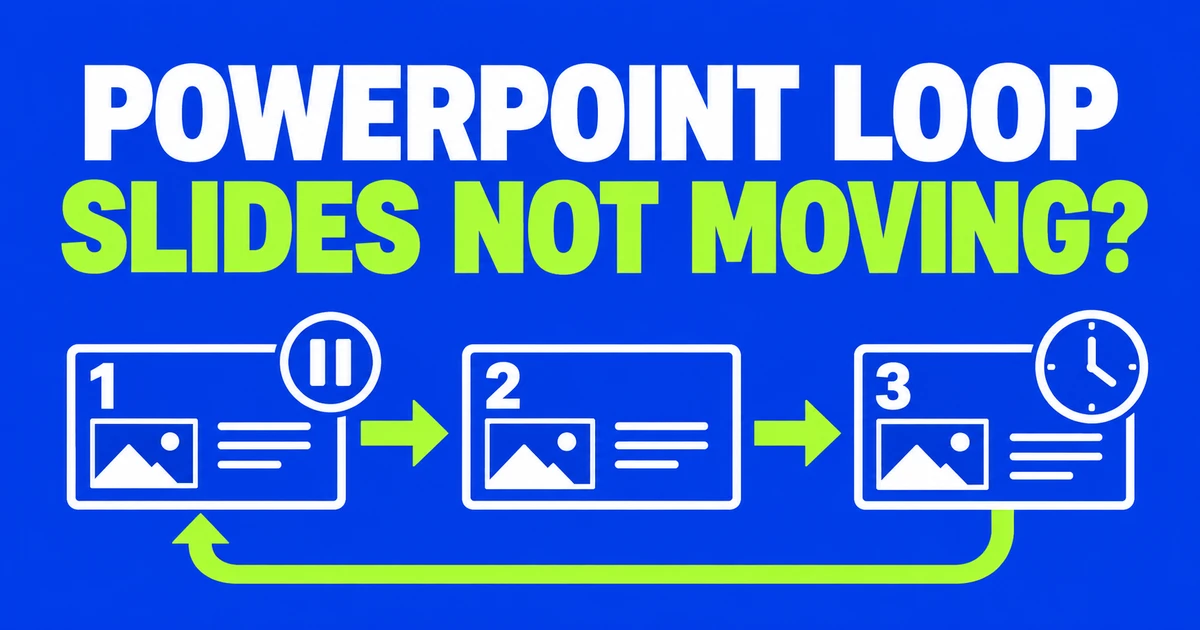
- If a show is set to loop but stays on one slide, check its automatic advancement timing. Give slides an After time on the Transitions tab and configure the show to use those timings without clicks.
- For an unattended display, choose the kiosk show type. Allow longer reading time for detailed instructions, and remove unintended click waits from animations and video playback.
- A PPSX opens directly as a slide show when double-clicked. It does not create timings or a loop for you. Test the delivered file on the display computer, including the return from the final slide to the first.
A deck that worked during a presentation may sit on its opening slide when left at reception. The speaker supplied the clicks before; now nobody is there to move it along. Enabling a loop determines what happens at the end, but the show still needs a way to get there.
The steps below use desktop PowerPoint for Windows. Keep the speaker’s original and adjust a separate display copy, so an automatic transition does not later interrupt a live explanation.
Make the slides advance before they repeat
“Loop continuously until Esc” brings the show back to its beginning. Automatic slide advancement supplies the movement between slides. A show waiting for input on its first slide has not yet reached the place where looping helps.
- Select a slide and open Transitions. Enable After and enter a time to try.
- Choose Apply to All if the same timing and transition suit every slide. Otherwise, set the relevant slides individually.
- Open Slide Show → Set Up Slide Show. For unattended playback, select Browsed at a kiosk (full screen).
- Under slide advancement, use Use Timings, if present rather than manual advancement. The slides still need saved timings.
- Run the show From Beginning, leave the controls alone and check that it advances. Press Esc to exit.
Microsoft’s self-running presentation guide describes kiosk playback as looping until Esc. Its timing guide explains how to switch from manual advancement back to stored timings.
If a staff member will explain the material and advance it as needed, a speaker-led show with looping may be more suitable. Decide whether the display is unattended before changing its show type.
Give instructions enough reading time
Two controls on the Transitions tab accept time values. Duration controls the length of the transition effect; After sets automatic advancement. Increasing Duration to give visitors more reading time can merely make the change between slides slower.
There is another detail: the After timer starts once the slide’s final animation or other effect finishes. An eight-second setting is therefore not necessarily eight seconds from the moment an animated slide first appears. Microsoft states that condition in its transition timing documentation.
Suppose the final instruction finishes appearing eight seconds after the slide appears. With After set to twelve seconds, the countdown begins at that point: the next transition would start at twenty seconds in this example. The twelve seconds give visitors time to read the completed instructions. If the text takes too long to arrive, shorten the animation sequence or its delays. If visitors cannot finish reading once it is visible, increase After. Those changes address different parts of the wait.
For a simple deck of static text and pictures, try different times for different tasks. The following values are an example to adjust, not a recommended standard.
| Static slide | Example After setting | What to observe |
|---|---|---|
| Event name and location | 6 seconds | Can a newcomer identify the event? |
| Three registration steps | 12 seconds | Can someone read the final step? |
| QR code and short instruction | 20 seconds | Is there time to take out a phone and scan? |
| Next session’s start time | 6 seconds | Is the time readable before the loop restarts? |
Apply a common starting time if useful, then adjust longer instructions individually. Avoid applying everything again after those adjustments unless you intend to replace them. Giving every slide twenty seconds would also slow down the brief announcements.
In an ordinary speaker-led show, On Mouse Click and After can both be selected. Automatic advancement still works, while a click can advance earlier. The mouse option being checked is not, by itself, proof that automatic advancement is disabled.
Remove unwanted waits inside a slide
If earlier slides advance but a heading or picture never appears on one slide, inspect that object’s animation. Slide timing does not mean every effect formerly triggered by the presenter will now start without input.
Select the object and open Animations → Start. On Click waits for a click. With Previous starts alongside the previous effect, while After Previous starts after it finishes. Microsoft explains these choices, along with Duration and Delay, in its animation timing guide.
Use the order that fits the explanation. Registration steps may need to appear sequentially; a heading and logo might appear together. Changing every effect to simultaneous playback can make instructions overlap. For essential information, leaving the text visible from the start can also be simpler than choreographing its arrival.
For a video waiting for a play action, select it and choose Playback → Start → Automatically. It then starts when you reach the slide in the show. Microsoft’s automatic video playback guide distinguishes this from playback in the click sequence.
Watch through the video’s ending and into the next slide. If you applied a photo slide’s timing to the video slide, revisit that transition setting. Starting the clip successfully is only part of checking that the surrounding announcements continue.
Record timings by reading through the deck
You do not have to estimate every duration in advance. Choose Slide Show → Rehearse Timings, read each slide and move on when ready. PowerPoint records the time you spend on each one.
The timer starts immediately. Read as a newcomer would, and allow time to take out a phone on a QR-code slide. Pause if you need to do something else. Use Repeat on the rehearsal toolbar to time the current slide again, and choose Yes at the end to keep the timings.
Open View → Slide Sorter to inspect the times. A much longer slide may contain more information, or you may have been interrupted during rehearsal. Adjust the outlier rather than assuming the recording captured only reading time.
If the same material later becomes a live talk, manual advancement can be selected in the show settings. Keeping a separate display copy avoids repeatedly changing the file used by a speaker.
Hand over a PPSX that is ready to run
To open directly into the show, choose File → Save As or Save a Copy, then select PowerPoint Show (.ppsx). Double-clicking that file starts the slide show rather than opening its editing view, as described in Microsoft’s PowerPoint Show guide.
The format does not add timings or enable repetition. Finish those playback settings first, then choose PPSX to simplify the next operator’s opening step.
A PPSX remains editable through File → Open in PowerPoint. If you maintain a separate PPTX master, save a new show copy after changing it. Updating a room number in the master does not update an older file already handed to reception.
Give the operator a clear filename and opening and exit instructions. For example: double-click the display PPSX to start, and press Esc to stop. PowerPoint for the web does not offer saving as PPSX, so complete that step in the desktop application.
Separate a stalled slide from a sleeping display
A slide that remains visible and a screen that turns off are different observations. The first points you toward that slide’s playback settings; the second makes screen and sleep timers worth checking.
In Windows 11, open Settings → System → Power & battery → Screen, sleep, & hibernate timeouts. Screen-off and device-sleep times are separate controls in the Windows power settings guide. Adjust the relevant power-state settings for the display’s operating period, then restore normal settings afterward.
If the laptop also runs other work, test that actual pattern of switching windows and using displays. Successful playback while leaving the computer untouched does not establish how your working setup behaves. Record whether the screen switches off, the show ends, or a particular slide stays visible; do not assume every interruption has the same cause.
Watch the return to the beginning
Run the delivered file on the display computer. Watch the final slide return to the first and continue into the next slide. Drexel’s looping presentation instructions likewise include checking the restart at the end.
Use the first pass to read instructions, scan the code and watch the video ending. On the next pass, check that playback continues after restarting. If it stops, note the slide number and last visible object so you can revisit its timing and start options.
After a late wording change, check that slide again. A longer instruction can outgrow its allotted time even though automatic playback still works. Hand over the current file with both the final wording and its adjusted timings.