Pragtical 3.14 Lets You Switch Saved Workspaces Without Discarding Unsaved Text
You reopen your project in Pragtical and it restores the tabs from another window’s session. How do you pick the one you meant without losing unsaved text?
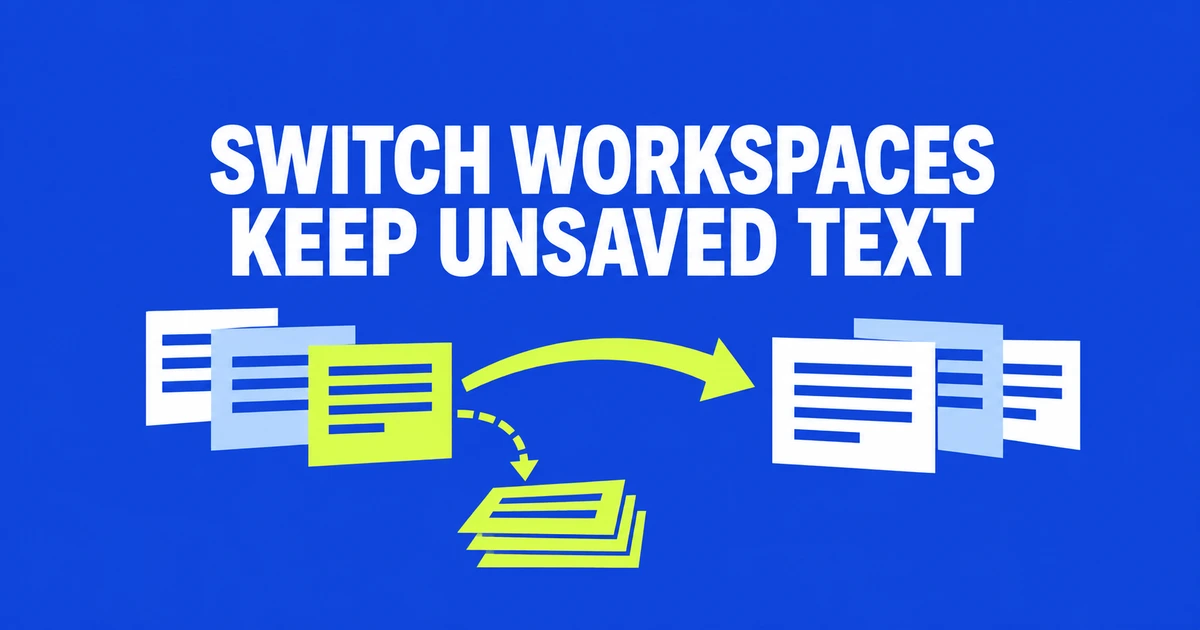
- Pragtical 3.14 adds an explicit chooser for saved sessions belonging to the current project.
- Loading another session backs up the current workspace, including unsaved text.
- Removing stored sessions leaves open tabs and other projects' sessions alone.
Pick a session from File > Sessions
Pragtical 3.14, released October 20, gives saved workspaces a visible selection menu. If the current project has several stored sessions, you can choose which one to restore rather than rely only on automatic restoration.
Use File > Sessions > Load Session…, or run workspace:load-session from the command palette. The versioned implementation supplies tab counts and available save timestamps to help identify a session. An empty list produces a message that no saved sessions exist for the project.
Session selection is new; automatic restoration is not
Version 3.13.1 had already fixed transitions that could save an empty session before restoration and fail to reopen a project's tabs. It also corrected Windows path and session-name handling.
The related user discussion in issue #617 identified another usability problem: multiple sessions could exist without a straightforward way to choose among them. A maintainer explained that opening several editor instances on the same directory could create multiple saved states. The new controls make those states accessible.
The outgoing workspace gets a backup first
The session-management change explicitly includes unsaved text in the backup made before loading another workspace. Switching replaces the document layout; it is not an instruction to save every buffer over its original file.
The workspace API documents failure handling: an unsuccessful backup or restore preserves the current layout and selected session. A successful restore consumes the selected stored session. This makes sessions useful for resuming work, rather than a permanent archive of every previous state.
Deleting a saved session does not close your open tabs
| Intent | Command | Effect |
|---|---|---|
| Resume another layout | workspace:load-session | Back up the outgoing workspace, then restore the selection. |
| Remove one stored state | workspace:remove-session | Delete that session without closing open tabs. |
| Clear this project's stored states | workspace:clear-sessions | Preserve the active workspace and other projects. |
Clearing sessions does not disable normal saving on exit. Use loading to change the workspace you are looking at, and removal to clean up stored states you no longer need.