USB Switch or KVM for a Work Laptop and Gaming PC?
The monitor switches to your work laptop, but the keyboard still controls the gaming PC. What would switch both together while keeping your preferred refresh rate?
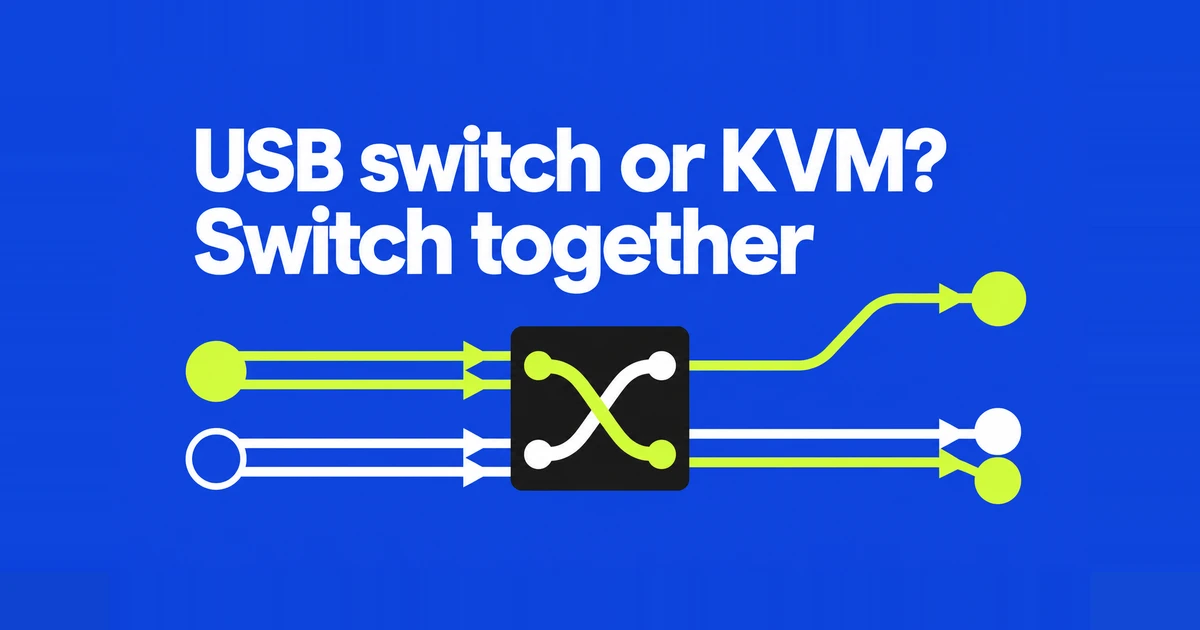
- A USB switch shares peripherals while video stays connected directly to the monitor. You switch the monitor input separately.
- A monitor with a built-in KVM can switch its USB devices along with the selected video input. Each computer still needs a USB upstream connection.
- An external KVM can move video and peripherals together. Buy for your exact resolution, refresh rate and display arrangement; a “4K” label does not establish 144Hz support or independent control of two screens.
If your gaming monitor has spare inputs, you can share it with a work laptop without putting a KVM in the video connection. Leave the gaming PC connected directly, connect the laptop to another input, and use a USB switch for the keyboard and mouse. The tradeoff is separate controls for the screen and peripherals.
That choice comes up in a buildapc discussion from someone adding a work laptop to a desktop with 1440p/144Hz and 1080p/60Hz monitors. Replies propose both full KVMs and USB-only switching.
Three ways to share the desk
| Setup | Video connection | Switching action | Best fit |
|---|---|---|---|
| USB switch | Each computer connects directly to a monitor input. | Change monitor input, then press the USB switch. | Keep existing display connections and share peripherals. |
| Built-in monitor KVM | Each computer connects to the monitor. | Select an input with the matching USB upstream assigned. | A compatible monitor is already on the desk or shopping list. |
| External KVM | Computers connect to the KVM; its output connects to the monitor. | Use a button or supported hotkey. | Move the display and peripherals together without replacing the monitor. |
A USB hub gives one computer more peripheral ports. A USB switch selects which computer gets the attached devices. A KVM adds video switching. Counting USB sockets on a monitor or accessory does not tell you which of those jobs it performs.
For a single monitor with only one usable input, USB switching alone cannot provide the second video connection. With two suitable inputs, it becomes an alternative to a full KVM. The monitor handles the video selection that the USB device leaves out.
Keep video direct with a USB switch
Consider a desktop connected to DisplayPort and a laptop connected to HDMI. Plug the keyboard and mouse into the USB switch, then connect its two host ports to the two computers. Moving to the laptop means selecting HDMI on the monitor and selecting the laptop on the switch.
This leaves the gaming display signal out of the USB switch entirely. Its USB speed cannot impose a video refresh-rate limit because video never passes through it. The monitor input, graphics output and video cable still have their own limits. A laptop's HDMI connection need not offer the same modes as the desktop's DisplayPort connection.
UGREEN's SKU15705 is a concrete example of the USB-only category: it explicitly excludes monitor and video sharing. Its USB-C peripheral socket should not be mistaken for a USB-C laptop video input. For a USB-C-only host, this particular listing specifies a C-to-A adapter with its supplied A-to-A host cable, rather than a C-to-A cable alone.
The extra button press is the compromise. If you change only the screen, the keyboard can remain attached to the other computer. If you change only USB, you can type into a computer you are not currently viewing.
Use the monitor's built-in KVM
A monitor KVM links video selection with USB selection. The keyboard and mouse connect to downstream USB ports; upstream connections lead back to the computers. An HDMI picture does not supply that missing USB connection. Dell's setup guide treats the video and upstream cables as separate parts of installation.
A suitable USB-C connection can carry both video and USB data, but the connector shape alone does not establish that capability. In ASUS's PA27UCGE Auto KVM example, upstream port 1 supports video, while upstream port 2 carries data only. The second computer needs HDMI or DisplayPort as well.
For that example, connect computer one to the video-capable USB-C port. Connect computer two to HDMI-1 and the data-only upstream port, then attach the keyboard and mouse to the monitor. Under Settings → KVM, upstream port 1 uses Auto and upstream port 2 is assigned to HDMI-1. If you use another video input, assign the matching input instead.
That assignment is what makes the picture and USB devices belong to the same computer. These menu names apply to the ASUS example; another monitor needs its own input mapping. A monitor with only a USB hub cannot gain KVM switching through this setting.
Choose an external KVM for the actual video mode
An external KVM puts another device in the display connection. In a design with separate video and USB host cables, each computer supplies both to the matching numbered input group. The monitor connects to the console output. Keeping a computer's video and USB on the same numbered group prevents the display from following one machine while input goes to another.
Read the supported resolution and refresh rate together. The StarTech P2AD122 datasheet explicitly lists 3840×2160 at 60Hz, 2560×1440 at 60Hz and 1920×1080 at 60Hz. It allows that other modes may work, but that is not a documented guarantee of 1440p at 144Hz. Nor does this one product establish a 60Hz limit for all KVMs.
For a high-refresh gaming monitor, look for your intended mode in the candidate's supported combinations. Check explicit support for HDR and variable refresh rate if you use them. A higher maximum pixel count is not a substitute for those features. If the exact mode is unconfirmed, preserving the direct video connection with a USB switch avoids depending on an unverified KVM video mode.
EDID management addresses a different part of switching. It retains information about the display for the computer; the P2AD122 quick-start guide includes a mode that copies the attached monitor's EDID. Retaining display information does not increase video bandwidth or turn an unspecified high-refresh mode into a supported one.
Receivers, webcams and laptop power
A wireless keyboard with a USB receiver can be part of the switched USB setup. A keyboard paired directly with a computer over Bluetooth is outside that connection. Dell specifically documents receiver-based wireless input for its KVM setup and excludes Bluetooth input. A keyboard's own device-selection button can switch its paired computers, but it does not also switch the monitor.
For a webcam or headset, check ordinary USB peripheral support as well as keyboard and mouse support. The P2AD122 manual separates HID ports for input devices from its USB 5Gbps hub ports. A USB-A socket labelled for a keyboard is not an instruction to plug every accessory into it. Use the product's supported general-purpose USB connection for additional devices.
Power is another connection to account for. The UGREEN example offers auxiliary power for peripherals, including devices such as cameras and headsets, but its power input does not charge either computer. A single-cable laptop setup requires a host connection with an explicit charging capability and suitable output. Otherwise, keep the laptop's charger connected separately.
Sharing the keyboard also need not mean sharing every USB device. If a webcam is only used for work, leaving it on the laptop avoids moving it whenever you switch to the gaming PC. A shared headset, by contrast, needs to appear as the intended input and output device in each computer's applications.
Two screens together or one per computer
A dual-display KVM can switch a pair of screens between computers without necessarily letting you assign each screen independently. If you want work on the left and your personal PC on the right, that is a separate requirement. With suitable direct connections to each monitor, independent input selection plus a USB switch can provide that arrangement.
Some KVMs also support it internally. ATEN's comparison of CM1942 and CS1942DP identifies Dual PC Mode on the CM1942 and its absence on the CS1942DP. Both are dual-display products, but only the former offers the described mode for displaying one computer on each screen.
That comparison also describes computers providing two DisplayPort outputs. A laptop does not acquire two independent display outputs merely because the switch has two monitor connections. The computer and any dock must supply the required displays before the KVM can switch them.
Test the setup you will actually use
First connect each computer directly and record its working resolution and refresh rate. Then install the switch according to its manual; the P2AD122 instructions require computers, displays and peripherals to be powered off during cabling. Keeping the direct-connection result gives you something concrete to compare after installation.
Open a clearly labelled blank text document on each computer. Switch to each host and check that typing and mouse movement reach the computer on screen. If they disagree, trace the USB host cable as well as the video cable, or correct the built-in KVM's input-to-upstream assignment.
In Windows 11, go to Settings → System → Display → Advanced display and select the monitor. Microsoft's instructions explain where to read the current resolution and refresh rate. A rate marked with an asterisk may require changing resolution, so check the resulting pair rather than only the largest Hz number.
Finally, switch with both computers awake and repeat after sleep. Test a shared webcam's preview and a headset's microphone in the application you use. The gaming PC should retain its intended display mode, and the work laptop should receive the selected peripherals after waking as well as at first connection.