AirDrop Shows Your Device but Won’t Send: What to Check
AirDrop on your Mac shows your iPhone, yet the photos just sit at Waiting until you switch receiving to Everyone. Why do your own devices need that?
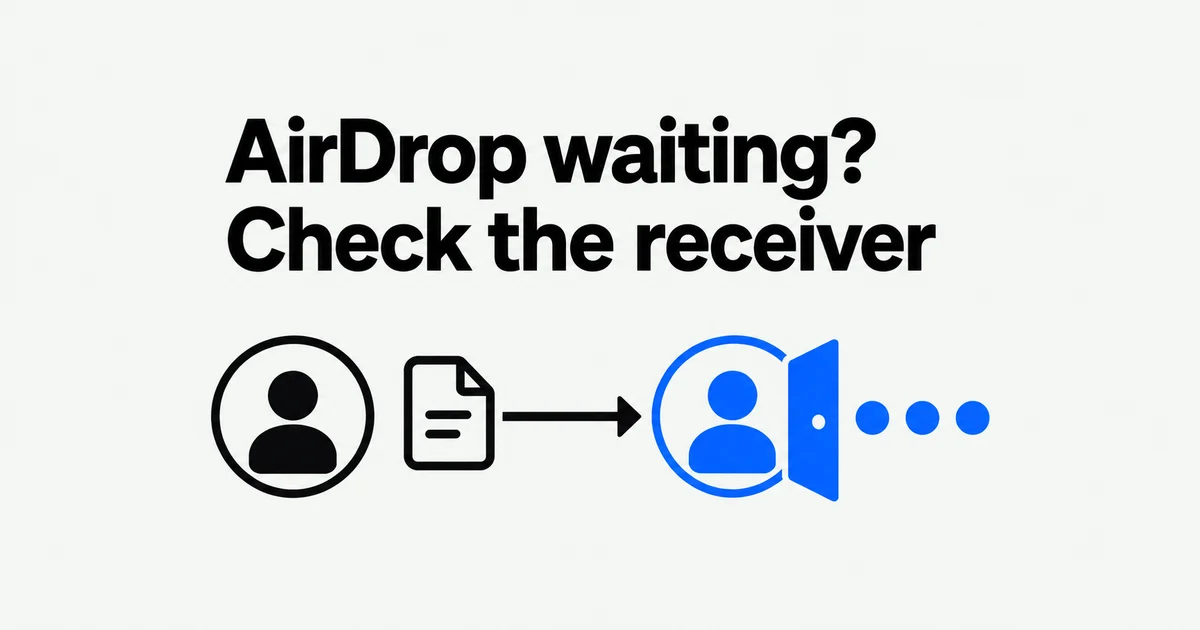
- For your own Mac and iPhone, compare the Apple Account signed in on each. With the same account, items are accepted automatically, so check transfer progress and the destination app instead of waiting for an Accept button.
- When sending to someone else, check their incoming request together. If they use Contacts Only, your Apple Account email address or phone number needs to be in their address book.
- To receive from a non-contact on iPhone, select Everyone for 10 Minutes. If supported devices request a code, the recipient displays it and the sender enters it. That verified person can then exchange files with you for thirty days without another code.
A Mac can display your iPhone in AirDrop while the transfer still waits. A user sending edited photos between their own devices described exactly that: the devices appeared, but sending worked only after enabling Everyone for 10 Minutes. They later reported that signing out of iCloud on the Mac and back in resolved their case.
Start on the receiving device: look for an acceptance request or code, check its receiving setting, and verify which Apple Account is signed in. If the sender already shows completion, go to the destination app before sending another copy.
Your own devices should not need an Accept button
For a Mac and iPhone signed into the same Apple Account, AirDrop automatically accepts and saves items. That is the behavior described in Apple’s Mac guide. Check the account shown in settings on both devices. Matching device names or belonging to the same Family Sharing group does not establish that the account is identical.
If one device uses another account, treat the transfer as sharing with another person: inspect its receiving setting and incoming request. If the accounts match, do not keep searching for an Accept notification that this route normally skips. Check the sender’s progress and the receiving app instead.
| What you see | Where to look next | What that check answers |
|---|---|---|
| No recipient appears | Receiving visibility, proximity, Wi-Fi and Bluetooth | Can this receiver be discovered under the current conditions? |
| A person appears, but sending waits | The recipient’s request or code prompt | Is someone expected to accept or verify the transfer? |
| Your own device appears, but sending waits | Account identity on both devices and their connection | Does the automatic-acceptance condition actually apply? |
| The transfer completes, but the file seems missing | Photos, Files, Downloads, or the selected receiving app | Where was the item saved? |
Changing the receiver to Everyone can be a useful comparison. If it works, you have identified a difference between receiving conditions. You have not proved which account record or contact entry is responsible. Preserve that observation before attempting broader changes.
Contacts Only checks the recipient’s address book
If Maya sends a document to Alex, and Alex allows contacts only, Alex needs Maya’s Apple Account email address or phone number in Maya’s contact card. Maya having Alex in her address book does not satisfy Alex’s receiving condition. Apple specifies the direction of this check.
Open the sender’s card on the receiving device and compare the stored information with the sender’s account information. A familiar nickname or an unrelated work number is not enough. If you share in both directions, perform the corresponding check on both devices rather than assuming one correct card fixes both transfers.
The underlying reason appears in Apple’s AirDrop security documentation: discovery and authentication use identity information derived from account email addresses and phone numbers. Renaming the phone or manually pairing it in Bluetooth settings does not replace that identity check.
When the card is corrected, retry the same item with Contacts Only still selected. If you change to Everyone at the same time, a successful transfer will not tell you whether the contact correction worked. Keeping the file, devices and direction constant makes the result easier to use.
Receive a file from someone outside Contacts
On the receiving iPhone, open Control Center, press and hold the connectivity controls, and select AirDrop, then Everyone for 10 Minutes. Once the recipient has enabled receiving, the sender can select the file and choose that person in AirDrop.
Apple’s iPhone instructions say that on iOS 16.2 and later, the setting returns to Contacts Only after ten minutes when signed into an Apple Account. Without an account signed in, it returns to Receiving Off. If a later transfer cannot find the iPhone, check its receiving setting again. On a Mac, the receiving options are Contacts Only and Everyone.
On supported current versions, sharing with a non-contact can also require an AirDrop code. Apple documents the code flow for iOS, iPadOS and macOS 26.2 or later; its iPhone article explicitly describes both devices running iOS 26.2 or later. Do not expect an older mixed-device setup to show every button in the newest instructions.
- The sender selects the item and recipient in AirDrop.
- The recipient continues the incoming request and displays an AirDrop code.
- The recipient tells the sender that code.
- The sender enters it on the sending device to continue.
For the next thirty days, you can exchange items with that verified person without entering another AirDrop code. Continue checking incoming requests when receiving their files. Transfers between your own devices on the same Apple Account are accepted automatically, as described earlier.
To end that code-free connection before the thirty days expire, find the person in Contacts under Other Known and choose Forget This Person. Apple’s Mac guide describes this control for managing people you have verified.
A shared Wi-Fi network is not the starting requirement
Keep both devices nearby with Wi-Fi and Bluetooth enabled. Apple’s user guide specifies roughly ten meters, or thirty feet. Putting the devices side by side also lets you see whether an incoming prompt appears. Disconnect Personal Hotspot if either device is using it, as the iPhone support instructions require.
AirDrop uses Bluetooth discovery and a direct peer-to-peer Wi-Fi connection for local transfers. The devices do not need the same wireless access point for that direct connection. Turning off Wi-Fi because you do not want to use an internet connection removes a radio that AirDrop needs.
A VPN configuration that blocks local networking can interfere with Continuity features. On a managed device, organizational policy can also restrict AirDrop or sharing from managed apps. If receiving controls are unavailable or restricted, ask the administrator about the applicable policy rather than repeatedly changing personal-device settings.
Current user guides also describe an already-started transfer continuing over the internet after the devices move out of local range. That does not let a sender discover a distant recipient to start a new transfer. If cellular use is unwanted, the iPhone’s Settings, General, AirDrop screen provides a cellular-data control. Staying nearby until completion removes that handoff from the initial troubleshooting attempt.
Check the receiving window, then the destination app
If Finder’s AirDrop window is open on the receiving Mac, the accept-or-decline request appears there rather than in Notification Center. Look in that window before concluding that no request arrived. On another person’s device, complete the requested acceptance or code interaction; on your same-account device, check whether the item has already arrived automatically.
Apple’s receiving instructions say that items commonly arrive in the corresponding app. A photo sent from Photos generally appears in Photos. Some iPhone or iPad items arrive in Files. A Mac may save to Downloads or offer an app choice, such as opening a received photo in Photos.
Open the received item instead of relying only on the sender’s completion label. For a document, inspect the pages you need; for a video, try playback. If a transfer is complete but you cannot find the result, check these destinations before sending the entire batch again. That avoids confusing repeated copies with a transfer that never happened.
Use one file to reproduce the remaining problem
Choose one small photo or document and keep the device pair and direction unchanged. Try the original receiving setting, then change one relevant condition and retry. Record which receiving mode worked before trying a larger batch.
For a Mac-to-iPhone failure, test the reverse direction separately. Success in reverse does not prove every part of the original path works, but it gives support a more precise report than “AirDrop is broken.” Record the OS versions, whether the accounts match, receiving mode, transfer direction, and whether a code or acceptance prompt appeared.
Once an urgent transfer succeeds through Everyone, open the file, restore your preferred receiving setting, and try another single item. If Contacts Only still fails, the immediate delivery is finished but that receiving problem remains. Continue with the relevant contact or same-account check using the conditions you just reproduced.