Reset Your Apple Notes Password but Still Locked Out?
The new Notes password opens everything locked since the reset, but one older note still shows the hint for a password you’ve forgotten. Is there any way back into it?
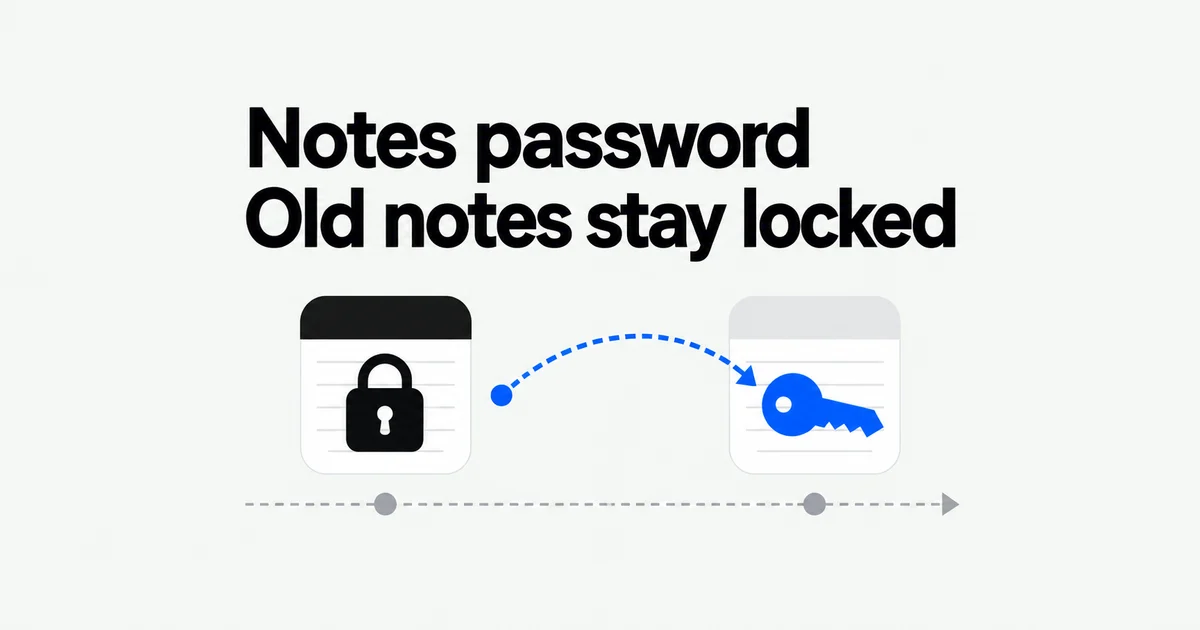
- Resetting your Notes password establishes credentials for notes you lock afterward. It does not replace the password protecting an older note.
- If a note still opens with previously configured Face ID or Touch ID, you can use that authentication to change the Notes password. You can also remove an accessible note’s lock, which leaves it unlocked on other devices syncing that note.
- Without the old password or working biometric access, Apple cannot unlock the old content. Your Apple Account password does not substitute for the missing Notes password.
Your new Notes password applies to notes you lock after a reset; older notes keep their previous passwords. If you cannot remember one of those passwords, try opening the note with the Face ID or Touch ID access already configured for it.
If you can read the contents, you can use working biometric authentication to change the Notes password in settings. You can also remove the lock from an accessible note if you no longer need that protection. Check each note you need afterward: earlier resets may have left other notes protected by different passwords.
What can you still open?
Unlocking your iPhone is not the same as unlocking a note. Select the locked note in Notes, tap View Note, and use the authentication available for that note. Seeing its title in a list does not establish that you can read the contents.
| Your access | Available next step |
|---|---|
| You know the note’s old password | Open it and use the offered update to the current password, or change the password through Notes settings. |
| Existing Face ID or Touch ID still opens it | Use the supported password-change route, or remove that note’s lock. |
| You have neither the old password nor working biometric access | Use any existing hint to recall the old password. A reset can configure future notes but cannot open this one. |
For a collection of notes, check the ones you actually need rather than treating one successful unlock as proof that all are accessible. Previous resets may have left different passwords in use. If the same iCloud note already opens through configured Touch ID on a Mac, you can work with it there. Simply signing in on another device does not supply a forgotten password.
Changing the password with working Face ID
The current iPhone User Guide explicitly describes changing a forgotten custom password when Face ID or Touch ID still gives you access. On the iPhone, go to Settings → Apps → Notes → Password, choose the account if necessary, and tap Change Password. Authenticate with the existing biometric method and create the replacement password.
Use Change Password for this route, then check the notes you intended to update. If earlier resets left other notes protected by different old passwords, do not assume that a change to your current password has recovered all of them. A note that still asks for an older password needs its own valid authentication.
You can instead remove protection from an individual accessible note. Open it, authenticate, and use the More menu’s lock-removal option. Apple’s iPhone support instructions label that option Remove; it removes the lock, not the note. On a Mac, choose Remove Lock from the note’s More menu and authenticate as required. The Mac guide supports Touch ID for this action when enabled in Notes settings.
Removing a lock leaves the note readable without that protection, including on other devices syncing the same note through your Apple Account. Merely viewing an unlocked note has a different result: the session eventually closes and authentication is required again. If you remove a lock to reorganize sensitive material, apply the intended protection afterward. Any separate copy you created also needs its own protection.
Existing biometric access is worth addressing while it works. The iPhone guide says that changing Face ID or Touch ID settings requires the custom Notes password, and Notes may also request it periodically. Registering a new face or fingerprint is not a documented way to replace a forgotten Notes password.
Why a reset leaves older notes locked
Consider two notes: one locked before the reset and another locked afterward. The second accepts your new password. The first remains protected by the password used earlier. Both can appear in the same account without sharing the same current password.
Apple’s security documentation describes encrypted note content and password-specific access. Resetting the password does not give access to content already protected with the forgotten one. Entering your Apple Account password during a reset authorizes the reset; it does not turn that account password into a key for the old note.
The Mac password guide distinguishes a change, which updates the protected notes, from a reset, which leaves existing notes using their previous passwords. It also notes that the list does not make managing those multiple passwords easy. Repeated resets can therefore leave more password history to untangle without restoring any old content.
Once neither the password nor configured biometric access is available, Apple cannot regain access to the locked contents for you. Recovering your Apple Account can restore access to the account, but it does not replace the custom password on an old note. There is no need to delete that note just because you cannot open it now; keeping it preserves the option of opening it if you later recall the password.
Updating a note when you remember its old password
On an older note, entering your current password can produce a wrong-password warning and the hint you set for the earlier password. That hint belongs to the old lock. If you never created a hint, there may be no such clue to use.
When the old password comes back to you, enter it on that note. Apple’s iPhone and iPad instructions say that a correct older password produces an option to update the note to your current password. This gives you a way to bring accessible older material into your current setup.
After accepting the update, check that note again. Then check any other old notes you need. For example, updating a note protected by password A does not establish that another note protected by password B has changed. The practical completion check is whether each intended note now opens with the credentials you plan to keep.
Setting up a password for future notes
If you cannot access the older material but want to protect new notes, use Settings → Apps → Notes → Password, select the account, and tap Reset Password. Enter the requested Apple Account password, confirm the reset, and choose a device passcode or a new custom password and hint. If you already did this and newly locked notes work, you do not need another reset.
Check the account before changing it. An iCloud Notes account and an On My iPhone account can have separate locking settings. Changing one is not evidence that a note stored in the other has been updated. Notes synced through external accounts such as Gmail do not support Apple Notes locking.
You can check the new setup with a note containing nothing sensitive. Choose Lock from its More menu, use the lock icon at the top to hide its contents, then reopen it. A note can remain visible immediately after you add its lock, so visible text at that moment does not mean the setting failed. Confirm the authentication route before using it for material you need to keep private.
Device passcodes, older Macs, and iCloud.com
Using a device passcode avoids maintaining an additional custom Notes password. For an authenticated switch from an existing custom password, enable iCloud Keychain and choose Use Device Passcode in the Notes password settings. Authenticate using the supported existing method. Choosing a passcode after a reset does not bypass the password on previously inaccessible notes.
| Locking method | On another supported Apple device | On iCloud.com |
|---|---|---|
| Custom Notes password | Use the same custom password for the synced note. | The note can be viewed with its Notes password. |
| Device passcode | Use that device’s passcode, or that Mac’s login password. | Notes locked this way cannot be viewed. |
The device-passcode option requires iOS 16, iPadOS 16, macOS 13, or later for access. An older operating system can therefore prevent a synced note from opening even when your newer iPhone opens it normally. Check the other device’s OS and the note’s locking method before treating that failure as another forgotten password.
Browser access also matters if you read notes on a Windows computer. The iCloud.com guide says that notes protected with a device passcode or Mac login password cannot be viewed on the website. Custom-password notes can be viewed there, but an old note still requires its old password.
The website is not where you manage those locks. Adding or removing a lock, changing the password, and resetting it require Notes on an iPhone, iPad, or Mac. If browser access is part of your routine, account for it when choosing a new locking method. You can update the notes you can currently open while leaving inaccessible older notes intact.