Mac Migration Assistant: Keep Your New Mac’s Existing Files
You’ve already started using your new Mac, but your old projects are still on the previous one. What happens when Migration Assistant finds two accounts with the same name?
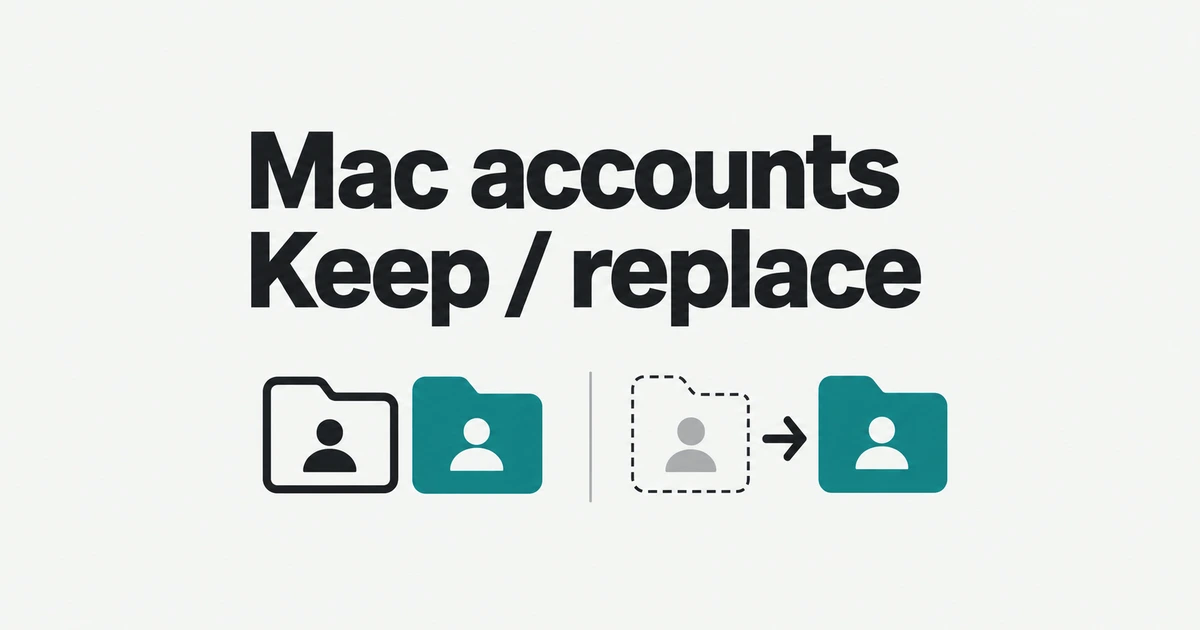
- Rename the incoming account to keep two logins, or replace the matching destination account.
- Choose another Mac or a Time Machine backup as the source, then select accounts, folders, and apps.
- Use the migration’s password instructions and test real documents and app compatibility before erasing the old Mac.
Keep both when the new account already contains work
If Migration Assistant finds an account with the same name on the destination Mac, it offers replacement or renaming. Renaming the incoming account leaves two separate logins. Replacing substitutes the migrated account for the matching account already on the new Mac; it is not an automatic merge of both Documents folders.
The practical choice depends on what you have done since opening the new computer. If its account is only an empty setup account, replacement can give you one main working account. If you have already created files there, keeping both gives you separate places to inspect before moving any remaining documents.
| Choice | Accounts afterward | Where to inspect the files |
|---|---|---|
| Replace the matching account | The migrated account takes its place | Sign in to the migrated account; inspect any retained copy of the replaced data |
| Rename the incoming account | Both accounts remain | Sign in to each account separately |
Apple’s migration instructions say an option may be offered to preserve the replaced account’s data in Deleted Users. If you select it, the incoming account contains the migrated files, while the retained copy holds the replaced account’s data. Move any documents you need from that copy into your working account.
Plan which password you will use afterward
A MacOS community user reported that the old username and password no longer worked after migration. Another participant thought they had created new login details during the transfer and then forgotten them. Migration Assistant includes account-password steps; use the credentials set there when signing in afterward.
For an administrator account, Migration Assistant asks you to set a password that you will use on the destination Mac. A standard account receives an onscreen temporary password; its user enters that on first login and then sets a new one. Separately, an existing authorized user’s password may be requested to approve the transfer.
If you kept both accounts, log into the incoming one to find the migrated desktop and documents. Signing into the setup account and seeing its unchanged desktop does not, by itself, show that the transfer failed. Those are separate user environments.
You also do not need to erase a working new Mac just because initial setup is finished. Migration Assistant is available both during setup and afterward as an application in Applications → Utilities. Open it there or find it with Spotlight.
Choose the source: another Mac or a dated backup
Migration Assistant copies documents, applications, accounts, and settings. It leaves the old Mac’s information in place and keeps the macOS already installed on the destination. Applications brought across must therefore work with the new Mac and its operating system.
A Time Machine backup is another supported source for the same migration tool. It supplies the files captured in that backup. Documents changed after the backup was made are not part of that particular copy, so choose the source according to the work you need to recover.
| Available source | Method | Suitable task |
|---|---|---|
| A working old Mac | Run Migration Assistant on both computers | Bring across its current accounts and selected data |
| A Time Machine backup | Connect the disk and select the backup | Import accounts and files preserved in that copy |
| Only a few files or earlier file versions are needed | Use Time Machine’s individual-file restore | Avoid migrating an entire user account for a small recovery |
For backup migration, choose “From a Mac, Time Machine, or startup disk,” select the disk, and then select a backup. If Continue is dimmed or you want an older backup, expand the displayed entry to choose one. After that, select the categories and accounts to bring over.
If macOS itself needs reinstalling because the destination cannot start normally, do that first. A normally working new Mac and a computer requiring OS recovery have different starting conditions.
Connect the computers and select a sensible scope
Install the available macOS updates on both Macs; their OS versions need not be identical. Keep laptops connected to power. For wireless transfer, turn on Wi-Fi and keep the computers near each other. If either uses OS X El Capitan or earlier, or you are unsure, connect both to the same Wi-Fi network too.
Apple asks users to turn off antivirus, firewall, or VPN software during migration. Restore those protections afterward. For the transfer itself, the receiving and sending computers use different choices:
- On the new Mac, open Migration Assistant and choose to transfer from a Mac, Time Machine, or startup disk.
- On the old Mac, open the app and choose to transfer to another Mac.
- Select the old computer on the new Mac and compare the displayed security codes.
- Wait for the storage calculation, select the information to transfer, and complete the account and authorization prompts.
The current Mac user guide also provides an entry point through System Settings → General → Transfer or Reset. Once the information list appears, expand a user account to choose folders such as Documents, Pictures, Movies, Desktop, and Downloads.
Applications are a separate selection. You can bring user documents while installing the apps you actually need afresh. For a family Mac, select only the relevant person’s account instead of importing every user. Other Files & Folders, Privacy & Security Settings, and System & Network are additional categories; the system and network entry can be expanded to choose individual items.
A smaller selection also means some data is intentionally left behind. If you exclude a large Downloads folder, record that decision and retain access to the source or backup. Otherwise an expected omission can later look like a missing-file error.
Large transfers can take hours and may appear paused. Wait for the application’s completion state rather than treating a partial destination folder as a finished result. The user guide says a migration summary can identify problems such as documents that could not transfer or incompatible software.
Check app architecture before retiring the old Mac
Transferred files do not automatically become software compatible with the destination. Applications that are incompatible, or have newer versions already installed on the new Mac, may not transfer or may not be usable. That is a different outcome from losing the documents those applications created.
To identify an app’s architecture, select it in Finder and press Command-I. Apple’s Intel-app guidance distinguishes Intel, Universal, and Apple silicon under Kind. Universal applications support both Intel and Apple silicon; an Intel-only app requires the relevant compatibility support.
As of October 26, 2026, Apple documents Rosetta for Apple silicon Macs running macOS 27 or earlier. Opening an Intel app may prompt you to install it while connected to the internet. Starting with macOS 28, Rosetta functionality is scheduled to remain only for certain older, unmaintained games. An application needed for ongoing work should therefore be updated to a Universal or Apple silicon version.
Check add-ons as well as the main application. An updated editor can still depend on an older plug-in, extension, or updater from another vendor. Open a representative project and use the required add-on, rather than stopping once the application’s main window appears.
32-bit applications have been incompatible since macOS Catalina 10.15. Bringing files from a much older Mac does not convert those programs to 64-bit software. Rosetta’s Intel translation and support for obsolete 32-bit applications are different questions.
Resume a real task before erasing the source
Sign in to the migrated account, open a current document, and run the application and extensions needed to edit it. Read the migration summary if one appears. If an item failed to transfer, compare it with the corresponding file on the old Mac or the selected backup.
Email can be transferred while still requiring the account to be set up again in the mail application. A copied application and an authenticated online service are different parts of getting back to work. Complete those account prompts before assuming the old machine is no longer needed.
Preparing the old Mac for sale or trade-in is a separate erasure process. Migration itself does not clear it. Confirm the destination files and the backup you intend to keep, then use the reset procedure supported by that Mac before handing it to someone else.