Sidecar vs Universal Control: Second Display or Shared Keyboard?
Universal Control got the Magic Keyboard trackpad working, but the iPad stopped acting as a second Mac display. Which feature do you actually need on that screen?
Switching from Sidecar to Universal Control can make an input setup behave differently while removing the very feature you wanted: a second Mac display. In one Reddit question, an iPad Pro owner described typing through a Magic Keyboard case in Sidecar but being unable to use its trackpad as expected. Universal Control let the owner use the input setup, but the iPad returned to its own apps.
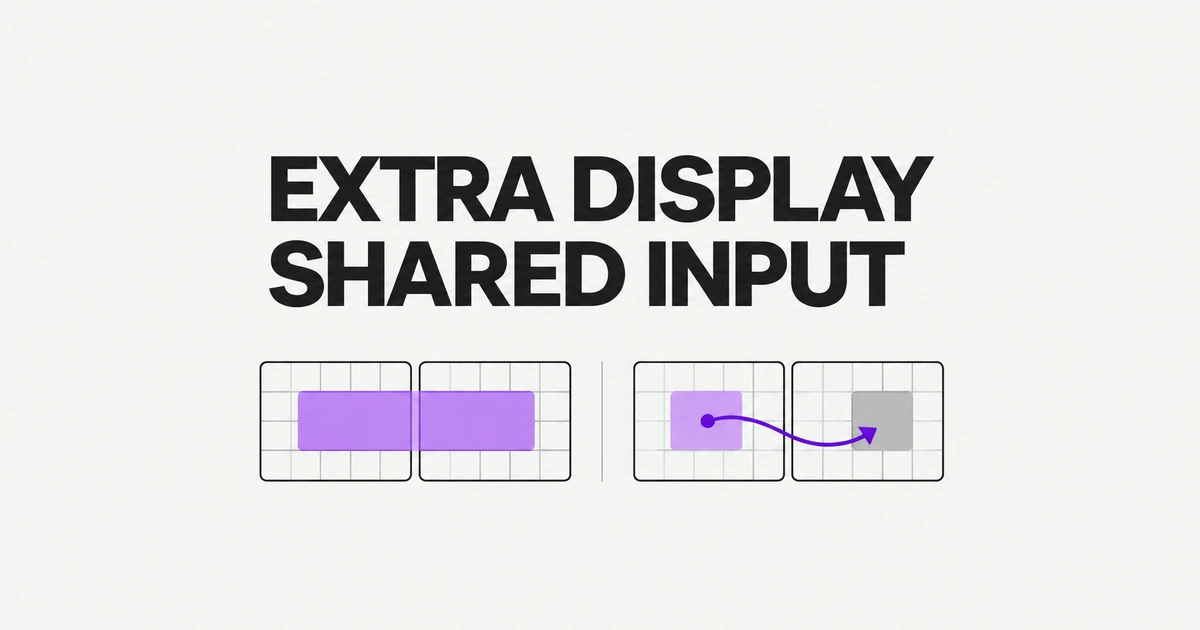
That is the central distinction. Universal Control does not extend a Mac desktop. It lets a pointer and keyboard move between computers that continue running their own apps. Sidecar displays Mac windows on the iPad. Choose the feature around the app you need, then choose the input arrangement that works with it.
Where the app runs determines the right feature
| Task | Sidecar | Universal Control |
|---|---|---|
| Use an extra Mac workspace | Extends the desktop onto the iPad. | Keeps the iPad’s own screen and apps. |
| Move a Mac app window | Move or drag it to the iPad display. | The window remains on the Mac. |
| Work in a native iPad app | Switching to that app pauses the Sidecar session. | Control the iPad app directly with shared input. |
| Move content between devices | Moving a window alone does not transfer a file. | Drag supported files or content to a receiving app. |
For writing on the Mac while keeping its browser visible beside the document, Sidecar is a direct fit. Move the browser window to the iPad, and it remains the Mac browser with its existing tabs and signed-in session. You do not need to open a second copy of the website in an iPad browser.
For using an iPad drawing or note-taking app alongside a Mac document, Universal Control preserves both applications. Write or draw on the iPad, use the shared pointer to navigate its interface, and transfer supported output to the Mac. These are applications of the behavior Apple describes in its Sidecar and Universal Control guides.
Set Sidecar to extend, rather than mirror
Sign both devices into the same Apple Account with two-factor authentication. For wireless use, keep them within 10 meters, enable Wi-Fi, Bluetooth, and Handoff, and stop cellular sharing on the iPad or Internet Sharing on the Mac.
- On the Mac, open System Settings → Displays.
- Choose the iPad from the add-display menu.
- Select the iPad and use the Use as menu to choose an extended display rather than mirroring.
- Open Arrange and place the display representations to match the devices on your desk.
- Move a window using its full-screen button menu, or drag the window toward the iPad display.
If both screens show the same content, the first setting to change is the display mode. Mirroring duplicates the screen; extending provides room for different windows. Changing a cable will not turn a mirrored desktop into an extended one. Apple’s macOS 27 user guide documents these controls together.
Arrangement also affects where the pointer crosses. An iPad physically on your right but configured on your left is reached through the Mac’s left edge. Move its representation to the right so the motion matches your desk. To return a window, drag it back or use its full-screen menu’s move-back option.
You can temporarily open an iPad app through the App Switcher or Sidecar’s Home control. Sidecar pauses until you return to its app. The Mac application has not become an iPad application; you have switched away from displaying it.
Touch, Apple Pencil, and the Magic Keyboard question
Apple’s current Sidecar guide documents substantially expanded interaction with Mac windows and menus when both macOS and iPadOS are version 27 or later. Earlier versions support a narrower set of gestures, including two-finger scrolling and text-editing gestures.
Apple Pencil can select items and interact with Mac applications displayed through Sidecar, including drawing or marking up documents where the app supports that work. This gives the Mac app a pen input surface. It does not replace that app’s toolset with the toolset of an iPad drawing app.
Apple also documents typing through a keyboard attached to either device, including iPad Smart Keyboard and Magic Keyboard. For moving and clicking the pointer, its Sidecar guide directs users to a mouse or trackpad connected to the Mac. Keyboard compatibility alone therefore does not establish that every trackpad built into an iPad case will control the Mac in the same way.
For a Mac browser or document window, Sidecar with the Mac’s pointer device preserves the second-display workflow. Pencil and the supported touch gestures provide additional ways to interact with that window. Universal Control instead sends input to the iPad’s native apps, so switching features cannot preserve the same Mac window on that screen.
Connect Universal Control to the iPad’s own apps
Universal Control requires a Mac and can link up to two other compatible Macs or iPads. On macOS Ventura 13 or later, open Displays → Advanced and enable the option allowing the pointer and keyboard to move between nearby devices. On iPad, open Settings → General → AirPlay & Continuity and enable Cursor and Keyboard. Older software may label the menu AirPlay & Handoff.
Wake and unlock both devices. Push the Mac pointer beyond the left or right edge toward the iPad, continuing until it moves through. Apple specifies a side edge for this initial connection even if the other device sits below the Mac; you can arrange the displays accurately afterward.
On the iPad, the pointer becomes a dot representing a fingertip. Click a text field in an iPad app and type with the shared keyboard. The iPad application receives the input, while the Mac application remains available when you move back. This is useful when one device holds a reference or drawing app that you want to keep native.
If pushing through the edge is inconvenient, connect through Displays or Control Center instead. To disconnect a device, deselect it under the keyboard-and-mouse connection controls or put it to sleep. Selecting an input connection does not start desktop mirroring.
A receiving app is necessary for drag and drop
Universal Control supports dragging content between devices, but the destination must accept the item. Open Files on the iPad when you want to transfer a file, or open an app that accepts its format. Apple’s examples include a photo dragged from a Mac into an iPad Messages conversation and an iPad drawing dragged into Keynote on the Mac.
A prohibited-drop symbol means the current destination cannot accept the item. Change the destination to a suitable app or location; for supported content, copying on one device and pasting on the other can be an alternative. Sharing a pointer does not make incompatible document formats editable across applications.
Sidecar has a different consequence for later use. Moving a Mac document window onto the iPad display leaves the file in the Mac’s working environment. If you want to leave with the iPad and open that file independently, arrange a file transfer or the application’s synchronization separately. The window’s screen position has not created an iPad copy.
Compatibility and the wired option
| Requirement | Sidecar | Universal Control |
|---|---|---|
| Operating systems | macOS Catalina 10.15 and iPadOS 13 or later. | macOS Monterey 12.4 and iPadOS 15.4 or later. |
| Mac models | MacBook Air from 2018; late-2015 27-inch Retina 5K iMac; other Macs from 2016. | iMac and iMac Pro from 2017, plus late-2015 27-inch Retina 5K iMac; other Macs from 2016, excluding the 2017 13-inch MacBook Air. |
| iPad models | All iPad Pro models; iPad sixth generation, iPad Air third generation, and iPad mini fifth generation or later. | |
These minimums establish basic feature support, not access to every newer interaction. Sidecar’s expanded touch behavior still requires version 27 or later on both devices. An older compatible iPad can provide a second display without meeting that newer software condition.
Sidecar also supports a direct USB connection, which can charge the iPad during use. The iPad must trust the Mac. Connect it, unlock it, select it in Finder and approve trust when requested, then confirm on the iPad. Apple’s trust guidance explains that a trusted computer can access device content, so this is a permission granted to your own computer rather than just a display-mode switch.
When the other device does not appear
Check the account and two-factor authentication, then Wi-Fi, Bluetooth, and Handoff. On recent macOS versions, Handoff is under General → AirDrop & Continuity; on iPad it is under General → AirPlay & Continuity. The menu can say Handoff on older versions. Apple’s Handoff instructions identify it as a requirement for both features.
For Universal Control, keep the devices awake, unlocked, and close together. Although the stated range is within 10 meters, Apple recommends ideally within one meter while resolving connection problems. Try the add-display menu, sleep and wake the devices, or turn Universal Control off, restart both devices, and turn it on again.
VPN software, other security tools, or a Mac firewall configured to block all incoming connections can also affect discovery. On a managed Mac, ask the administrator about the applicable restriction. Checking the specific connection setting avoids treating a missing device as a reason to disable every security control. If the iPad does appear but still shows its native apps, return to the feature choice: that is normal Universal Control behavior.