How to reopen a closed Chrome tab group
After you closed a proposal’s tab group to clear the screen, its name vanished from the bookmarks bar. Is the saved group still somewhere in Chrome?
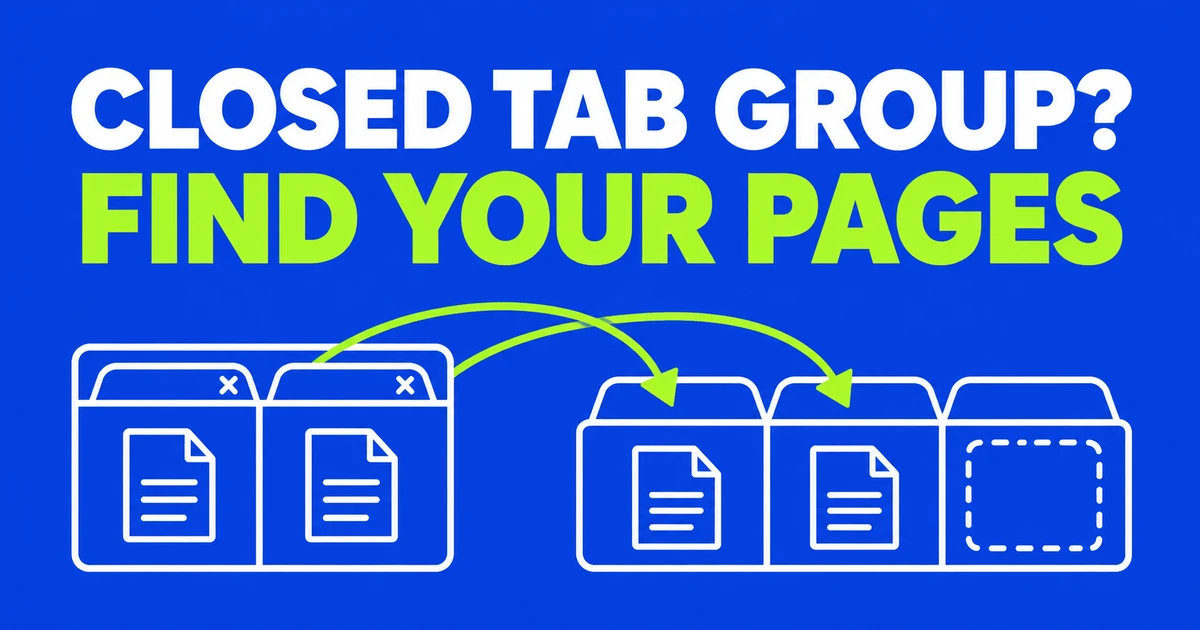
- Open Chrome’s three-dot menu and choose Tab groups to reopen a group you closed. Its absence from the bookmarks bar does not, by itself, mean the saved group is gone.
- To use the laptop’s group on your desktop, connect Chrome to the same account and enable History and tabs on both. Seeing your bookmarks there does not establish that tabs are syncing too.
- If the group is missing from the menu too, bookmark useful pages still open on your other computer, then look for the missing ones in recently closed tabs and history. Check the documents and addresses in the rebuilt group, rather than just its name.
Imagine putting a proposal aside until next week. You clear its tabs to work on something else, then return to find no familiar group name beneath the address bar. Before searching through every page you visited, look for the saved collection. A shortcut on the New Tab page, a bookmark folder and a tab group may lead to the same website, but they are different places to look.
Older instructions can add to the confusion. In one Chrome user discussion, the question is where the save and hide controls went. In an ordinary Chrome window on Windows or Mac, start with the current Tab groups menu. If the name is absent, a different profile or an earlier ungrouping action can explain why the next step changes.
Find the saved group
Open the three-dot menu at the top right of Chrome, choose Tab groups, and select the group you need. The grid button on the bookmarks bar offers another route. Google’s desktop tab guide says a closed group remains saved and can be reopened.
If it is listed, open it before creating a replacement. Two collections called “Proposal” might refer to different clients. Check the documents inside rather than deciding which one to discard from its name alone. Once you have the right collection, you can give it a more specific name.
When the menu has the group but the bar does not, check Settings → Appearance → Show tab groups in bookmarks bar. If the entire bar is hidden, use Ctrl+Shift+B on Windows or Command+Shift+B on Mac. These Chrome shortcuts change its visibility; they do not retrieve missing account data. A group absent from the menu needs a different investigation from one that is merely absent from the bar.
What did the menu action remove?
Clicking a group’s name or colored circle collapses its tabs; clicking again expands them. Google’s browsing tips describe this as a way to make room. It suits a brief switch between tasks when you still want the group’s name in view.
| Your intention | Action | How to continue |
|---|---|---|
| Show fewer tab titles for a while | Collapse | Click the group name again |
| Put the collection aside for later | Close group | Open it from the saved groups list |
| Keep the pages open without the collection | Ungroup | Build a new group from the remaining tabs if needed |
| Remove the saved collection | Delete group | Rebuild from pages still available through history or bookmarks |
Ungroup leaves the pages open on the device where you use it, but removes the group. Both ungrouping and deleting also remove the group on other devices using the same Google Account. That makes an action on your home computer relevant when a collection disappears from your laptop.
If you have just ungrouped a collection, work with the pages still open. Start a new group from one relevant tab and add the others you need. For a hypothetical proposal, “November proposal sources” may be more useful than “Work.” Rebuilding is also a chance to leave out abandoned searches rather than recreating every tab indiscriminately.
You may remember a Save Group switch from older screenshots. It appears in Google’s December 2023 announcement. Its absence is not enough to diagnose a fault. Use the current close-and-reopen controls before looking for an old experimental flag.
Check the other computer
Start with the Chrome window that still has the collection. Use the browser’s profile button to identify its profile, then compare the other computer. Chrome keeps information such as bookmarks, history and settings separate between profiles. The account picture inside a Gmail webpage is not the browser profile control.
On each computer, go to Settings → You and Google, select the account name, and check History and tabs. Use the same intended Google Account on both. The current account information guide treats this setting separately from information such as bookmarks. Familiar bookmarks appearing on the second computer do not prove that its tab setting is enabled.
Suppose your desktop has the usual supplier bookmarks but lacks the research group on your laptop. Importing those bookmarks again would repeat information you already have. Compare the account addresses and tab settings instead, then look in the desktop’s Tab groups menu.
Google introduced broader cross-device group access so people could continue a project elsewhere. A second computer should therefore not be treated as an untouched archive of a shared group. If it still has important pages, preserve their addresses before trying any cleanup that removes the collection.
Recover pages when the group is missing
For something you just closed, try Ctrl+Shift+T on Windows or Command+Shift+T on Mac. Check what actually returns. The shortcut reopens closed tabs; it is not a promise to reconstruct every deleted group with its former name and membership. Recovering a useful page is still worthwhile even when you must organize it again.
For older pages, open the three-dot menu → History → History and search by site or document title. You can also type @history in the address bar, press Tab or Space, and enter keywords. Chrome’s history documentation describes a list of pages visited in the past 90 days. Incognito visits and entries already deleted from history are not included.
A group called “Supplier comparison” does not make that phrase part of every page title. If it finds nothing, try a supplier or product name you remember. A research session may have included a product overview, delivery terms and an abandoned checkout. Select the useful sources instead of reopening every result from that day.
Suppose the laptop still has Supplier A’s pricing and delivery pages open, while the desktop has recovered only the supplier’s homepage. Bookmark the two pages on the laptop. Copy their addresses into your usual project document and open them on the desktop, so you do not have to search again for sources you have already found. Search history for the pages still missing. A supplier’s name can return its homepage as well as individual product pages; open the results and check the product and pricing terms you were comparing.
Once you have the sources, right-click one relevant tab to create a new group and add the others. In this example, you need both the pricing and delivery pages to resume the comparison. Reusing the old group name or matching its tab count would not establish that those sources are present. If a quotation is still missing, look for its link in the email or project document where you received it. You are rebuilding a usable collection from available material, rather than restoring an exact snapshot of a deleted group.
The By group view in History groups browsing activity; it is not an inventory of your original named tab groups. Browser history cannot supply a record it does not have.
Keep a separate set of bookmarks
For sources you expect to need next month, save useful pages as bookmarks too. The bookmark manager lets you inspect and edit their names and addresses. Give similar pages descriptive names: “Supplier A — annual pricing” is easier to distinguish from “Supplier B — delivery” than two entries called “Details.” You can search saved entries with @bookmarks.
To save a collection at once, put the relevant pages in their own window and bookmark all its open tabs into a new folder: Ctrl+Shift+D on Windows or Command+Shift+D on Mac. Inspect the window first so the folder does not fill with unrelated inboxes and intermediate searches. After saving, check the folder’s contents rather than assuming its title proves the right pages were included.
You can also retain a file of your bookmarks. Open Bookmarks and lists → Bookmark Manager, then use the manager’s menu to choose Export Bookmarks. Chrome creates an HTML file that can be imported later. This provides another way back to saved addresses.
Address storage is not document storage. Bookmarking a web document does not save edits inside that service, and exporting links is not a backup of a half-completed application form. Before clearing a working collection, save the actual work through the website’s own controls. Keep the document and its route of access as two separate things to verify.
Choose what opens next time
If you want the pages from your previous session to reopen when you launch Chrome, choose Settings → On startup → Continue where you left off. Google’s startup settings guide describes this option. Set it for future sessions after finding your material; it is not a way to reverse an earlier group deletion.
For a fixed daily starting point, choose Open a specific page or set of pages instead. This might suit an inbox, calendar and team dashboard. Temporary research belongs in a collection you open when needed, rather than a startup list that keeps reopening it after the project ends.