Mock API Responses in Chrome Without Changing the Server
The backend never returns an empty list, and you have an empty state to build. How do you make Chrome hand the page your own JSON instead?
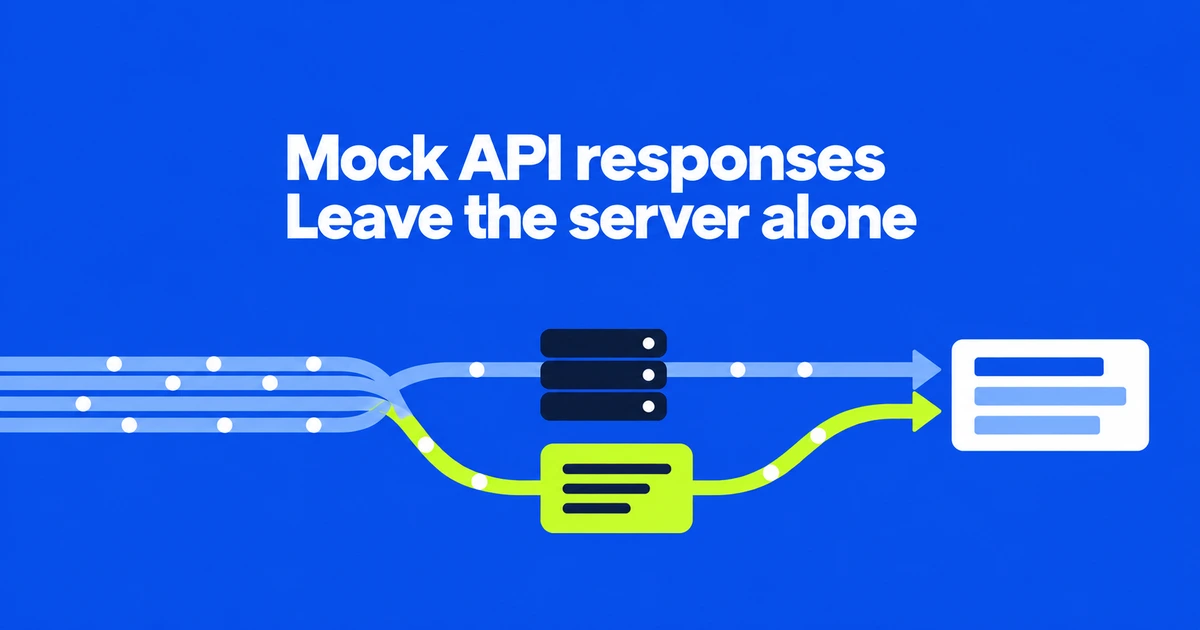
- Override content replaces an XHR or fetch response with data saved on your computer.
- Inspect the new request’s Response before deciding whether the UI used your test data.
- Disable Local Overrides and request the data again to return to the real response.
Replace the response your page receives
Chrome can supply a local response while you test the UI, even when you cannot change the API. XHR and fetch content overrides are an established DevTools feature, useful when the backend does not yet return the state you need.
- Open Network and load the page that requests the data.
- Find the request under Fetch/XHR, right-click it, and choose Override content.
- Choose a storage folder and grant access if prompted.
- Edit the response in Sources and save the file.
- Reload so the page requests the resource again.
The edited file supplies test input to the browser. A working empty-state screen does not establish that the API can produce that response or that any server record has changed.
Change one condition at a time
For an API whose contract uses an items array and a total count, an empty-state fixture might look like this:
{
  "items": [],
  "total": 0
}
Keep the real API’s field names, nesting, and types. Replacing an array with a string would test malformed input instead of an empty list. The distinction matters when a screen has separate error and empty states.
Next, try one item with a long name, then a numeric value of zero. These are separate checks for wrapping, empty content, and the difference between zero and a missing value. A small change makes it easier to connect the screen’s behavior to the input that caused it.
Check the new response before debugging the UI
Use Network’s Response view and filters to inspect the request made after your edit. The filter has-overrides:content narrows the list to requests with overridden bodies. Make sure you are reading the new request, especially when several APIs populate the same screen.
If the response still contains the original value, check the saved file and trigger the relevant request again. If it contains your test value, follow the page code that consumes that field. This separates an unapplied fixture from a rendering problem.
The overrides guide also identifies a purple marker beside the Response tab. Source-mapped files have a separate limitation: DevTools redirects you toward the original sources instead of overriding them. For ongoing edits to your project’s source files, use Workspaces.
Switch back before checking live behavior
Clear Sources → Overrides → Enable Local Overrides and reload. Disabling keeps the saved fixture available for another session; deleting it removes it.
Overrides also disable the browser cache. A load measured in that state is therefore not directly comparable with an ordinary cached visit. Check the Network cache setting when returning to normal testing.
The October DevTools update adds a relevant boundary: new overrides cannot target non-HTTP(S) schemes such as data: or blob:. Start with the actual HTTP(S) API request, then finish by checking both its real response and the resulting screen with the override switched off.