Separate work and personal accounts in Chrome without mixing browser data
A work document opens under your personal Google account, and the bookmarks and passwords from both lives sit in one list. How do you pull them apart without losing anything?
Switching Gmail accounts does not switch your browser setup
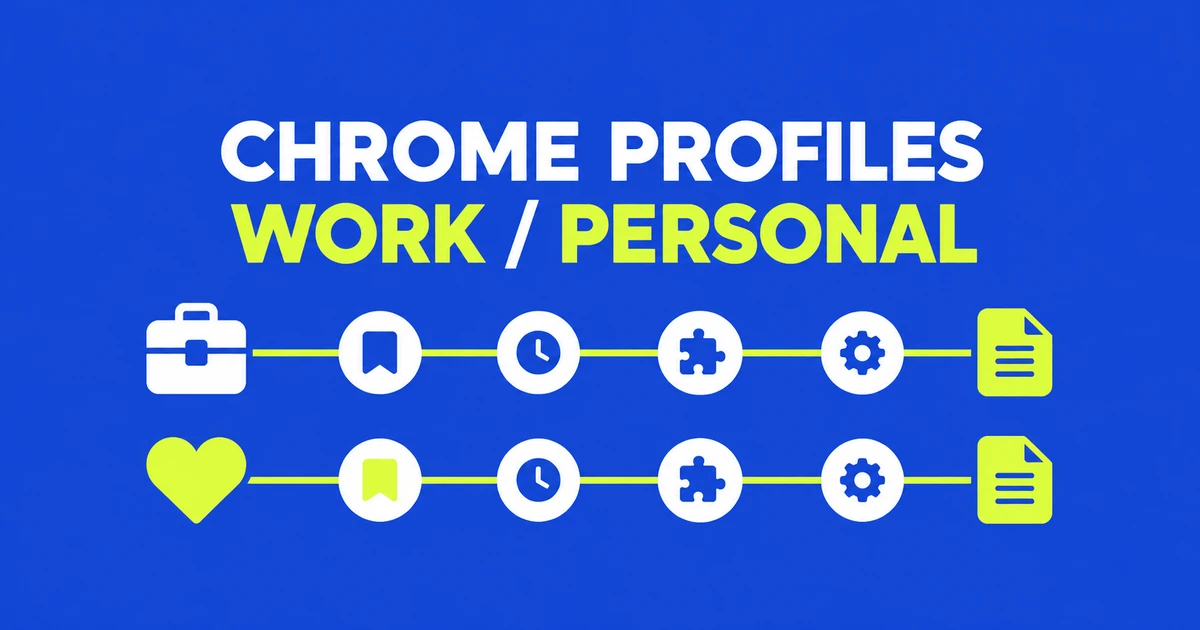
A work document can open under the wrong Google account even when you were just reading work email. Adding several accounts to one browser session makes switching convenient, but it does not create a separate set of bookmarks, history and browser settings for each identity. For work you return to every day, create a dedicated Chrome profile.
Google's multiple-account documentation says it sometimes cannot determine which signed-in account you intend to use and may apply settings from the default account. That is often the account signed in first. Opening another regular window in the same profile does not create a new account environment.
Consider a simple arrangement: a Personal profile containing your personal Google login, and a Work profile containing your employer's login. Open work links in the Work window. If the document still denies access, verify that the owner shared it with that work address. A browser profile makes the active identity easier to control; it cannot grant permission to a document.
Create a second profile before moving any data
On desktop Chrome, select the profile button beside the address bar and choose Add Chrome profile. Name the new profile for its purpose and choose a recognizable color or picture. This is the browser's profile button, rather than the account picture inside Gmail. Google's profile instructions cover creating, switching and renaming profiles.
Open your work services in the new window and sign in there. Leave the original profile available while you decide which bookmarks and settings belong in each place. To return to it, select the profile button and choose the other profile. You can also use the profile manager's Show on startup option to choose a profile when Chrome starts.
A useful naming scheme describes the job, such as Work and Personal, rather than using the same full name twice. Color helps identify the window, but it does not verify the website account inside it. If you add a personal Google login to the Work window, that window can again have multiple website accounts. Keep the sign-ins consistent with the purpose you assigned.
Choose where Chrome saves information
Signing into Gmail can trigger an invitation to sign into Chrome itself. Google's sign-in guide describes that browser sign-in as optional. Website access and saving browser information to a Google account are related choices, but they are not the same choice.
For example, you might want a separate local environment for a work website without uploading its browser information to a personal Google account. Alternatively, you may want work bookmarks available on an authorized second computer. In that case, save them to the appropriate work account if your organization permits it. The destination is determined by the account you select, not by the profile's display name.
Open Settings → You and Google → your account name to choose what Chrome saves. History and tabs have their own control. Google also provides a way to save existing local items into an account. The saved-information guide explains that information saved to an account is available on other devices signed into that account.
Creating two differently named profiles and connecting both to the same account does not produce independent cloud bookmark collections. Before accepting an offer to save existing items, read the destination account and select the items intended for it. Keep personal bookmarks out of a work account if you are setting up a separate work collection.
Profiles, Guest and Incognito solve different session needs
| Mode | Useful for | What happens afterward |
|---|---|---|
| Regular profile | A recurring work or personal setup. | Its browser information remains available. |
| Guest | Someone briefly borrowing a trusted computer. | Exiting removes history, cookies and site data. |
| Incognito | A temporary browsing session on your computer. | Closing all Incognito windows ends the session. |
Guest mode does not expose the information in other Chrome profiles within that guest session. Open it from the profile menu, then use Close guest when finished. It suits a visitor checking an account without creating a permanent browser setup. It does not make an untrusted computer safe or hide activity from the device or network operator.
For Incognito, choose New Incognito window from Chrome's main menu. Another Incognito window continues the same session, so opening several of them does not create several independent account spaces. Close every Incognito window to end the session. Bookmarks you create and files you download remain afterward, even though the session's site data and browsing history are not retained.
That tradeoff is why Incognito is inconvenient as your permanent second work environment. Its purpose is to discard session data when you finish. A regular profile retains an environment you intend to revisit, while still leaving individual websites free to require another login.
Separate downloaded files as well as browser data
Profiles do not automatically give your files distinct destinations. Chrome's default download location is the operating-system user's Downloads folder. In the Work profile, open Settings → Downloads and change the location if work attachments should go elsewhere. You can instead enable the prompt that asks where to save each file. These controls are documented in Google's download guide.
For instance, a Work Downloads folder can keep supplier documents apart from travel reservations. Changing the destination affects future downloads; move existing files yourself if you want them organized the same way. Also, removing an entry from Chrome's Downloads page removes its history entry, not the file on disk. Cleaning up after a temporary session requires looking at the saved files too.
Check whether the company manages a profile or the browser
A managed work profile and a managed browser have different scopes. In Google's management comparison, profile management applies to the work profile while other personal profiles remain outside that profile-management scope. Browser management can apply policies across all profiles, including personal and temporary ones.
On a company computer, creating a personal profile leaves browser-level policies in place. On a personal computer where only the work profile is managed, those profile-level policies do not extend to the other profiles.
Enter chrome://management to inspect management information and managed extensions. Enter chrome://policy to see applied policies. Google documents both in its management check. If you need clarification, ask whether the work account alone is managed or whether the browser is enrolled, and whether personal account storage is permitted. That gives the administrator a concrete configuration question to answer.
Profiles also are not password-protected user accounts on a shared home computer. Someone with access to the device can switch to another Chrome profile and view its browser information. Treat profile names and colors as organization tools, rather than protection against another person using the same unlocked environment.
Move the bookmarks you need before deleting an old profile
If work and personal data are already mixed, creating a new profile does not classify the old collection for you. In the original profile, open Bookmarks and lists → Bookmark Manager. Use the manager's More menu to export bookmarks as an HTML file. In the destination profile, use Import bookmarks and settings and choose that file. Google's import and export instructions describe the transfer.
Before importing, check that the new profile is not saving bookmarks to the same account as the original profile. Two views of the same account's bookmarks are not independent collections. Keep the exported HTML while you organize the imported folders; Google's bookmark guide says deleted bookmarks cannot be recovered. Bookmark HTML does not carry your saved passwords or signed-in website sessions. Confirm separately that you can access the password manager or account you intend to use.
Once the new profiles contain the needed information and the correct website accounts work, remove an unused profile from the profile manager's menu. Deleting a profile erases its bookmarks, history, passwords and other settings from that computer. Do it after the move, rather than as the first attempt to fix mixed data.
Open one work document in Work and one personal item in Personal, then inspect the account shown inside each website.