Back Up Firefox Passwords and Bookmarks Without an Account
Bookmarks made it to the new computer, but none of your saved logins did. What has to be switched on for Firefox’s backup file to include them?
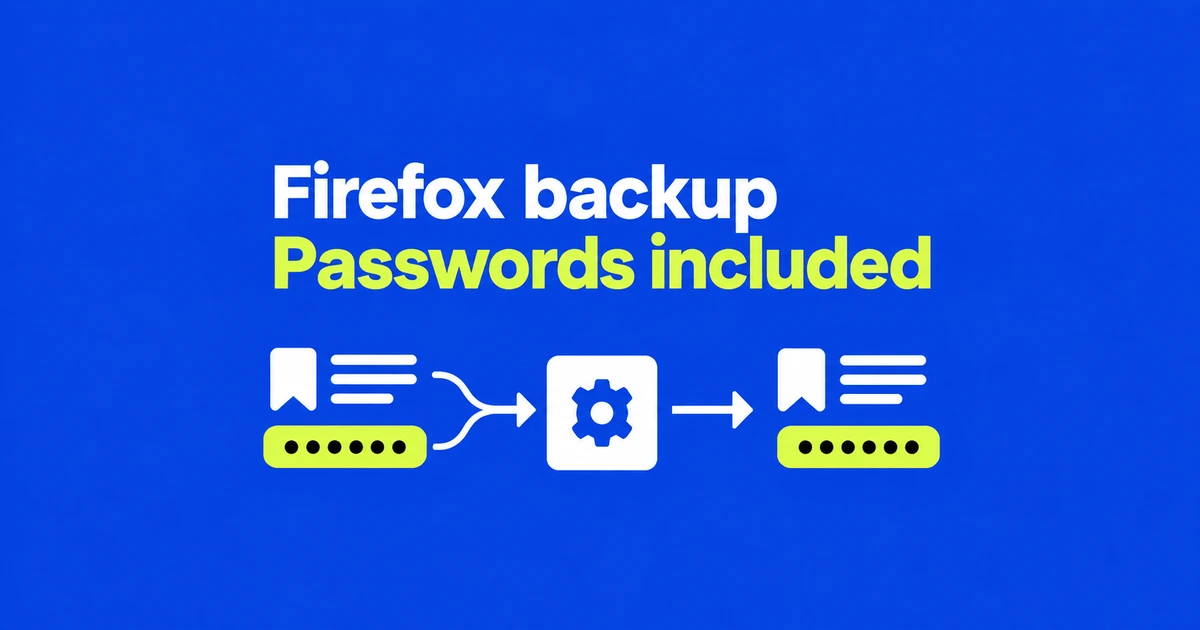
- Enable sensitive-data backup and set a password to include saved passwords and payment methods in Firefox’s encrypted backup.
- The file-based backup does not require a Mozilla account. Restore by selecting the file and entering its password when needed.
- A bookmark export does not carry your saved logins. Turning backup off also deletes its backup file, so preserve any copy you need first.
Include sensitive data when you turn backup on
Firefox’s built-in backup offers a way to move browsing data without signing into a Mozilla account. The important choice is whether the backup includes sensitive data. A basic backup and an encrypted backup containing saved passwords serve different needs.
On a current desktop installation, follow this sequence:
- Open Settings → Account and sync.
- Find Backup and select Turn on backup.
- Choose where the backup file will be saved.
- Select Back up your sensitive data, then enter and repeat a backup password.
- Finish with Turn on backup.
The sensitive-data option includes passwords and payment methods and encrypts the entire backup file. Choose a location you can reach from the new computer and retain access to the encryption password. Having the file alone is not enough to restore an encrypted backup.
Firefox refreshes the file daily with current browsing data. That is a regularly updated copy, not a promise of a separate historical version for each day. Preserve an additional copy if you need to retain a particular state.
Restore from the file, without signing up for Sync
Mozilla explicitly says an account is not required for file backup. Sync is a different route that keeps data available through your Mozilla account; a sign-in prompt on the settings page does not make account creation a prerequisite for restoring a file.
On the new computer, go to Settings → Account and sync → Restore your data. Select Browse… and locate the backup. Firefox may also offer restoration during initial setup if it detects a backup in your files.
For an encrypted backup, enter the password you set when creating it. Choose Restore and restart; Firefox closes and reopens with the restored data. Before clearing the old computer, check that the bookmarks and saved logins you need are present on the new one.
Take care when retiring the old backup setup. Turn off and delete backup deletes the backup file as well as stopping backup. Preserve a copy you still need before selecting it.
A bookmark export carries a different set of data
The HTML bookmark export is intended for transferring bookmarks between computers or browsers. It does not replace a backup containing saved logins. Identify the operation that produced a file rather than treating every browser export as a complete backup.
| Method | Purpose |
|---|---|
| Bookmarks exported to HTML | Move bookmarks to another browser or computer. |
| Bookmark JSON or JSONLZ4 backup | Restore bookmarks within Firefox. |
| Built-in Firefox backup | Save browser data including settings; saved passwords require the sensitive-data option and encryption. |
| Manual profile-folder copy | Recover or troubleshoot profile data, including when Firefox will not open. Close Firefox before copying. |
Mozilla’s manual profile guide explains that personal data lives separately from the program installation. A whole profile is not always portable across operating systems because paths and versions can differ. For ordinary moves, Mozilla recommends the built-in backup tool.
Missing controls call for a version check
Older instructions use Sync → Backup → Manage backup, while the newer interface places backup under Account and sync. Mozilla’s support article identifies Linux support from Firefox 151 and macOS support from 154. Check the installed version and distribution before assuming that logging in will reveal a missing control.
If restoration rejects a file, verify that it came from Firefox’s backup system. An export containing only bookmarks belongs in the bookmark tools. Modified backup files can also fail. If the file moved, use the file picker to select its current location.
A successful move depends on the contents, the file and, where encryption is enabled, its password. Confirm all three while the old installation is still available.