Why Your Gmail Filter Misses Replies in the Same Conversation
A conversation can carry a project label while its newest reply remains unlabelled. A change of sender or a missing attachment can explain why the original rule stopped matching.
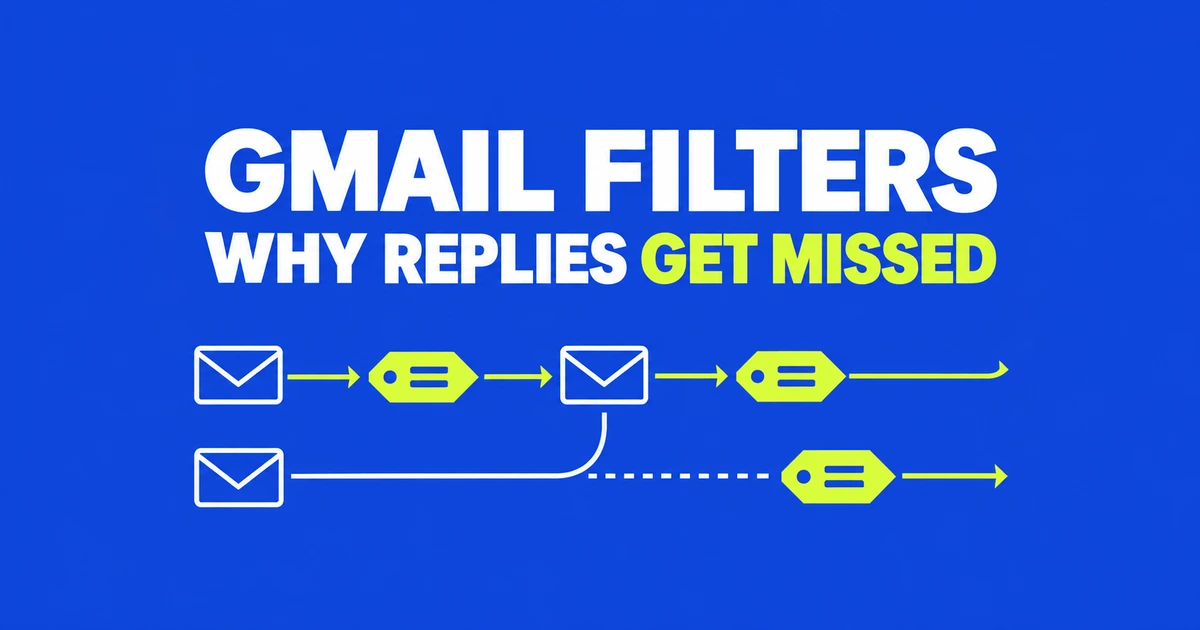
- A new reply must satisfy the filter itself. If a different colleague replies, add that address to the rule; if replies without files belong in the project too, remove the attachment requirement.
- To label incoming correspondence while keeping it visible in your inbox, apply the label without selecting Skip the Inbox. Moving an older message back to the inbox does not change what the filter will do to the next reply.
- Check the revised rule against new incoming messages. Separately label older replies that were missed, remove labels from messages filed incorrectly, and move archived messages back to the inbox when needed.
A Gmail filter does not enrol an entire conversation in a project when it recognises the first message. It evaluates incoming messages individually. A quotation with a PDF and an approval sent later by another employee may share a subject, yet differ on both sender and attachment criteria. Google explicitly notes that a reply is filtered only when it satisfies the same search criteria.
The confusing part is the conversation display. A project label beside the subject can come from an earlier message. Before rebuilding your rules, inspect the latest reply, then decide whether you want to change its classification, its inbox placement, or both. The following workflow uses Gmail in a desktop web browser.
Find out which message has the label
Suppose you label a quotation “Project” and two people subsequently reply. The label beside the conversation does not prove that every message received it. Gmail’s label documentation says a label applied with conversation view enabled covers existing messages, not future replies.
Open the latest reply and check its actual sender address. A display name such as “Example Sales” can conceal a change from one employee’s address to another. Also check whether this particular reply includes a file. Seeing a PDF on the original quotation does not establish that the approval message contains an attachment.
If the grouped display makes comparison difficult, temporarily turn conversation view off under Settings → See all settings → Conversation View, then save your changes. Compare the quotation and reply as separate messages. You can restore your preferred view afterwards. This changes how Gmail presents messages; it does not rewrite your filter. Google’s conversation settings describe both viewing options.
If the latest reply already has the project label but remains in the inbox, investigate the filter’s actions. If only the original has the label, investigate its matching criteria. Recreating the same rule will not resolve a missing address or add an archive action that was never selected.
Adjust the sender, subject and attachment criteria
Go to Settings → See all settings → Filters and Blocked Addresses and edit the relevant rule. Read every condition, including Has attachment. Google’s filter documentation specifies that a message must satisfy all criteria present in a filter.
Suppose you set up a project rule requiring the supplier’s address and an attachment. The PDF quotation matches, but an approval saying “Please proceed” will be missed if no file accompanies it. Remove that requirement if the label should contain the discussion as well as documents. Keep it if your actual purpose is to collect document deliveries, and organise the wider discussion separately.
For two known contacts working on one project, this illustrative search combines alternative senders with a shared subject requirement. Replace the example addresses and identifier with your own:
{from:[email protected] from:[email protected]} subject:PRJ482The braces allow either sender; the subject must also contain PRJ482. A message from Mina about another project should not match this search. Gmail supports both OR and braces for alternatives. Its search operator reference also documents sender, recipient, subject and attachment searches.
| Reply being missed | Likely condition to inspect | Possible revision |
|---|---|---|
| Another employee sends the approval | Only the original sender is included | Add the other address as an alternative |
| The reply contains no file | An attachment is required | Remove that requirement for a discussion label |
| The subject has been rewritten | The original wording is required | Use a shared project identifier if correspondents retain it |
| You receive the message as a copied recipient | A To condition is required | Review the actual To and Cc fields before revising the scope |
Do not broaden the search simply until something appears. Removing all sender restrictions may bring unrelated suppliers into a project label. Requiring a long exact phrase may lose legitimate replies when someone shortens the title. Choose a recognisable identifier the participants actually use, or collect messages by known sender and classify individual projects manually.
Keep replies in the inbox while labelling them
After editing the criteria, continue to the actions. To organise supplier mail without hiding new correspondence, select Apply the label and leave Skip the Inbox unchecked. Leave Mark as read unchecked too if these messages should remain unread until you open them. Save the updated filter.
For routine notifications you intend to read later, labelling and archiving together may be appropriate. Replies that meet the same rule will receive those actions as well. To archive an automated notice but retain a human response, the rule needs an observable difference, such as distinct sender addresses. It does not know that you consider one message a routine update and another an urgent request.
A Gmail user described moving a useful mailing-list conversation back to the inbox, only to find subsequent replies filed away again. Their posted rule matched mail to a list address and skipped the inbox. Manually moving an existing message did not change the rule awaiting the next incoming message.
If this is happening to correspondence you need to monitor, remove the archive action or narrow the rule to the notices you want archived. When no reliable distinction exists, apply a label and leave the messages in the inbox to read and handle individually.
This differs from ordinary manual archiving. An archived conversation normally returns to the inbox when someone replies. A filter acting on that new reply can explain a different outcome. Check the saved actions before treating its location as an archive malfunction.
Repair older messages separately
Changing a rule for future arrivals does not automatically tidy every earlier mistake. Search for older replies that should carry the label, inspect the results, and apply it from the toolbar. If only particular messages within a conversation need changing, use conversation view off to select them individually.
The filter dialog also offers an option to apply the filter to matching existing conversations. Google lists this in its Gmail interface guide. Before using it, read the complete set of actions: you might have selected archiving or marking as read as well as adding a label. A rule appropriate for future automated notices may be inappropriate for unfinished correspondence already in the account.
For example, you might want every previous PRJ482 discussion labelled while leaving unanswered requests in the inbox. Select those older messages and apply just the label. There is no need to combine that cleanup with an archive rule intended for tomorrow’s notifications.
For messages wrongly classified, remove the unwanted label using the label menu. Do not delete the messages to remove them from a project list. If they were also archived incorrectly, move the relevant messages back to the inbox. Updating the criteria changes how future mail is matched; correcting existing labels and locations repairs the earlier mistakes.
Verify the rule with new correspondence
A conversation appearing in search results does not establish that every message inside matched. Google’s search documentation warns that even searches excluding a property can return a conversation containing it: an unstarred message can bring back a thread that also contains starred messages. Inspect the actual reply instead of relying solely on the conversation row.
For the PRJ482 example, verify three cases as fresh correspondence arrives. A message from Mina with the identifier should get the label. A reply from Jun with that identifier but no attachment should also be labelled if you removed the attachment requirement. A message from Mina about a different project should remain outside this label. These checks distinguish a rule that is too narrow from one that is too broad.
Check inbox placement at the same time. If a correctly labelled reply is unexpectedly archived, inspect other saved rules that could act on its sender or subject. Edit the inappropriate action instead of adding another identical filter. Keep unrelated forwarding rules unless they are themselves part of the problem.
If the reply cannot be found at all, search across the account with a query such as in:anywhere from:[email protected], which includes Spam and Trash. Google’s missing-mail guide recommends broadening the search and reviewing automatic archive or delete rules. Restore a needed message from Trash or mark a legitimate message as not spam as appropriate.
Finish by checking a newly received reply: the expected address and subject match, the message carries the intended label, and it remains where you plan to read it. That establishes what the revised rule did to this message, without relying on a label left over from the original quotation.