Schedule Google Calendar meetings across New York, London and Seoul
Your weekly 9 a.m. New York call moves an hour earlier in London for the last week of October. Which city should anchor the series when colleagues join from three time zones?
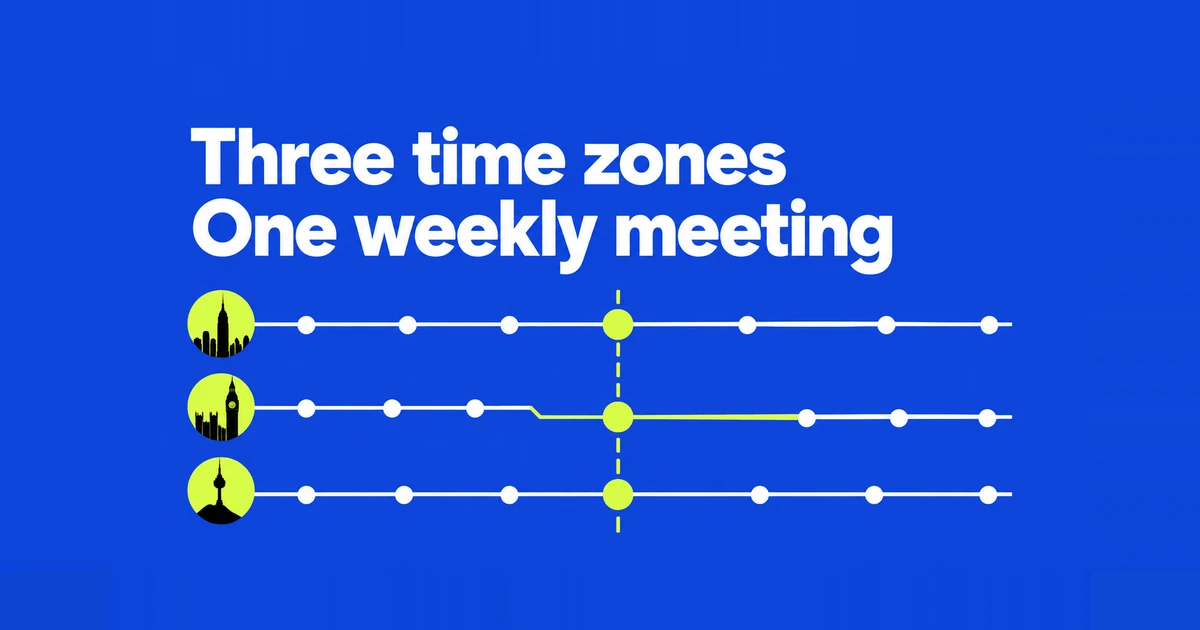
A recurring international meeting needs more than “Tuesday at nine.” It needs a place where nine stays nine. A series anchored to New York can keep the New York team’s morning routine while changing the hour at which colleagues join from London and Seoul.
The display is not necessarily reporting a rescheduled meeting. Google Calendar presents an event in each viewer’s local time. The practical choice is whether to keep one office’s local start time or renegotiate the call when that becomes inconvenient elsewhere.
The week when London and New York change at different times
In 2026, the UK’s clocks go back on October 25, while New York’s go back on November 1. The dates come from the UK government’s clock-change schedule and NIST’s daylight saving time rules. The mismatch temporarily changes the gap between the two cities.
For a weekly Tuesday call at 9 a.m. New York time, the dates and local times work out as follows. This example keeps everyone on the same calendar date, although the Seoul team joins late in the evening.
| Date in 2026 | New York | London | Seoul |
|---|---|---|---|
| October 20 | 9 a.m. | 2 p.m. | 10 p.m. |
| October 27 | 9 a.m. | 1 p.m. | 10 p.m. |
| November 3 | 9 a.m. | 2 p.m. | 11 p.m. |
On October 27, New York’s 9 a.m. corresponds to 13:00 UTC. London has already returned to GMT, so the call is at 1 p.m. there. Seoul is nine hours ahead of UTC, making it 10 p.m.
On November 3, New York’s 9 a.m. corresponds to 14:00 UTC. London now sees 2 p.m., and Seoul sees 11 p.m. Nobody has to edit the series for that change to occur. New York’s clock change changes the conversion.
If an 11 p.m. start is unacceptable to the Seoul team, the organizers need to change the agreement. A display preference cannot preserve 9 a.m. in New York and 10 p.m. in Seoul after their time difference changes. Also, use actual cities: these dates are not a rule for every US location, and another year needs its own dates.
Choose which local time the series should preserve
A user asking about a future appointment across a daylight saving change wondered whether Calendar would preserve the entered local hour or adjust it using today’s offset. That distinction becomes especially visible in recurring meetings.
If the New York office has agreed to meet at nine every week, select New York as the event’s time zone and enter 9 a.m. Google Calendar uses that single zone to calculate each occurrence, including the city's daylight saving changes. Google’s calendar and event model describes this use of the series time zone. Entering today's equivalent hour in Seoul would instead tell Calendar to preserve Seoul's local hour.
For the example, entering 10 p.m. in Seoul and repeating it weekly initially produces the same call as 9 a.m. in New York. On November 3, however, the Seoul-anchored call is at 8 a.m. in New York. Calendar has preserved the local time that was actually specified.
| Agreement | Event anchor | November 3 result |
|---|---|---|
| The New York office always starts at nine | New York, 9 a.m. | London 2 p.m.; Seoul 11 p.m. |
| The Seoul team always starts at ten in the evening | Seoul, 10 p.m. | London 1 p.m.; New York 8 a.m. |
| This week needs a different slot | Edit that occurrence | The following meetings can retain their original schedule |
The organizer’s location need not be the anchor. An assistant in Seoul can schedule a New York-based series. Put the agreement in the description, such as “Tuesdays at 9 a.m. New York local time,” and match the actual event settings to it. Text in a title or description does not configure the time zone.
Put all three cities on the web calendar
Google’s September 2026 Calendar update added a third display time zone. The web grid supports three labeled columns in Day, Week and custom multi-day views, as well as in Find a Time when scheduling. The feature is available to personal accounts and Workspace users.
In the web app, open Settings → General → Time zone. Keep your preferred primary zone, enable Show additional time zones, and select secondary and tertiary zones. Search for the cities and use clear labels such as New York, London and Seoul. Google’s time-zone instructions describe these controls.
Then move the weekly view to the dates you are scheduling. Compare October 27 with November 3, rather than using this week’s columns to guess next month’s offset. A third column adds a reference to your screen; it does not move existing meetings or change their recurrence anchors.
The columns also do not reveal a client’s availability. Find a Time depends on calendar sharing and organizational access to show when guests are free. Where that information is unavailable, propose a dated slot with the client’s local time spelled out.
Create a series with an explicit event time zone
On desktop web, create an event and open More options. Select Time zone beside the event time, search for New York, and enter the intended date and 9 a.m. start. Set the end time on the same basis. This event-level setting can differ from the primary zone used to display your calendar.
Use the “Does not repeat” menu to choose a weekly schedule and an appropriate ending condition, following Google’s recurring-event instructions. For a project that ends this quarter, choose a series length that fits that project. Add the intended guests and meeting details before saving the actual invitation.
For a dry run, use a private event without guests. Inspect an occurrence before and after the clock changes, then remove the test when finished. A Seoul-based view of the New York example should show 10 p.m. on October 27 and 11 p.m. on November 3. Checking the first occurrence alone would not expose a series accidentally anchored to Seoul.
Travel changes the view; local appointments need their own city
A Calendar user who had moved countries asked how to change time zones without shifting events, after keeping the old zone caused confusion over reminders. Two intentions can sit behind that request: joining the same remote meeting, or doing something at the same local clock time wherever you are.
The November 3 New York call remains one shared appointment. Someone traveling from Seoul to London should see 2 p.m. in London instead of 11 p.m. in Seoul. Editing the event merely to restore the old number on screen would change the meeting itself if that edit is applied to its actual start time.
A dinner booked for 6 p.m. in London is different: enter London as the appointment’s time zone. On November 3, 2026, that moment appears as 3 a.m. on November 4 in Seoul. The next-day date is the correct conversion, not evidence that the dinner was booked for the wrong day.
On Android, Calendar’s Menu → Settings → General includes Use device time zone. Turning it on lets the app’s zone update as you travel; turning it off lets you select a zone. This is the documented Android control, not the desktop three-column interface.
Check the occurrence before changing an existing invitation
When someone reports a mismatch, compare a date, city and local time. “October 27 at 10 p.m. in Seoul” identifies a particular occurrence much more clearly than “the ten o’clock call.” Check whether the agreed anchor explains the difference before asking the organizer to move it.
If the team agrees to a real change, the organizer can edit the event and choose which occurrences the change applies to when saving. Google distinguishes an individual exception from the recurring series. A one-week accommodation should not accidentally move the whole project’s meetings.
Open the following occurrence after the edit to verify its intended time. Send the event update to guests as appropriate, but remember that Google Calendar guests use their own reminder settings. A reminder set by the organizer does not force the same reminder onto every Google Calendar attendee; Google explains this in its invitation and notification guide.
For the final confirmation, share the current occurrence link rather than an old screenshot of your calendar. Keep the agreed anchor city in the description and specify the date of any one-off change. Recipients can then open the actual meeting in their own time zone.