Stop Google Meet Echo Without Giving Up Your Own Screen
Your team shares a USB speakerphone, but each person wants a camera tile and access to chat. How should everyone join the same call?
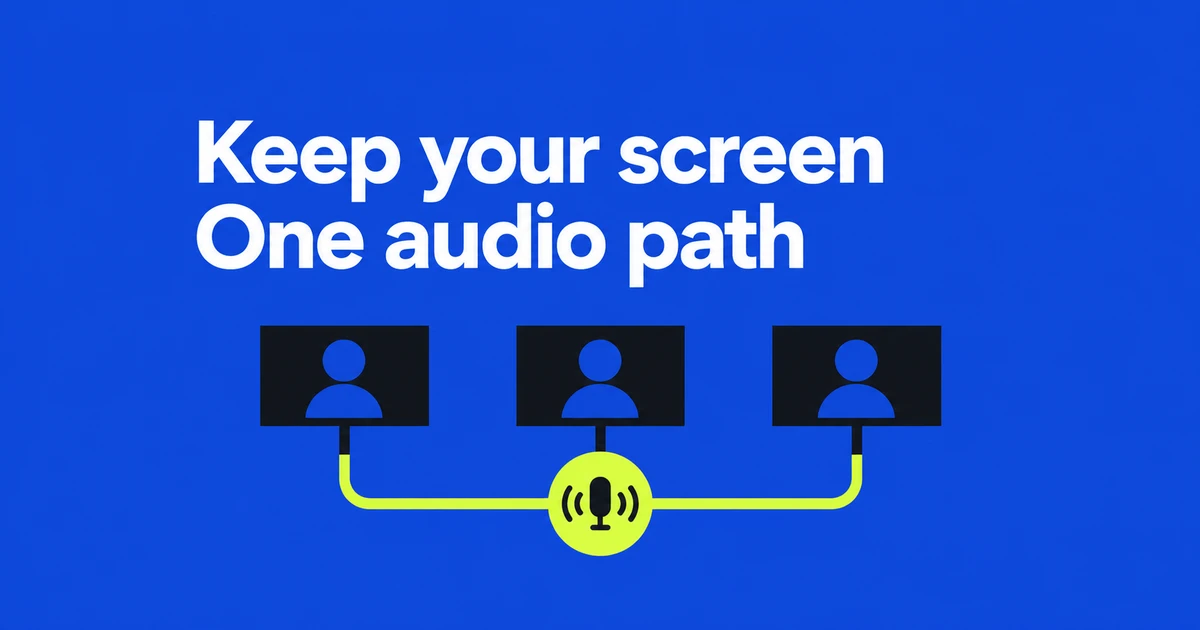
- A muted laptop can still play meeting audio into another device’s microphone. If the room is already echoing, keep one device handling the conversation and reconnect the other laptops in Companion mode.
- Companion mode keeps your screen available for presentations and chat without adding meeting audio. You can turn on your personal camera while continuing to speak and listen through the room’s audio device.
- Without dedicated room hardware, eligible Workspace users can try Adaptive Audio to coordinate multiple laptops. Confirm that the audio has merged; if problems persist, return to one device for the room’s sound.
People sitting together still have reasons to join Meet individually. They may need to read a small table, type a question under their own name, or present a file from their laptop. The trouble starts when those devices also play the remote speaker’s voice into the room and capture one another’s output.
You can keep the personal screens. Use the room equipment or one designated laptop for sound, then join the other devices in Companion mode. If the room has only laptops, Adaptive Audio offers another arrangement for eligible accounts. Choose based on how the room will send and receive sound, not simply how many screens people want.
Why muting a microphone can leave the echo
Suppose laptop A handles the conversation and laptop B displays the slides. B’s microphone is muted, but its speakers still play the remote participant’s voice. A’s microphone can pick up that playback and send it back. The remote participant hears their own words again even though B shows a muted microphone.
Google’s explanation of its audio engineering describes why multiple nearby devices complicate echo cancellation. A device normally tries to distinguish speech from sound coming out of its own speakers. Several laptops playing and capturing the same conversation introduce additional audio paths and timing differences.
If a call is already disrupted, designate one device for room audio. Have the other laptop users leave and rejoin in Companion mode, then ask a remote participant to speak briefly. Check whether their voice still returns to them. Include phones used as spare screens and extra meeting tabs when checking the room’s connections.
If echo persists with Noise Cancellation enabled, check which speakers are playing the meeting. The feature can reduce typing, doors closing, and room echo, but Google says it does not cancel voices from people or a television. When several laptops are playing the same voice, move meeting audio to one device and listen again before making further adjustments.
Keep room audio separate from personal screens
Companion mode disables the laptop’s microphone and meeting audio while providing a personal screen for viewing or presenting content and using chat. Features such as polls and Q&A depend on the Workspace edition and meeting settings. It is more deliberate than joining normally and remembering to mute a microphone.
With meeting-room hardware, connect that equipment to the call first. In a smaller room, designate one ordinary laptop for audio instead. If it uses a USB speakerphone, check that Meet has selected that device for both input and output; plugging it in is not the same as verifying the selection.
- Open the same meeting link on the laptop you want to use as a second screen.
- Under Other joining options, choose Use Companion mode. Alternatively, open g.co/companion and enter the meeting code.
- Open the presentation or chat, while listening through the room’s chosen audio device.
- If you want a personal video tile, turn on the camera at the bottom of the Companion screen. This does not turn on meeting audio for that laptop.
The camera option matters. In a discussion about sharing a USB speakerphone, a participant wanted to preserve individual video as well as control the room’s sound. Google’s current Self-View instructions explain how to enable a personal camera in Companion mode. That tile does not appear as the active speaker.
A missing Room check-in prompt is not proof that Companion mode failed. Check-in connects your presence to Meet hardware already on the call. A meeting without that hardware will not offer the same room prompt. If a room device is present, choose the room you are actually in.
A phone can also provide a personal view when there is little space for a laptop. Companion mode on Android and iOS supports chat, captions, hand raising, and viewing presentations. Open the meeting in the app and select Companion mode on the pre-join screen. You can zoom into small details in the presentation while continuing to use the room device for sound.
Use Adaptive Audio when the room has only laptops
A single laptop at one end of a table may pick up distant speakers poorly. Adaptive Audio can make use of the laptops near those people by coordinating their microphones and speakers. The feature detects nearby participating laptops and merges their audio; it is not simply several ordinary audio connections left running together.
Check eligibility before planning around it. As checked on October 28, 2026, Google’s Workspace feature comparison lists Business Standard and Plus, Enterprise Standard and Plus, and Frontline Plus for Adaptive Audio. Access to Companion mode does not establish eligibility. Google also states that Adaptive Audio cannot be used with Meet hardware devices.
Join the meeting from at least two computers in the same space. Look for the notification that audio has merged with nearby devices. If confirmation is requested, choose Merge mic & speakers. Check the Adaptive Audio indicator and grouped participant tiles, then have people in different seats speak to a remote attendee. Do not assume coordination is active merely because several laptops are connected.
Muting only your own microphone does not necessarily keep your voice out of this arrangement. Meet can use another microphone in the room and selects one close to the person speaking. To mute the room, all participating microphones must be muted. If you need to take an unrelated call, move away rather than relying on your laptop’s mute button.
If detection fails, Google recommends checking that speakers are not fully muted and that microphones are not disabled by physical switches or controls outside Meet. It also advises turning off macOS Voice Isolation or ChromeOS Noise Suppression. Meet’s own Noise Cancellation can be used with Adaptive Audio, so these are not interchangeable settings.
For persistent audio problems, the documented sequence is to leave and rejoin, then use one computer if the problem returns. During an important discussion, a workable fallback is more useful than repeatedly changing everyone’s audio settings. Keep one computer handling the conversation and reconnect the others as secondary screens.
Check the setup with someone outside the room
People in the room hear one another directly, without the meeting software. Their nods do not confirm that a distant participant can hear the same words. Ask someone in another space to help check both directions of the conversation.
On the audio computer, use Meet’s pre-join device controls to select the intended microphone and speakers. Speak and watch the input bar, then play the speaker test. A moving bar confirms input activity; a remote listener still needs to judge whether speech from each seat is clear enough.
| Moment to check | What to do | Ask the remote attendee |
|---|---|---|
| A person at the far end speaks | Have them say a sentence from their actual seat | Is the voice too quiet or breaking up? |
| The remote attendee replies | Let them talk while the room listens | Do their words come back with a delay? |
| A personal laptop starts presenting | Share a document from Companion mode | Is the document visible and room audio still audible? |
| The presenter changes | Move to the next person’s material | Does speech remain clear after the handoff? |
For example, three people in a room can briefly rehearse an exchange: one introduces the agenda, another asks a question, and the person furthest from the main microphone summarizes a decision. Ask the remote attendee to answer each person and identify any voice that is hard to hear. If one seat has poor pickup, move the microphone or change seats and try again before the discussion begins.
Also stop unrelated playback. Companion mode does not silence the entire computer: Google notes that other apps and some notifications can still produce sound. A video playing in another tab can reach the room microphone even when the Meet connection is correctly configured.
Handle room changes and returning echo
If you leave the meeting room while still connected in Companion mode, the presentation may remain visible but you will no longer hear the room’s speakers. Raising the laptop volume will not restore meeting audio. Leave the Companion session and rejoin normally with audio and video, then select the devices you will use in the new location.
| What changed? | What to check | Next action |
|---|---|---|
| Echo starts when a late colleague joins | The new laptop’s joining mode and playback | Use Companion mode if the room already has its audio device |
| A Companion participant has no personal video | Whether their camera is off | Enable it if needed and ask a remote attendee to confirm the tile |
| Echo starts after Adaptive Audio is disabled | Several ordinary audio connections running together | Restore merging or choose one audio device |
| The audio laptop leaves the call | Whether everyone remaining is in Companion mode | Connect a replacement normally and check speech both ways |
If the person taking the audio laptop needs to leave, agree on its replacement before they go. Tell remote participants there will be a brief pause, then disconnect the old audio device from the meeting. The replacement user can now leave Companion mode and rejoin normally. Speak through the new device and listen for a remote participant’s reply before continuing. A presentation that stays visible is not enough to confirm that sound is working in both directions.