Embedded Fonts in PowerPoint: Keep the Design and the File Editable
On your machine the deck looks perfect, but a colleague opens it to swapped fonts and broken line breaks. How do you send a file they can still edit without wrecking the design?
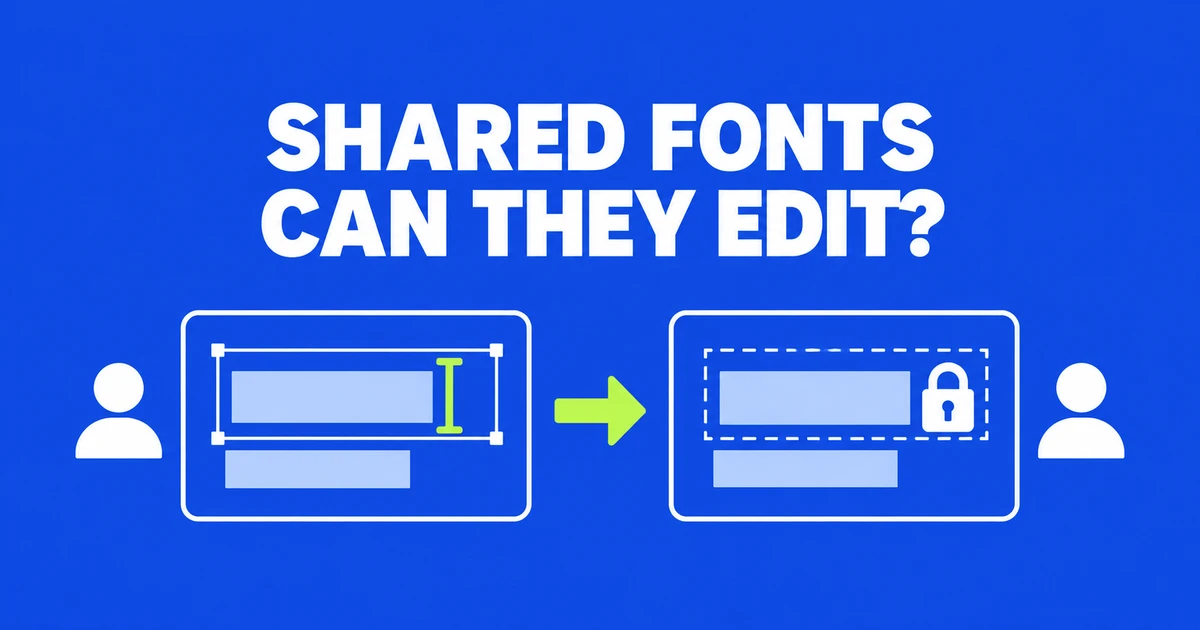
- For an editable deck, use fonts that allow editable embedding and save all characters needed for later changes.
- Preview/Print and restricted embedding permissions can prevent the handoff you want; a save checkbox does not override them.
- Test new text in the delivery copy and provide a PDF from the same version when the recipient also needs a visual reference.
A reusable deck needs more than a correct opening slide
To share an editable PowerPoint deck with custom fonts, use fonts that permit editable embedding and include all characters when saving. The recipient needs enough font data to enter new text, as well as permission to edit with it.
A teacher’s PowerPoint discussion describes presentations using PrintClearly that opened read-only but initially displayed properly. Later, the teacher reported inconsistent display even in older files. The thread does not establish a confirmed cause. The teacher also ruled out switching fonts. When a required typeface must stay, preparation has to include the destination computer’s access to it.
For a colleague updating a monthly report, design preservation includes the next department name, new figures, and an additional slide. For an audience receiving a handout, a fixed PDF may be sufficient. Decide which job the delivered file must support before making size-saving changes to it; otherwise, a tidy file can arrive without the editing capability the recipient needs.
The font can limit editing even when it is embedded
Microsoft’s font-saving guidance distinguishes embedding permissions. Editable and Installable fonts support embedding. Preview/Print permits viewing and printing on a computer without the font, but not editing. Restricted or No embedding prevents inclusion. Selecting “all characters” does not change these permissions.
| Permission | Implication for a recipient without the font | Practical handoff |
|---|---|---|
| Editable or Installable | The font supports embedding. | Include all characters and test the intended edits. |
| Preview/Print | Viewing and printing are permitted; editing is restricted. | Arrange an authorized installation or replace the font for editing. |
| Restricted or No embedding | The font cannot be included. | Use an available font or arrange suitable installation on both computers. |
On Windows, search for Fonts, open the Fonts control panel, and select the font to inspect its embeddability in the details. Expand the window if those details are hidden. This gives a more useful next step than repeatedly saving the same file after the same warning.
A .ttf or .otf extension alone is insufficient evidence. The creator can restrict embedding, and PowerPoint also has font-format compatibility limits. If a warning identifies a font, record its name and decide whether the design requires that exact face. That decision determines whether to arrange installation or prepare a replacement version.
Save the characters the next editor will need
PowerPoint’s embedding options let you include only characters used in the presentation or all characters. The smaller subset suits a document whose existing text is the main concern. All-character embedding better serves a deck that will receive new text, subject to the font’s permissions and the characters the font actually contains.
Consider a template whose current product label is “Basic,” while the next editor needs to enter “Premium” using letters absent from the saved subset. Looking at the existing title proves little about entering the new name. Even when the initial text displays correctly, a subset may lack characters required by the edit. Including everything in a font also cannot add a language that the font never supported.
Microsoft’s file-size advice describes the tradeoff between a smaller character subset and editing flexibility. There is no useful universal size estimate for a deck: the fonts included affect the result. For a reusable template, retain the needed characters rather than removing them simply to achieve the smallest attachment.
A focused handoff test is to enter a department or product name absent from the original, change a number with punctuation, save, and reopen. Use text the recipient is actually likely to add. This will not exhaustively test a font, but it exercises the intended workflow more directly than viewing the first slide.
Embed from the desktop app and finish the save
In Windows PowerPoint, open File, Options, Save. Under the section for preserving fidelity when sharing this presentation, enable Embed fonts in the file and choose all characters for an editing handoff. Confirm the relevant presentation if several files are open, then save the PPTX. A setting applied to another open deck will not fix the file you intend to send.
For supported Mac versions, use PowerPoint, Preferences, Save and the font-embedding settings. Microsoft lists Microsoft 365, PowerPoint 2024, and PowerPoint 2021 for Mac as supporting embedding. Enable embedding there and save the delivery copy; the Windows File Options dialog is not the Mac route.
Use a clearly named delivery copy if you need to preserve the original. If saving reports a font problem, resolve that font before treating the copy as complete. Turning embedding off may allow a save, but it does not put the missing font on the other computer. The recipient’s display and editing task still need a solution.
Install the required font or prepare a replacement design
If the exact typeface is required and installation is permitted, obtain it through the appropriate source for the receiving computer. Microsoft’s installation instructions use Install on Windows, or opening the font in Finder and choosing Install Font on Mac. Close and reopen PowerPoint after installation so the font becomes available in its menus.
A shared classroom or managed company PC may require an administrator to perform that installation. Arrange this before the presentation, or provide a deck using an available font. Sending a font file alongside the slides is not a complete plan unless its distribution and installation are allowed and someone can perform the installation at the destination.
To replace a face in Windows PowerPoint, use Home, Replace, Replace Fonts and select the old and new fonts. For future slides, also adjust the theme’s fonts through View, Slide Master. Microsoft’s font-change instructions note that multiple masters need attention individually.
This is particularly relevant to decks assembled from several contributors. Updating one master may leave another layout using the previous font. After replacement, inspect long titles, narrow table columns, and footnotes. Different character widths can alter wrapping, so a successful replacement command is followed by layout work where the text no longer fits.
A familiar font name can conceal a substitution
PowerPoint’s web app can display documents containing embedded fonts, but embedding itself requires a Windows or macOS desktop app. Slide Master view is also unavailable on the web. Prepare a deck that needs embedded fonts and master changes in the desktop app, then check it in the environment the recipient will use.
The modern Office font picker documentation explains that a missing font may be substituted for viewing while the original applied font name remains. Seeing the expected name in a menu is therefore weaker evidence than comparing the actual title, table, or paragraph against the intended design.
Office cloud font access differs by subscription. Microsoft’s cloud font instructions require an internet connection to download the fonts; Windows also needs Optional connected experiences enabled. Open the deck on the presentation computer while it is online so any missing cloud fonts can download, then check it under the connection conditions you will use for the presentation.
Deliver an editing file with a visual reference
For a fixed handout, export a PDF. PowerPoint’s PDF instructions use File, Export, Create PDF/XPS on Windows; on Mac, use Save As or Export and select PDF. This preserves a static presentation layout for viewing. Open the exported PDF and compare its typography and line breaks with the intended slides.
When a colleague must edit, send the PPTX and a PDF made from the same final version. The PDF supplies a visual reference while the PPTX remains the working document. Matching version names make it easier to tell whether a changed layout comes from font handling or simply from comparing two revisions.
Check the actual delivery copy on the recipient’s environment where possible. Open it, add the expected text, save, and reopen; compare the affected slides with the reference. If a problem remains, ask for the slide number and application used. That evidence supports a specific repair instead of another complete rebuild of a deck whose problem may be confined to one font or layout.