Why only some apps look blurry on your external monitor
Your browser looks sharp beside a blurry work app, but 100% scaling makes everything too small. Can you improve that one app without shrinking the whole desktop?
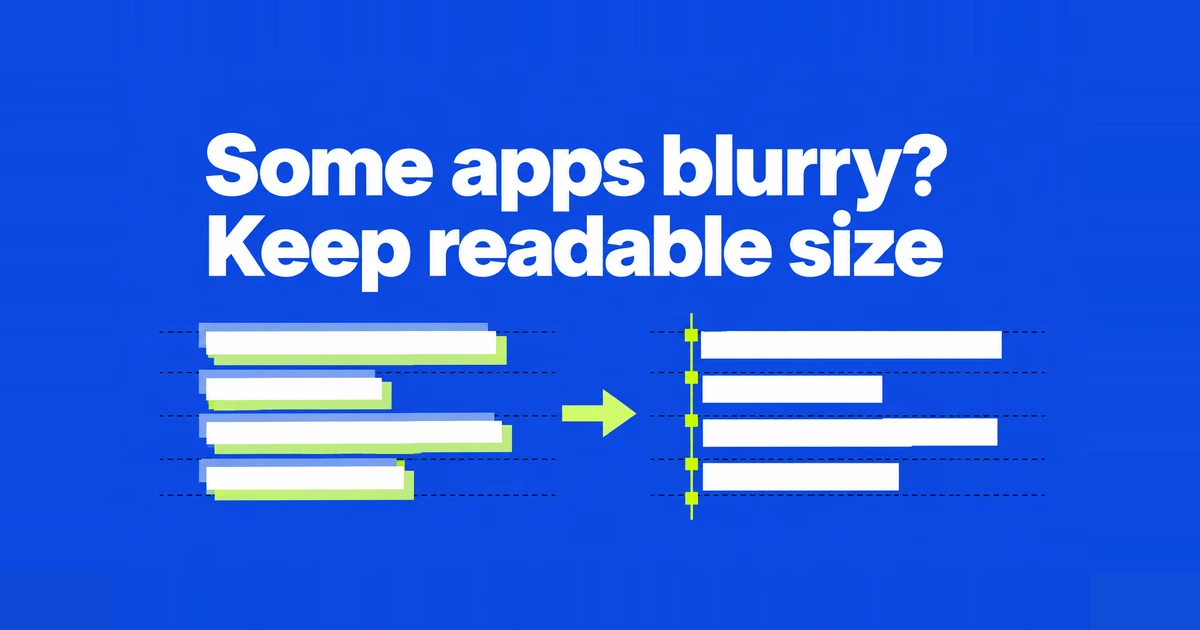
You dock your laptop, move a work window to the larger screen, and find that its text looks softer. A browser beside it looks fine. Changing the entire display to 100% may make something look better, but leave you leaning forward to read every menu.
The useful first question is where the problem appears. An entire blurry desktop needs a different starting point from one app that becomes blurry after a move. Windows 11 provides both display-wide size controls and settings for individual desktop apps, so you can investigate the affected window while keeping the others comfortable to read.
Compare apps on the same screen
Put Windows Settings, your browser, and the affected application on the external monitor. Comparing email on the laptop with an accounting app on the monitor mixes up two variables. Keeping the display constant helps you decide whether to investigate one program or the display settings.
If everything looks soft, open Settings → System → Display, select the external display in the diagram, and check its resolution and scale. Having the Settings window on that screen does not select it automatically. Note the original values before changing anything.
Microsoft’s resolution guide explains that using less than the display’s native resolution can soften text or stretch the picture. If you lowered resolution to enlarge the desktop, return to the recommended resolution and then address size separately.
For small text, Windows provides Accessibility → Text size. Display scaling enlarges apps and other desktop elements too. Neither option requires every monitor to use the same percentage. A useful setting lets you read comfortably from your normal position, rather than maximizing how much fits on screen.
Reopen an app that became blurry after a move
Applications differ in how they respond to a new display scale. Some redraw their interface for the destination screen; others have their existing window stretched by Windows. Microsoft’s DPI documentation explains why the latter can look soft, particularly after moving a window or docking a laptop.
Imagine a laptop at 150% and an external monitor at 100%. These are example settings, not recommendations for your hardware. If the app looks different only after crossing between those screens, that is useful evidence about its handling of the move. It does not establish that either percentage is wrong.
Save your work, exit the program completely, and launch it again. Closing one document tab may leave the application running. Use its Exit command if it has one, then compare the same document on the screen where you intend to work. Dell recommends reopening affected apps when troubleshooting mixed-monitor scaling.
A fresh launch is not guaranteed to help. Some applications use the primary display’s scale from the start of the Windows session. After docking or a scale change, saving all work and signing out and back in is another comparison to try. Microsoft includes that workaround in its older Office guidance. That page was reviewed in 2018; its Windows 10 automatic-fix instructions should not be treated as a Windows 11 menu path.
If reopening helps but moving the window makes it soft again, record both observations. Until the application handles the transition better, keeping it on the screen where you use it most may be the less disruptive arrangement.
Try an override for one older desktop app
Check for an application update or a vendor-recommended display setting first. If an older work program remains blurry, Windows also offers a per-app override. This procedure requires a desktop application whose Properties dialog has a Compatibility tab.
- Close the app. Right-click its executable or shortcut and choose Properties.
- Open Compatibility → Change high DPI settings.
- Record the current setting, then enable Override high DPI scaling behavior.
- Choose System (Enhanced), apply the change, and reopen the app.
- Check it on both displays, including any small dialogs you regularly use.
This option targets applications that use GDI, one of Windows’ drawing technologies. Microsoft’s explanation of GDI scaling describes limitations involving bitmap content, mixed graphics technologies, and text fitting. The age of an application alone does not tell you whether it will benefit.
Try an ordinary task: search for a long customer name, open a date picker, or inspect a form’s bottom buttons. A sharper heading is little help if the Save button disappears below a clipped panel. Restore the previous selection and restart if the result is worse. If the override was originally off, restoring it means clearing that checkbox.
Some system tools do not expose a Compatibility tab. You cannot change those windows through this procedure. When contacting support, identify the particular tool so it is clear why you could try the override in your work app but not in that window.
Understand Office’s compatibility tradeoff
In desktop Word or Excel, “compatibility” can sound like the right choice for a troublesome monitor. The setting actually addresses a different concern: how older add-ins and external code draw their interface.
Where the option is available, open File → Options → General → User Interface options and inspect the multiple-display choice. Microsoft’s high-definition display guide distinguishes the modes as follows.
| Mode | When it matters | What to check |
|---|---|---|
| Optimize for best appearance | Normal work across displays | The default recommendation; older add-ins may have drawing issues. |
| Optimize for compatibility | An add-in displays incorrectly | Dynamic scaling is disabled, so the app’s text may be blurry on a secondary screen. |
If compatibility mode was enabled for an add-in months ago, compare best appearance again and check both the document and that add-in. Restart the application after changing the mode. The choice applies to that app on that computer; changing Excel does not change Word.
Suppose a reporting add-in’s buttons now appear in the correct place, but worksheet text looks softer. Those are two separate results to report to its vendor. Describing both is more useful than saying that compatibility mode either works or fails.
Use ClearType for text appearance
If window sizes and controls are correct but letter strokes look uncomfortable, try the ClearType tuner. Search Windows for ClearType, open Adjust ClearType text, enable it, and follow the prompts. Choose the display to adjust and the text samples that are easiest to read, then finish the process.
Dell’s Windows 11 instructions describe ClearType as a way to smooth text on LCD displays. Google also recommends the tuner for fuzzy text in Chrome on Windows. Revisit a familiar page afterward; the sample boxes are only part of the comparison.
ClearType and application scaling address different things. If text and icons become blurry together when a window moves, keep investigating the application’s display handling. If text is already crisp but too small, return to text size or scale. Repeating the tuner for either problem can consume time without addressing the change you need.
Check the work you actually do
Use the same document and position before and after a change. A familiar table with long names, small menus, and input fields is a better check than an empty window. Keep your normal viewing distance, too: improved sharpness at an unreadably small size is not a satisfactory result.
Match the final check to your routine. If the app stays on the external monitor, open its regular forms there. If you move it between screens, make that move. If you dock every morning, check what happens at the next connection. One successful launch does not establish that the setting works through all those transitions.
For a persistent single-app problem, give support the app name and version, each display’s resolution and scale, and whether restarting changes the result. If the whole desktop remains blurry or the expected resolution is unavailable, investigate the graphics driver and connection setup instead of continuing with per-app overrides.