Why Windows still uses hotspot data on a metered connection
You paused Windows Update, but your phone’s usage counter keeps climbing while the laptop is connected. Which app is using the hotspot, and how do you stop its transfer?
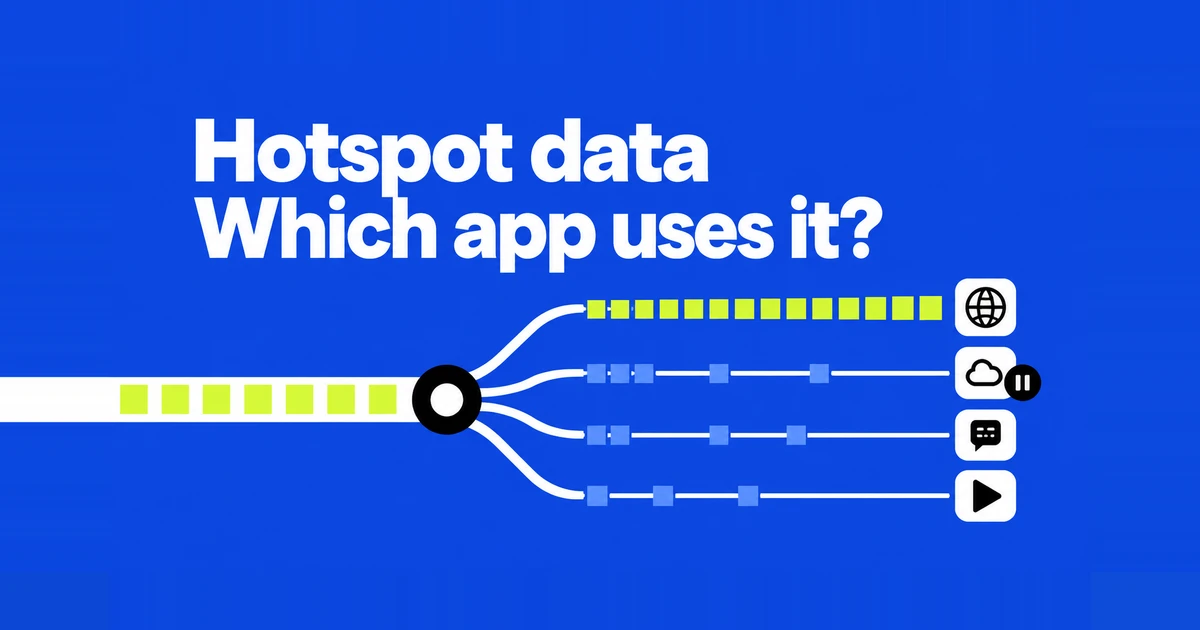
A download left running before you leave the office can compete with the documents you need to send over a hotspot. To make the allowance last, find the active transfer and decide whether it can wait until you return. If the allowance is almost gone, disconnect the laptop from the hotspot first. You can inspect its settings and usage history while offline.
In a Microsoft Q&A post, a Windows 11 user reported continued hotspot consumption despite metered mode and paused updates. The phone and laptop also displayed different totals. That report leaves two things to investigate: which transfer is active, and whether the counters cover the same period and connection.
Check the connection Windows is actually using
For a Wi-Fi hotspot, open Settings → Network & internet → Wi-Fi → your connected network and enable Metered connection. Windows normally treats Wi-Fi as unmetered. A USB tether presented as Ethernet needs its own connection setting. Windows can still download priority updates, as Microsoft explains in its metered connection documentation.
Check the network name before changing anything. A laptop with saved home, office and phone networks gives you several plausible places to look. Changing the office connection will not prepare the phone connection for your next trip. If an organization manages the switch, give IT the name of the limited connection rather than trying to override its policy.
Find historical usage, then find the app transferring now
Open Settings → Network & internet → Data usage. Some layouts expose it under Advanced network settings. Choose the relevant network adapter and check the displayed period. Shawn Brink’s illustrated Windows 11 walkthrough shows 24-hour, seven-day and 30-day filters, with apps listed by usage. Use the options available on your installed build.
This is a shortlist of apps to investigate. A large Wi-Fi total can include work done on another Wi-Fi connection during that period. For example, suppose a browser leads the list after yesterday’s video viewing, while today a cloud client is uploading files. Closing the browser based on that ranking would not address the current upload. Do not treat the whole adapter total as a bill for this hotspot session.
For current activity, press Ctrl+Shift+Esc to open Task Manager. In Processes, sort the Network column to bring active apps toward the top. Microsoft describes the process resource tables as live information. The moving values answer a different question from the accumulated Data usage list.
Open the busy app’s own download or sync panel. Pause an unnecessary transfer there, then watch the activity again. With a browser, inspect downloads and streaming tabs; with a sync client, inspect its file queue. Save your work before closing an application. A normal pause gives you a clearer recovery path than abruptly ending its process.
Change one thing at a time while you have enough data to observe the result. Stopping five apps together may reduce traffic without telling you which job mattered. A momentary zero is not proof that an app will stay idle: its transfer might have finished, or another job might start later. If only a generic system process appears, record the time and compare it with the update status instead of assuming its name identifies the cause.
A scheduled restart does not postpone the download
In Windows Update → Advanced options, check whether Download updates over metered connections is enabled. For a temporary break, return to Windows Update and choose a duration beside Pause updates. The Windows Update FAQ explains that, after the pause limit, current updates must be installed before another pause.
Active hours and restart scheduling handle when Windows reboots. If the update page still says a download is in progress, moving the restart to tonight does not answer the bandwidth problem. Read the current stage: downloading, installing and waiting for restart are different activities. A hotspot-saving procedure should postpone the transfer where appropriate, then complete the update later on a suitable connection.
Update sharing and download speed have narrower controls
Under Windows Update → Advanced options → Delivery Optimization, Activity monitor shows the current month’s download sources and upload activity. Its bandwidth controls apply to automatic update downloads; Microsoft says manually initiated Windows Update or Store downloads are outside those limits.
If an update keeps downloading after you turn off Allow downloads from other devices, check its progress in Windows Update. Turning off sharing still permits downloads directly from Microsoft; use the update pause described above if that transfer needs to wait. Microsoft’s Delivery Optimization privacy guidance also says metered connections do not automatically exchange update parts with other PCs on the internet. An enabled sharing switch does not establish that those PCs used your allowance.
A speed cap and a data budget solve different problems. Taking longer to download the same file does not make the file smaller. Likewise, a large monthly activity total cannot tell you that the transfer happened during this morning’s commute. Use those records alongside the app’s current status, not as a reason to keep changing every network setting.
Check both the sync pause and the files you need
For OneDrive, right-click the cloud icon in the notification area and choose a pause duration. Microsoft’s pause instructions describe automatic pausing on metered networks and manual pauses of two, eight or 24 hours. Verify that it actually says Paused. Personal and work accounts can be paused separately, and syncing resumes when the chosen time expires.
Suppose a short appointment turns into an afternoon away from the office. A two-hour pause may have ended while you were still tethered. Open the activity panel again to see whether the queued files have resumed transferring. If you edited a document during the pause, wait for its upload to finish before telling a colleague the cloud copy is current.
Visible filenames are not proof that their contents are already stored locally. OneDrive online-only files download when opened. Before leaving a suitable connection, select the documents you need, right-click and choose Always keep on this device. Wait for them to become available locally. Selecting an entire folder also brings its contents into scope, so prepare the presentation and supporting files rather than the whole archive.
Use the data limit as a warning, not a disconnect rule
In the connected Wi-Fi network’s settings, choose the data-limit link, then Enter limit. Select the limit type and fill in its details. Microsoft describes notifications near and beyond the limit. Do not leave a large transfer running on the assumption that this setting will cut off the hotspot for you.
Check the carrier account for the allowance that applies to tethering. A budget for this laptop also needs to leave room for any other devices using the phone. For an illustrative example, if 3GB remains and you need the hotspot again tomorrow, assigning all 3GB to today’s laptop work defeats that plan. The number is a planning example, not a recommended allowance for a meeting.
When Windows and the phone disagree, write down the time range, selected connection and other connected devices before comparing totals. Do not erase the Windows statistics just to make the counters look aligned. Keep the record for your carrier or PC support team if the mismatch remains unexplained. A different total alone is not evidence that a specific app, VPN or Windows service is responsible.
Finish deferred work after reconnecting at the office
Confirm that the laptop has left the phone’s connection before resuming large jobs. Resume updates and cloud syncing, then check that the files changed while you were away have finished uploading. If you need to hand a document to someone else, open the shared copy to confirm the intended version is there.
Before the next trip, revisit the apps that had large queues today. Complete their updates on the fixed connection and keep the specific work files available offline. That turns the next hotspot session into a smaller set of deliberate transfers, such as an attachment you actually need to send, instead of another attempt to diagnose a month of accumulated usage.