Repeat Word table headers without copying them onto every page
Page one of the quote has column labels, but page two of the table starts with bare numbers, and Repeat Header Rows is already on. What is stopping Word?
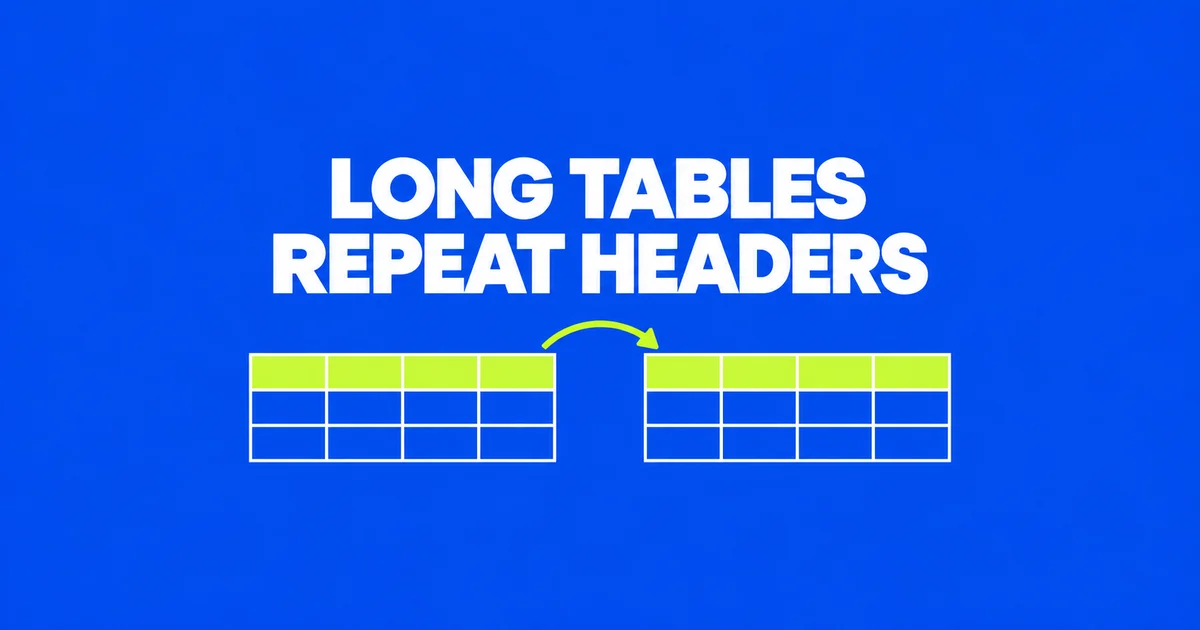
Set the headings once, then edit them in one place
Someone reading the second page of a quote needs to know which column contains quantity and which contains unit price. Word can carry those labels onto each continuation page, even when edits move the page boundaries. Set the first heading row to repeat as the table flows across pages. The following workflow uses Word for Windows on the desktop.
A Word user with a 40-page table asked how to avoid creating a title bar on every page. If a description grows or another record is inserted, the copied labels can move away from the page boundary. A change to a column's name then requires finding every copy.
Select the rows that contain your column headings and choose Table Layout → Repeat Header Rows. Include the first row of the table. Then look at the continuation page in Print Layout. Microsoft's header instructions also explain that subsequent instances are locked: change the heading on the first page to update its repetitions.
For a quote, the repeated row might contain Item, Quantity, Unit price and Total, with a currency identified in the price headings. Keep the first actual product out of that selection. A product that reappears above every page of records could look like an additional charge.
If the first row contains a broad title such as “October equipment quote” and the second contains the column labels, do not select only the second row. Either include both in the repeating heading or move the broad title outside the table so that the labels become its first row. Choose what someone holding only a middle page needs to read.
When the next page has no header
First check the view and selection. Repeated headers appear in Print Layout or print output, and the selection must start with the table's first row. You can also right-click the heading row, open Table Properties → Row, and enable the option to repeat it at the top of each page.
If repetition stops at a particular boundary, look for a manual page break inside the table. Microsoft's header documentation specifically excludes that case. A break Word creates as the table fills a page is different from one inserted to force an item onto a new page.
- Turn on Home → Show/Hide (¶) to display formatting marks.
- Find the manual page break near the point where the heading stops repeating.
- If that forced break is unnecessary, select it and delete it.
- Recheck the table's flow and record order in Print Layout.
Microsoft's page-break removal guide distinguishes removable manual breaks from automatic pagination. An automatic page boundary is not a character you can delete. Its position changes when the content or pagination settings change.
Suppose a colleague forced item 20 to the top of a new page while tidying an earlier draft. If it is still part of the same list, letting the table flow may be enough. If item 20 begins a different category that needs an explanatory paragraph, consider a separate table. Do not delete every break throughout the document while investigating one table.
Use separate tables when the content changes
If headings repeat in the first table but disappear from the table after an explanatory paragraph, check whether the document contains two separate tables. The second needs its own heading row and repeat setting. A single table that simply flows onto another page continues to use the heading rows you selected at its start.
To split deliberately, place the cursor in the row that should begin the second table, then choose Table Layout → Split Table. These are the Windows desktop steps in Microsoft's split-table guide.
For example, a quote might have equipment purchases followed by installation work. One continuous table can suit a single list using the same columns. Two tables make sense when installation needs a separate scope description between the lists. Add appropriate column headings to the installation table and configure repetition there if it spans pages.
After splitting, inspect the second table's first row. It may still be an ordinary record from the original list, not a heading. Do not turn that record into a repeating header by accident. Also retain the original item order and count while adding the new heading row.
Choose how a record crosses a page boundary
A correctly repeated header does not decide whether a record may split across pages. Select the affected row and open Table Properties → Row to review Allow row to break across pages. Microsoft's table properties reference places row height, splitting and header options in this tab.
For a short item with a quantity and price, clear the row-splitting checkbox to keep the record together. If it cannot fit in the space left at the bottom, it may move to the next page and leave a gap. That space can be the consequence of keeping the record intact.
For a row containing a long review or a detailed work description, select the checkbox to allow it to continue onto another page. This avoids trying to squeeze a substantial passage into the remaining space. A row taller than an entire page cannot be treated like a short product entry that simply needs a little more room.
| Content | Setting to examine | Tradeoff to inspect |
|---|---|---|
| Short product record with prices | Row splitting | Keeping it intact can leave space below the preceding records |
| Long narrative inside one cell | Row splitting and paragraph pagination | Text can continue, with headings identifying the columns on the next page |
| A subheading stranded before its table | Keep with next on that paragraph | The subheading stays with the following content |
If a long paragraph still moves as a block after you allow row splitting, select it and inspect Paragraph → Line and Page Breaks. Keep lines together can be holding that paragraph on one page. If several paragraphs move together, also check Keep with next, which connects a paragraph to the one after it. Microsoft's pagination guide explains both controls.
Change the setting on the material that needs to flow. Removing paragraph constraints throughout a document can also separate headings from the content they were meant to introduce. After each adjustment, read the pages on either side of the affected boundary rather than judging only the amount of white space.
Give long descriptions room before shrinking the type
Column width affects how many lines a description occupies. A wide Quantity column beside a cramped Description column may waste space on short numbers while making every record taller. Equal column widths are not automatically useful for different kinds of content.
Consider a quantity of 12 next to a paragraph describing installation conditions. Leave enough width for the quantity and its heading, then give more to the description. With fewer wrapped lines, the row may become shorter and the page boundary may move.
Word's resizing instructions cover dragging column boundaries, specifying widths and using AutoFit. AutoFit Contents adjusts to content; AutoFit Window adjusts the table's width. Neither is a command to compress a long table vertically onto a single page.
After changing widths, inspect full prices, currency labels and the longest item names. A heading that now wraps onto two lines also makes the repeated heading taller. Check a continuation page as well as the first page before accepting the new proportions.
Read a middle page on its own before sending
Open File → Print and move through the preview. Microsoft's print-preview guide describes page navigation and zoom controls; you can return to editing without printing.
For a quote, read the second page without referring to the first. Can you identify quantity, unit price, total and currency? Is an ordinary product being repeated as a heading? At the page boundary, does the continuing description still belong to the correct item? On the final page, check the last record and any totals.
Revisit the preview after inserting records or extending a description, because those edits can move page boundaries. If the deliverable is a PDF, open the saved file and inspect its middle and final pages too. Verify the output you will actually send, including the rows that moved during the last revision.