Why Google Drive shortcuts fail inside a shared folder
Your accountant opens the checklist in your shared folder but gets an access request on the sales-record shortcut. Which sharing setting needs changing when both items appear in the same folder?
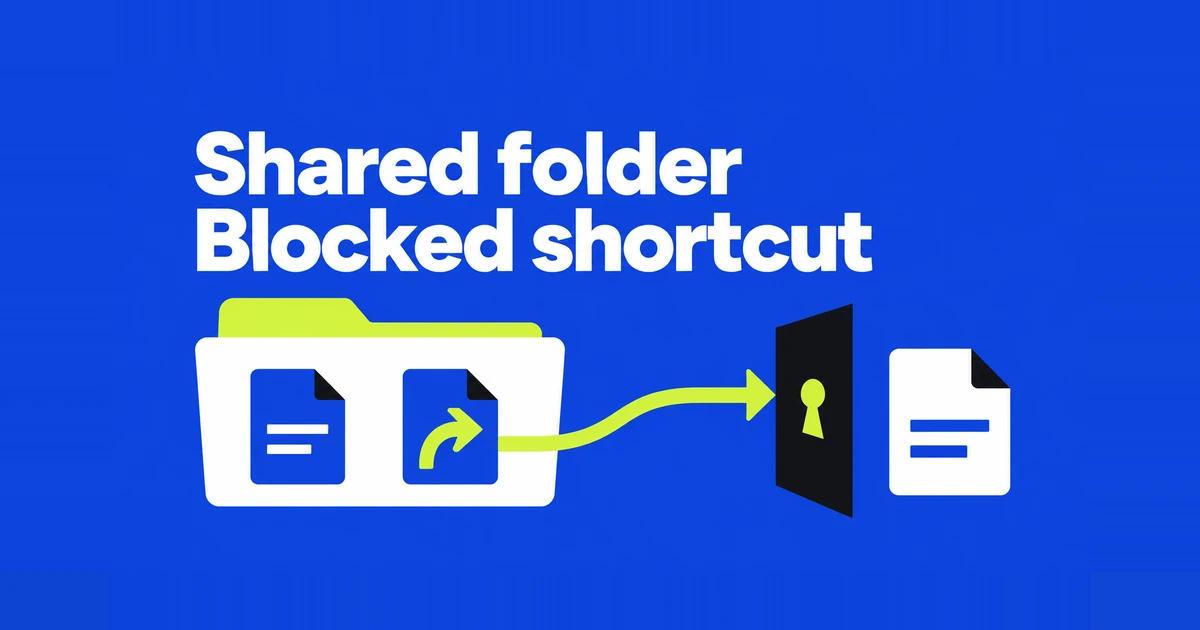
One folder, two different kinds of item
A Google Drive shortcut points to a file or folder somewhere else. Putting that shortcut in a client folder gives the client a route to the original, but the original still checks whether the client can open it. According to Google's shortcut documentation, creating the shortcut does not automatically change the target's permissions.
A 2022 Workspace user question describes this exact handoff problem. The writer was collecting records for an accountant outside the organization. Some documents were created inside the shared folder; others were shortcuts to existing documents. The accountant could read the former but could not open the latter.
Imagine an “October accounting” folder containing a new checklist and a shortcut to a sales workbook in the finance team's folder. The checklist belongs to the delivery folder. The workbook is still elsewhere. A sender who already has access to both may see no failure at all when clicking through the list.
The recipient can also see a shortcut's title without being allowed to read its target. Keep internal personnel records and other clients' names out of a delivery folder's shortcut list, even when the underlying documents remain restricted.
Find the file and account that need access
Start with the item that fails, rather than resharing the entire folder. Ask the recipient for its name and the Google account being used. An invitation to a work address does not grant the same access to that person's personal Gmail account.
- Open the failing shortcut and check which account is active.
- Switch to the invited account if necessary, then try again.
- If access is still missing, request access to the target file from that screen.
- Have someone who can share the original grant the required access, then retry the same shortcut.
Google's access-request instructions cover both requesting permission and switching accounts. An approval or denial may happen without a notification, so an empty inbox does not prove the request is still pending.
A useful message would be: “The sales workbook in the October accounting folder asks for access. I'm signed in with the work address you invited and need to review the figures.” Include the intended address when several accounts are involved. That gives the sender a specific document and recipient to look up.
On the original, someone with sharing authority can use Share to invite that address. Choose Viewer for reading, Commenter for feedback, or Editor for changes. Google's sharing guide explains those roles. A request to read one workbook does not require making it accessible to anyone with its link.
The person assembling the folder may be able to read the original without being allowed to share it. In that case, involve the team responsible for the original. Creating another delivery folder will not give the assembler new authority over that document. For a recipient check in a private browser window, sign in with the invited account; a signed-out visitor being blocked can be the expected result.
Why a move can leave a shortcut
You may have intended to move a file rather than create a shortcut. Google's desktop organization guide says that without permission to move an item from its source to the destination, the file is not moved and a shortcut is created instead.
Inspect the resulting item and the original's location before treating the handoff as complete. A familiar filename appearing in the new folder does not establish that the document itself moved there. If the original remains in a team folder, check access to that original.
To add a shortcut intentionally on the Drive website, right-click the source item and choose Organize → Add shortcut, then select the destination. If Drive offers a separate prompt to grant access to the target, review its recipients and role. Do not assume the shortcut action has already handled permission.
This arrangement is useful for a schedule that several project folders should open. It is less suitable when the source will continue accumulating internal notes after a client receives the folder. Decide whether that client should keep seeing the evolving document before connecting it to the handoff.
Choose between the live document and a separate copy
If the accountant needs next week's updated sales figures too, arrange access to the original workbook so they can keep opening it through the shortcut. A copy sent to get past today's access request will not receive the finance team's later additions. Client proposals need a different approach when each client gets a different price: make a copy for each one. Shortcuts in separate client folders still open the same document, so changing a price there could expose one client's terms to another.
| Job | Choice | Where subsequent edits happen |
|---|---|---|
| Find the team's current schedule from several folders | Shortcut, with access to the original | Everyone opens the same document |
| Adapt a proposal for each client | Separate copies | Each client's document changes independently |
| Change where the original is stored | Move | The file changes location; review the destination's sharing |
For example, suppose a proposal template receives a corrected unit price. Anyone opening that original through a shortcut sees the correction. A client-specific copy made earlier still needs its own update. Conversely, editing the client copy's proposed price does not rewrite the template.
For Google Docs, Sheets, or Slides, open the document and choose File → Make a copy. Enter a name and destination folder. Google's copy instructions also describe options for including comments and suggestions. Review those options before putting internal review material in a client version.
Give the new file a useful name, such as “Client A proposal for review,” then open it from the delivery folder. Confirm that the document you intend to send is the copy, not the template you still have open in another tab. Assign someone to update the delivered version if the source changes afterward.
Copying can be restricted. If the option is unavailable, ask the team responsible for the source for an approved deliverable. Nor does a file's Make a copy command provide a general way to duplicate a whole folder. For a collection of records, decide which items should remain live references and which need independent versions.
When the problem is a folder or organizational restriction
An inaccessible item is not necessarily a shortcut. A folder with limited access can appear grayed out to someone who can browse its parent. Ask whether the person has access to that folder instead of repeatedly rebuilding a shortcut to it.
A folder shared from My Drive is also different from a Workspace shared drive. Shared drive restrictions can prevent external or non-member sharing and override an individual file's sharing settings. An external person's address can therefore appear on the file while an organizational restriction prevents access.
Send the administrator the affected original, the recipient's address, and whether other documents in the delivery folder open. That is more useful than reporting “shortcuts are broken.” It identifies whether to investigate the target's sharing or the restrictions on its shared drive.
If a previously working shortcut stops opening for the team responsible for the source too, ask whether the original was trashed or deleted. Google's shortcut guide lists both as causes of a broken shortcut. Recreating the reference does not restore its target. For the accounting example, the delivery folder may still contain “Sales workbook” even though someone has removed the workbook itself. Have the responsible team locate or restore the original before asking the accountant to retry.
Deleting a shortcut does not end the client's access
Deleting a shortcut removes that reference, not the original document. If an external accountant was granted direct access to the sales workbook, removing its shortcut from the delivery folder does not revoke that grant. The accountant may still use the original link.
Do not use the original's Trash action as a substitute for ending sharing. Google's deletion guide explains that other people may retain access to a shared file until it is permanently deleted. The team may also still need the original for ongoing work.
When the engagement ends, remove access on the original where appropriate, including any remaining route through a folder or group. Review the delivery folder's sharing separately. Before cleaning up its contents, identify whether each selected item is a reference or the working document itself.