Keep PowerPoint speaker notes off the meeting-room screen
Remote Teams attendees see your slides, but the HDMI-connected room TV shows your script too. Which display settings keep the notes on your laptop while both audiences see the presentation?
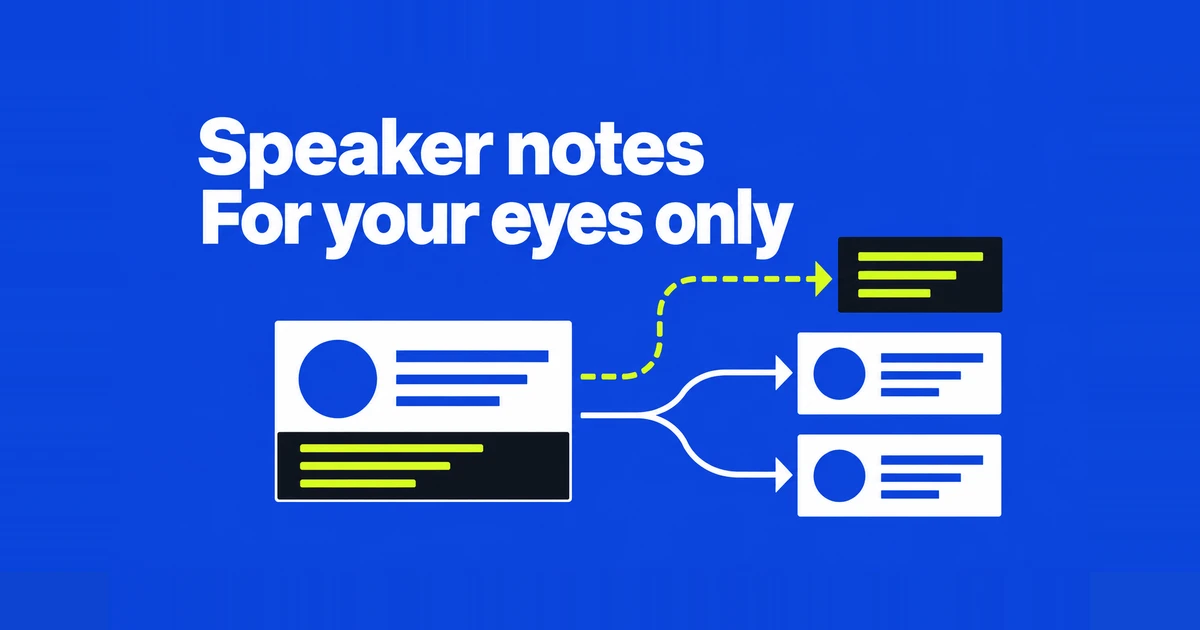
The meeting app and the TV can receive different views
To read notes privately during a hybrid presentation, use an extended desktop, place Presenter View on your laptop, and send the slide show to the room display. Then share the slide-show window or display with remote participants. Enabling Presenter View alone does not choose every audience’s output.
In a PowerPoint user’s account of a hybrid meeting, remote Teams participants could not see the notes, but the larger HDMI-connected screen in the room displayed them. The presenter turned the notes off and struggled to deliver the talk. The online presentation and the physical display had different results.
Think of a rehearsal with three viewing positions. You need your script on the laptop, the current slide on the TV, and that same slide on a remote participant’s device. Someone saying “the slides look fine” only verifies the screen they are watching. Ask a person in the room and someone online separately.
| Viewing position | Intended content | Where to configure it |
|---|---|---|
| Your laptop | Notes, current slide, next slide | PowerPoint Presenter View |
| Room TV or projector | Current slide | Windows display mode and PowerPoint placement |
| Remote participant | Current slide | Meeting-app sharing selection |
The steps below focus on Windows 11 and desktop PowerPoint, with a laptop capable of driving a separate external display.
Extend the desktop before assigning the two PowerPoint views
After connecting the display, press Win+P and choose Extend. Duplication sends the same desktop to both displays; extension lets you place different windows on them. A different or initially empty desktop on the TV can simply mean extension is working.
Use Settings → System → Display → Identify to match the display numbers to the physical screens. If a connected screen is missing, try Detect under Multiple displays. Microsoft’s Windows display guide also explains arranging the screens to match their physical positions.
For example, if you expect the pointer to move onto a screen to your right but it does not, the display may be arranged to the left in Windows. Fix that arrangement before trying to move presentation windows. Do not assume the laptop will always be display 1 after changing a dock or room connection.
In PowerPoint’s Slide Show tab, enable Presenter View and start the show. Check both screens. If the notes appear on the TV, use Display Settings at the top of Presenter View to swap the presenter and slide-show views. The Presenter View instructions describe this swap.
With automatic selection, PowerPoint prefers the laptop for notes when available; otherwise it uses the system’s main display, according to its multiple-monitor guidance. Check the resulting placement after reconnecting equipment rather than relying on yesterday’s arrangement.
Put the script in the slide’s Notes pane
Presenter View gathers the notes attached to each slide. Open Notes at the bottom of the editing window and enter the talking points for the selected slide, following Microsoft’s speaker-notes instructions. Text placed on the slide itself remains part of the audience’s slide.
Suppose slide 3 contains a sales chart and you want a reminder to explain the reporting period. Attach that reminder to slide 3. When you advance to slide 4, you should see the next set of talking points. Keeping the entire script under the first slide leaves you searching through a long note when the presentation jumps ahead.
Adjust the note text size or drag the pane divider in Presenter View if the script is difficult to read. Try reading from your actual speaking position. Enlarging the notes may introduce more scrolling, so advance a slide while practicing rather than judging the layout from a stationary screenshot.
The ordinary PowerPoint web slide show is different: Microsoft’s current notes guide says the web app can create notes but requires desktop PowerPoint to show them while presenting. Teams PowerPoint Live provides another presentation route inside the meeting.
For a hybrid meeting, share the slide show already going to the room
A straightforward hybrid setup uses one desktop slide show for both audiences. First establish the laptop and TV arrangement. Then select Share in Teams and choose the window containing the audience’s slide show. Microsoft supports both screen and window sharing in its meeting-content instructions.
Check the preview before selecting a window. The editing window, Presenter View, and the slide show serve different purposes even though all belong to PowerPoint. Sharing the slide show already visible in the room lets a single slide advance drive both audiences, without manually keeping two separately opened presentations aligned.
For a rehearsal, put “presenter check” in a sample slide’s notes and “slide 2” on the slide. Ask your in-room and remote helpers which wording they see. Both should see the slide text while you can read the note and advance to slide 3. Remove those rehearsal labels afterward.
For an online-only meeting, PowerPoint Live lets you select a PPTX or PPSX file from the sharing menu and view notes beside the slides. Small screens may hide presenter view until you enable it through More options.
Live does not establish what a physically connected TV mirrors. Check that output separately. Also, browsing to a new local file for Live uploads it as part of the meeting. Choose between window sharing and Live with that file transfer in mind; hiding notes from the presentation view does not mean the source file stays on your laptop.
Choose the slide output, or use a window on one screen
Zoom’s PowerPoint guide supports sharing a slide show on one monitor while reading notes on another. If you selected the wrong screen, use New Share to choose the one showing the slides. Check the green sharing border and the participant’s view.
If the TV already shows the right slide but remote viewers see notes, changing Zoom’s source avoids disturbing the working room display. If remote viewers are correct and the TV is wrong, return to the Windows and PowerPoint arrangement. Changing both at once makes the outcome harder to diagnose.
For an online presentation with only one monitor, open PowerPoint’s Set Up Slide Show dialog and select “Browsed by an individual (window).” Start the show and share that slide-show window in Zoom. This keeps other windows outside the selected share. It does not recreate a two-display Presenter View setup.
You could place a separate script document beside the windowed show, or use a printed script. On a small laptop, test whether the resulting text is large enough to read. Sharing the entire desktop would include the adjacent script, so verify the actual selected window before speaking.
Check what happens after the last slide
PowerPoint can switch the display arrangement to Extend when a slide show starts and restore the previous Duplicate setting when it ends. Microsoft documents this behavior in its multiple-monitor guidance. A clean slide during the talk therefore does not prove the room screen will stay clean after you exit.
Rehearse the movements you actually plan to make: start the show, advance and return, switch to a browser demonstration if needed, return to the slides, and finish. Ask your helpers what they see at each transition. Stopping Teams or Zoom sharing does not disconnect the HDMI output.
Make the ending a separate rehearsal step. Leave the closing slide visible, stop the online share, then exit the slide show and ask the person in the room what appeared on the TV. If the desktop reappears, set Windows to Extend before starting the next run and check the ending again. Do this with a practice file and ordinary desktop content, before opening the final presentation. The result tells you whether your planned exit leaves the room looking at a slide, a separate desktop, or your working screen.
If you cannot use separate views at the venue, prepare paper notes. PowerPoint’s print settings offer notes pages containing a slide and its associated notes. Handouts and outlines produce different content and layouts.
Match the print preview to the final slide order, especially after last-minute deletions. Keep your speaking copy separate from audience handouts. You can then continue reading the script while someone restores the intended display arrangement.