Do You Still Need a Photo Backup With Synology RAID 1?
Your family photos are on a two-drive NAS, and you want to clear the phone originals. What recovery copy would you need after a deleted folder or an unavailable NAS?
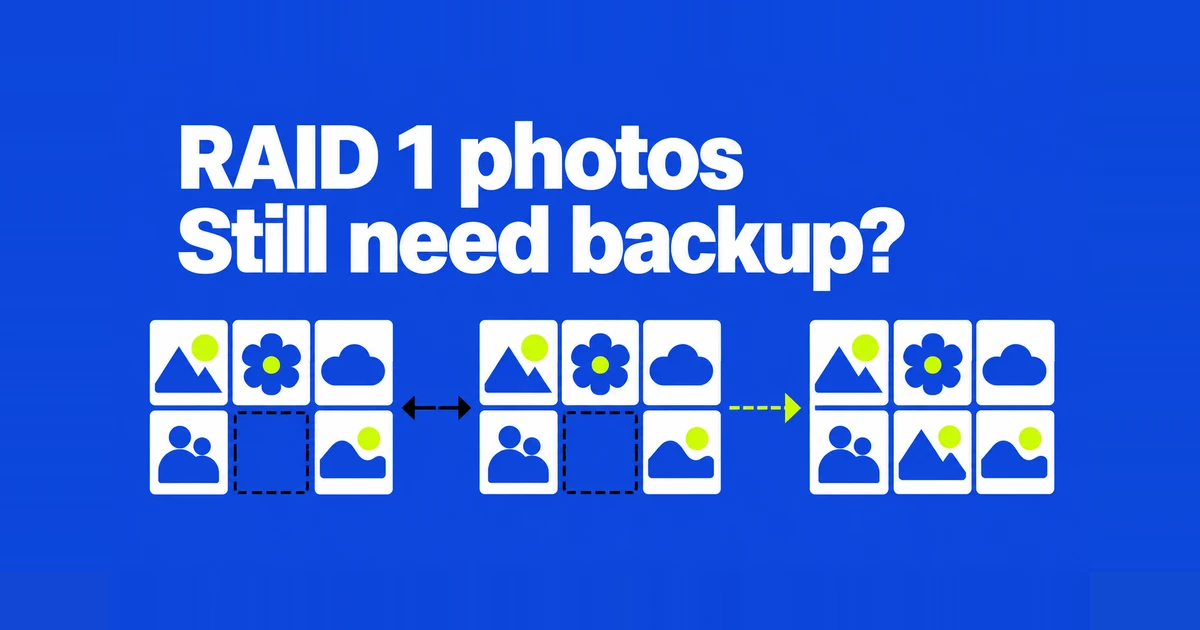
- A two-drive RAID 1 array can survive one drive failing. It mirrors current data, including deletions; it does not supply yesterday’s files by itself.
- Recovering a deleted photo needs a copy from before the deletion. A retained snapshot can supply it on a supported model with a Btrfs volume; a versioned USB backup also lets you retrieve saved photos when the NAS is unavailable.
- To recover the family’s albums and recognition results too, back up the Synology Photos package along with the photo folders. Before clearing phone originals, open a photo extracted from a completed backup, and keep a copy away from the NAS’s location.
Two mirrored NAS drives are not enough when the NAS holds your only remaining photo originals. RAID 1 protects against an individual drive failure. To undo a deletion, you need a surviving version from before it happened. To recover after losing the NAS, that version must also exist somewhere else.
A new DS220j owner asked exactly where the second drive fitted in: with two 4TB disks storing a couple’s photos, did anything need to be done manually to save images to both? The follow-up question was whether an external drive should periodically back up the NAS.
Drive failure, deleted folders, and a missing NAS
RAID 1 writes matching data to its member drives. With two healthy members, one drive can fail without taking the only surviving data with it. But deleting a folder is a valid filesystem operation. The mirror follows that change rather than holding a separate, untouched copy of the folder.
Two 4TB drives in RAID 1 therefore provide roughly one 4TB drive’s capacity before system overhead and display-unit differences. They do not provide 8TB of photo space or a second archive to browse. Synology’s RAID table identifies usable capacity and tolerated drive failures separately.
Check the pool containing your photos in Storage Manager. Two-drive SHR-1 also offers one-drive fault tolerance; two Basic pools, JBOD, and RAID 0 do not provide the same protection. Merely having two disks installed proves none of these configurations. Reading the existing pool type does not require deleting or recreating it.
| Protection | Useful recovery | What it cannot provide alone |
|---|---|---|
| Two-drive RAID 1 | Current data after one member fails | A date before a deletion |
| Local snapshot | A retained earlier state of a folder | A copy independent of the storage holding it |
| Versioned USB backup | Files from retained backup dates on another device | Photos added after the last successful backup |
| Off-site versioned backup | A retained copy after losing equipment at home | Files never transferred, or versions already expired |
Shared-folder snapshots require a supported model and a Btrfs volume. They are useful before a large photo cleanup, provided the earlier snapshot remains available. An ext4 volume does not acquire this capability just by installing a package.
A local snapshot still depends on the NAS storage. Synology’s backup overview recommends adding another destination because local versions can be lost with the underlying array. An external USB copy provides that separation, but a drive sitting beside the NAS can still disappear in the same theft or fire.
Preserve the library as well as the files
Synology Photos uses /home/Photos for each user’s Personal Space and /photo for Shared Space, as described in its Quick Start Guide. A family archive may span several personal spaces plus the shared one. Copying one person’s folder does not capture everyone else’s uploads.
Ordinary file copies preserve the images and videos selected. They do not, by themselves, reproduce a Photos library’s album organization and recognition results. Someone who wants the JPEGs back has a smaller recovery requirement than someone who wants the family’s named albums and sharing setup restored.
For the latter, Synology specifies Hyper Backup 3.0.0 or later and selecting the Photos package. Its backup includes media, folders, created albums, recognition results, and package and sharing-link settings. Review both the source folders and application selection in the wizard.
Restoring the package overwrites current Photos data and settings. It is not the first operation to try for one missing image. Synology also requires the destination volume to be no smaller than the source and excludes restoring a deleted user’s personal profile. Use file extraction for a sample recovery; plan a whole-library restoration separately.
Create a versioned USB backup
Hyper Backup offers two materially different local-backup formats. Multiple versions stores a repository in .hbk format, with selectable recovery dates. Single version keeps original file formats and folder structure but overwrites earlier backup data with the latest version. The destination documentation also limits encryption and compression to the multi-version option.
For a USB archive intended to undo photo changes, use the multi-version route in Synology’s setup instructions:
- Connect the drive and check it under Control Panel’s External Devices. If formatting is needed, move any files you want to keep elsewhere before erasing the drive.
- In Hyper Backup, choose the add button, then Folders and Packages.
- Choose Local Shared Folder or USB, then Multiple versions. Select the external device and backup directory.
- Select the source folders and Synology Photos, configure notifications and a schedule, and run the first backup.
Wait for a successful completed run before treating the drive as a recovery copy. A task in the sidebar only proves that a job exists. Selecting another folder on the same NAS would also leave the backup inside the machine you are trying to protect against losing.
Rotation settings determine which older versions remain. Thirty versions do not automatically mean thirty days: a task running several times daily can create them much sooner. Review the retention timeline with the actual schedule. Client-side encryption protects a drive taken elsewhere, but restoration then needs its password or encryption key. Keep that recovery material outside the NAS too.
Recover a sample without deleting anything
Open the task’s Backup Explorer, select a completed date on the timeline, and choose a photo and a video. Use Copy to... to extract them into a separate test folder. For one file, Download is another option. Leave the originals where they are.
The restoration documentation notes that Copy to and Download do not retain original permissions. Successfully opening a picture therefore tests file retrieval, not restoration of the family’s access rights or application settings.
Inspect the recovered image’s resolution and capture date against the original, and play the recovered video. Include an old camera file and a recent phone upload. This gives you a chance to catch a task that covers the older archive but omits a new upload folder—or the reverse.
An integrity check examines the repository’s index and, when enabled, backup data. It cannot supply a photo excluded from the job or never uploaded to the NAS. Retrieving real samples tests whether the files you expected are actually available.
Retrieve files when the NAS is unavailable
Desktop Hyper Backup Explorer runs on Windows, Mac, Ubuntu, and Fedora. It can browse local backup versions and copy files out, so an intact USB repository need not wait for a replacement NAS before you retrieve pictures.
The computer must first be able to read the USB drive’s filesystem. Installing a backup browser does not make an unreadable disk format accessible. Test this route while the NAS is still working, after completing the backup and safely disconnecting the drive. Explorer cannot browse a target that is receiving backup data.
Use Browse Local Backup to open the repository. On Windows, open SynologyHyperBackup.bkpi; on a Mac, an .hbk can be opened with the tool. Select an available date and copy files to another location. This recovers media files; it does not run or reconstruct the Photos application on the computer.
Backup intervals and copies kept away from home
Size the destination for the selected archive, its growth, and retained changes. As a hypothetical example, 800GB growing by 20GB each month becomes roughly 1.04TB after a year before adding version history and repository overhead. Compression and deduplication do not justify assuming an exact backup size in advance.
A successful weekly USB backup can still leave nearly a week of new photos uncovered just before the next run. A missed or failed run extends that gap. Disconnecting the drive prevents further updates until you reconnect it, so an offline routine needs a realistic reminder and a check of the last success date.
If carrying a USB drive elsewhere is impractical, a scheduled backup to an off-site NAS or cloud destination may be easier to maintain. Synology’s 3-2-1 guidance calls for three copies across two media types, with one off-site. Mirrored disks inside one NAS do not count as two independent backups, and one nearby USB drive does not complete that arrangement.
Before freeing phone storage, find the relevant originals on the NAS and in its separate backup, then open a recovered sample. Once the phone copy is gone, the NAS is the primary archive.