Your Teams invite asks clients to sign in. Do they need an account?
Your client opens the invitation on a phone and asks which Microsoft account to use. What joining instructions can you give someone who has no Teams account?
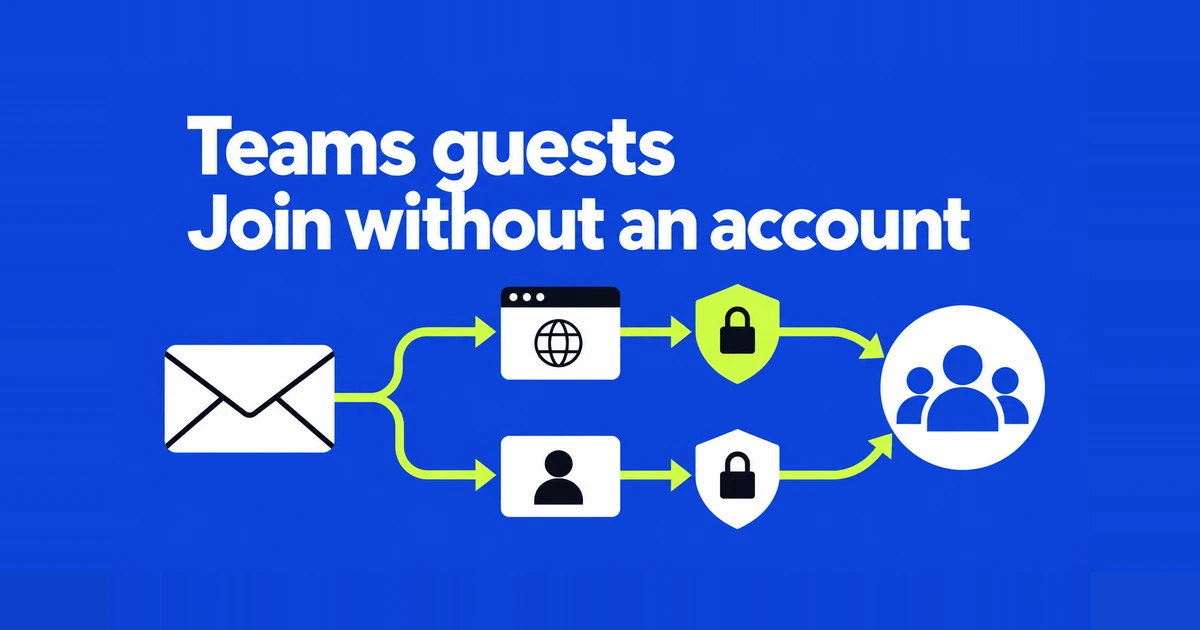
The invitation is sent, the meeting opens on your laptop, and everything appears ready. Then a client asks which Microsoft account they should use. You had told them they would only need the link.
Your successful sign-in does not establish what an outside attendee will see. A client might need to choose a different account, verify an email address, or wait for admission. Finding their current screen is more useful than asking them to reinstall Teams. This guide covers ordinary scheduled meetings hosted through a work or school organization.
Give computer and mobile attendees different instructions
For a computer, Microsoft documents an account-free route through Edge or Chrome. The attendee opens the invitation and chooses Continue on this browser, then follows the prompts to prepare their name, microphone, and camera. Installing the desktop app is not essential for this route. Availability still depends on the meeting’s requirements. Microsoft’s account-free joining guide
A phone or tablet needs different instructions: Teams meetings do not support joining through a mobile web browser. Use the Teams mobile app. If an attendee installs it after opening the invitation, direct them back to the original meeting link afterward. Otherwise, they may be looking at the app’s start screen without knowing how to reach your meeting. Microsoft’s joining troubleshooting guide
Where the mobile app offers Join as a guest, the attendee can follow that route and enter their name. The button does not mean your company has registered an organizational guest account for them. Keep that distinction in mind when writing instructions: asking someone to install an app and asking them to accept an organization’s guest invitation are different requests.
Two questions narrow the problem quickly: “Are you using a computer or a phone?” and “Can you enter your name, or does it require an account?” A browser permission prompt for the microphone is another separate step. Allowing microphone access will not resolve a sign-in requirement.
Work out what the sign-in screen is asking for
If the pre-join screen already shows an account, the client may be using a personal account or a different employer’s account. The Change option lets them choose another account or, where available, proceed without signing in. That gives you something concrete to check before suggesting a new registration. Microsoft’s guidance for joining outside your organization
An email verification prompt does not necessarily ask the attendee to create a Microsoft account. When that route is offered, they enter an accessible email address, retrieve the one-time code, and enter it themselves. You can help them recognize the step without asking them to send you the code.
Email-code verification is conditional: it requires Teams Premium for the organizer and the relevant administrator policy. A host should therefore avoid promising that every account-free client will be able to join by email alone. The actual meeting needs to offer that route. Microsoft’s meeting options reference
A message requiring a work or school account calls for a different response. Creating a new personal Microsoft account may not satisfy it. If Teams asks for a different account, first establish which account the attendee intended to use. If that is already correct, the host may need an administrator to investigate external access restrictions. Microsoft documents different causes for these messages, including restrictions involving either organization or individual users. External participant errors and their causes
Ask for the wording rather than the shorthand “Teams won’t let me in.” It helps distinguish an account requirement from a verification step the attendee can complete. If the client has been registered as a guest in your organization, they may also need to accept that invitation and sign in to the appropriate organization.
Look for the client in the lobby
When the client reports that they are waiting, open People in the meeting and look for their name in the lobby list. Someone with admission permission can use the check mark beside the name to let them in. If you will be presenting, arrange for another permitted participant to watch for arrivals. Microsoft’s lobby instructions
Receiving an invitation does not guarantee immediate entry. A setting that lets invited people bypass the lobby does not do so for attendees who have not signed in. Resending the same invitation may achieve less than checking whether the client is already waiting. Who can bypass the Teams lobby
For the meeting’s own settings, open its calendar event, view the event details, and go to Options → Meeting access. Check both who can bypass the lobby and who can admit people. Organizers, co-organizers, and presenters ordinarily handle admission, but the allowed roles can be configured. Do not assign a colleague to welcome clients without checking that they have permission.
Setting bypass to everyone cannot override a policy that blocks account-free participation. Even where it is allowed, an early anonymous arrival can still have to wait for a verified participant to start the meeting. Join ahead of the client when checking the route so that this waiting period is not mistaken for a failed invitation.
If you change the lobby options during a meeting, check the list again: people already waiting can remain there. An attendee whose request has expired should rejoin through the correct link and contact the host. Neither an empty participant list nor silence from the client proves that they have not tried to connect.
Give your administrator enough to investigate
For someone to join by entering a name without verification, the organization’s settings and the policy assigned to the organizer must permit it. The administrator can inspect the organizer’s meeting policy in the Teams admin center, alongside the meeting’s verification requirements. If you cannot change an option or cannot find the route you need, explain that you want to invite someone without an account. Ask which requirements apply to your meeting. Microsoft’s anonymous participation policies
A signed-in client from another company raises a different set of questions. External access between the organizations and permissions assigned to users can matter. A registered organizational guest is also distinct from an attendee using another employer’s account. Microsoft’s external meeting planning guide separates these arrangements. It does not mean every occasional client must become a member of your company’s team.
Send a request that identifies the attempted route. The following example assumes you have confirmed the device and the point where the failure occurs; replace the placeholders with what the attendee actually reported.
An external attendee without a Teams account cannot join my scheduled meeting. They opened the invitation in Chrome on a computer and saw this message before reaching name entry: [exact wording]. The meeting link is [link], the organizer is [account], and the attempt was at [date, time, and time zone]. Please check whether my meeting permits unverified participation and whether it requires additional verification.
The useful answer is which approved route the client can use. It need not be a request to allow every outside domain or remove all verification. Policy changes can take up to 24 hours to apply, so a last-minute change is not a reliable promise of immediate access. Ask the administrator what is possible for the upcoming meeting and update the client’s instructions accordingly.
Write the invitation around the route you checked
A rehearsal should resemble the client’s circumstances. Arrange for an outside attendee to try the actual invitation without your employee account, while you are present to admit them. A different organizer’s test meeting may have different policies and will not establish that your invitation works.
| Try before the meeting | Establish | Include in the invitation |
|---|---|---|
| Open the link on a computer | Whether browser joining and name entry are available | The browser and joining choice to use |
| Open it on a phone | Whether the installed app reaches the meeting | App preparation and reopening the link |
| Follow any verification prompt | Whether an account or an email code is required | The account or inbox the attendee needs |
| Wait for admission | Whether the assigned host can admit the attendee | A recognizable display name and a contact |
Check the devices people expect to use; every client does not need to complete every row. Once you have confirmed name-only browser joining and admission, an invitation could say:
On a computer, open the meeting link in Edge or Chrome and continue in the browser. Please enter your name and company so we can recognize you in the lobby. We will admit you from there. If you are asked to sign in or the wait becomes lengthy, contact [person and contact details].
Adapt that message if the meeting requires email verification or a work account. Mobile attendees need the app instructions as well. Finally, agree on where you will send follow-up material: anonymous participants do not have meeting chat access before or after the meeting. A usable email address prevents the next appointment or promised document from being left only in a chat the client cannot open.